
What Is Batch Processing for E-Commerce Product Images
What is batch processing and how does it help e-commerce sellers prepare hundreds of product photos? Learn the workflow, benefits, and platform-ready tips.
You've got a folder full of product photos, and every file needs the same treatment. The backgrounds need removing, colors need correcting, dimensions need changing, and exports need preparing for Amazon, Etsy, and Shopify. Doing that manually for 300 images turns a simple listing task into a production backlog.
Start by separating the work into repeatable rules. Decide which files belong in the batch, define the edits once, set the destination formats, and reserve human review for exceptions. That's the practical answer to what is batch processing for e-commerce images. It's a way to move a catalogue through the same controlled workflow instead of opening every file and repeating the same clicks.
The Catalogue-Scale Problem Every Seller Faces
A seller preparing a seasonal collection might begin with 300 raw photos from a supplier or product shoot. Some have gray backgrounds, some have uneven exposure, and others are framed differently. The Amazon versions need a white background, the Etsy exports need enough resolution for listing presentation, and the Shopify files need a consistent square crop.
One image at a time, the process feels manageable. At catalogue scale, it breaks down quickly. You switch between files, forget which preset you used, miss a product variation, and end up with a collection where similar products look as if different people edited them. The work also delays the listing itself, because image preparation becomes the bottleneck between receiving inventory and publishing it.
The rules usually stay the same across the catalogue:
- Background treatment: Apply the same background standard to every main image.
- Framing: Keep the product in a predictable position and proportion.
- Color: Correct obvious shifts without making one SKU warmer or darker than its neighbors.
- Export: Use platform-specific dimensions and file formats.
- Quality control: Catch blur, clipping, missing edges, and incorrect crops before upload.
That consistency matters beyond image editing. Merchandising teams also need systems that keep product visuals organized and usable, which is why a practical overview of fashion beauty merchandising software can help when imagery connects to broader catalogue presentation. For image-specific organization, a product image library management workflow gives you a clearer place to store originals, processed files, and approved outputs.
Practical rule: If the same instruction applies to more than a few files, stop treating it as a one-off edit. Turn it into a repeatable pipeline.
Batch processing fits this problem because the input is known, the operations are repetitive, and the output needs to be uniform. You still review the results, but you review a controlled sample and the exceptions rather than manually rebuilding every image.
What Batch Processing Actually Means
Batch processing groups a defined set of files and applies the same operations to all of them without requiring manual action on each file. In an e-commerce workflow, the batch might be a folder of new arrivals, a product category, or a seasonal collection.
For example, you could place 500 product photos into a queue, apply background removal, resize each image to 2,000×2,000 px, and export the results as JPEG in one automated pass. The system works through the bounded set according to the rules you configured. You can inspect the results afterward, or review them as they become available if the workflow supports incremental output.
This differs from other processing models:
- Batch processing: A known group of files runs through scheduled, non-interactive operations.
- Real-time processing: A system handles an item as soon as it arrives, such as a live camera filter or an instant preview.
- Stream processing: A continuous flow of data is processed as it moves, such as a live video feed.
A useful definition from Splunk's explanation of batch processing describes it as a non-interactive, scheduled method for executing high-volume, repetitive jobs by grouping data and running it together. For catalogue work, the important words are grouping, repeatability, and no manual intervention per item.
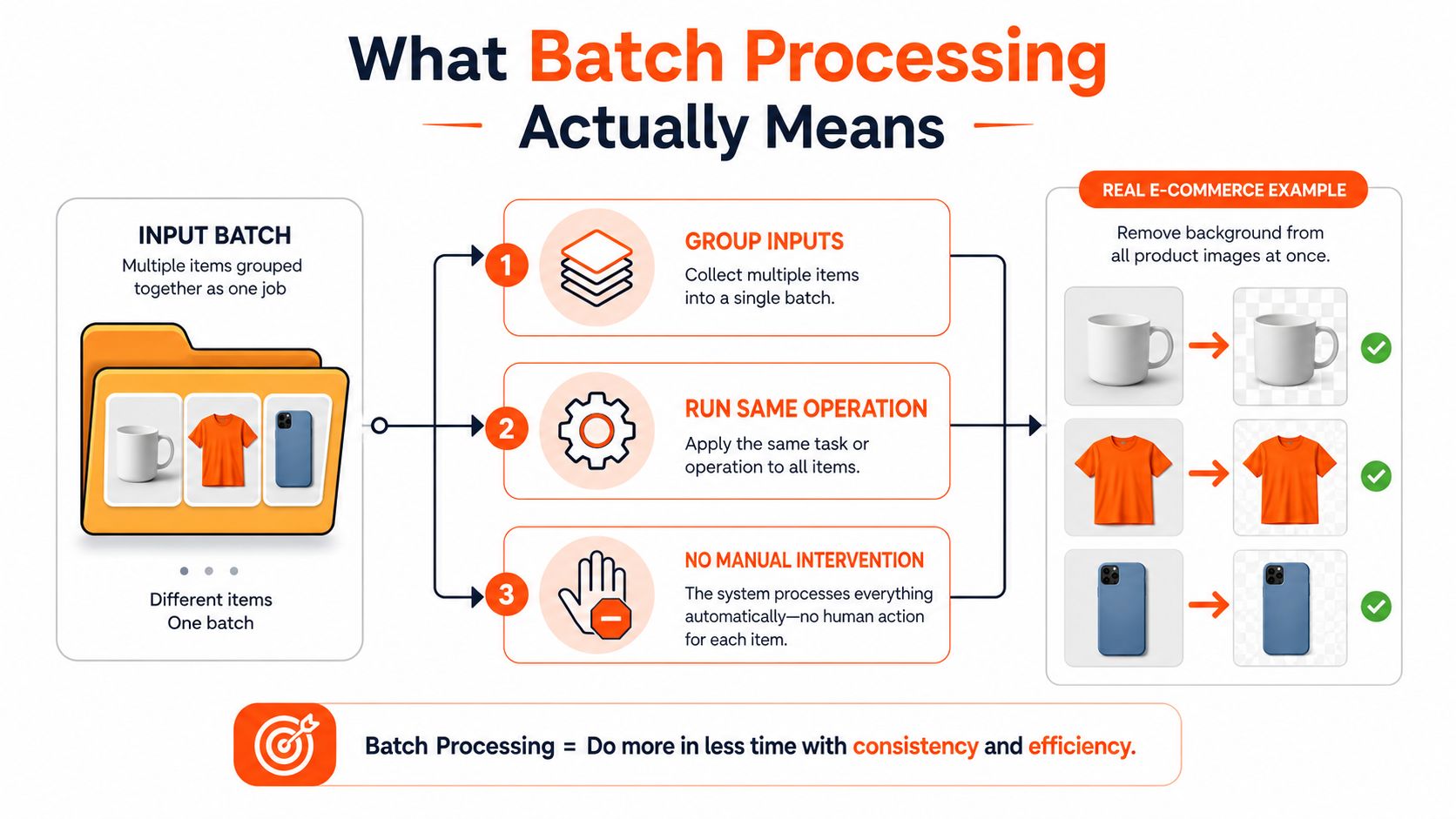
The workflow normally has a clear beginning and end. You collect the files, validate the inputs, run the transformations, and send the outputs to a destination such as a marketplace folder, content delivery network, or archive. That bounded structure makes it easier to identify missing files, retry failed operations, and compare outputs against your catalogue rules.
For sellers who need to monitor queues, failures, and completed jobs, batch process observability tools provide useful background on the visibility layer around automated work. You can also review this guide to AI image workflow automation when several image operations need to run in sequence rather than as isolated edits.
Core Components of a Batch Image Pipeline
A batch image pipeline has four practical parts: input, processing, orchestration, and output. Each part has a job, and a weak link can create catalogue errors even when the editing itself looks good.
Input source
Your files might come from cloud storage, a local upload, an e-commerce platform import, or object storage such as Amazon S3. Before processing, preserve useful product identifiers in filenames or metadata. A clean connection between the source file and the SKU prevents approved images from being attached to the wrong listing.
The pipeline should also perform an input check. Look for unsupported formats, duplicate files, missing variants, and images that are too small for the intended export. Processing a bad source at scale only produces a larger set of bad outputs.
Processing steps
Common operations include background removal, global color correction, white-balance adjustment, reframing, resizing, upscaling, and format conversion. The point isn't to apply every possible operation. The point is to define only the operations the collection needs, then apply them consistently.
A documented batch process for supplier photos commonly follows a repeatable pattern: gather files, run a quality check, apply global edits, remove backgrounds, then export and archive. That structure works because every SKU passes through the same checkpoints.
Orchestration and output
The orchestration layer decides which step runs first, what can run in parallel, and what happens when a step fails. Background removal might need to finish before a product is placed into a lifestyle scene. A final export shouldn't run until the crop and color treatment are approved.
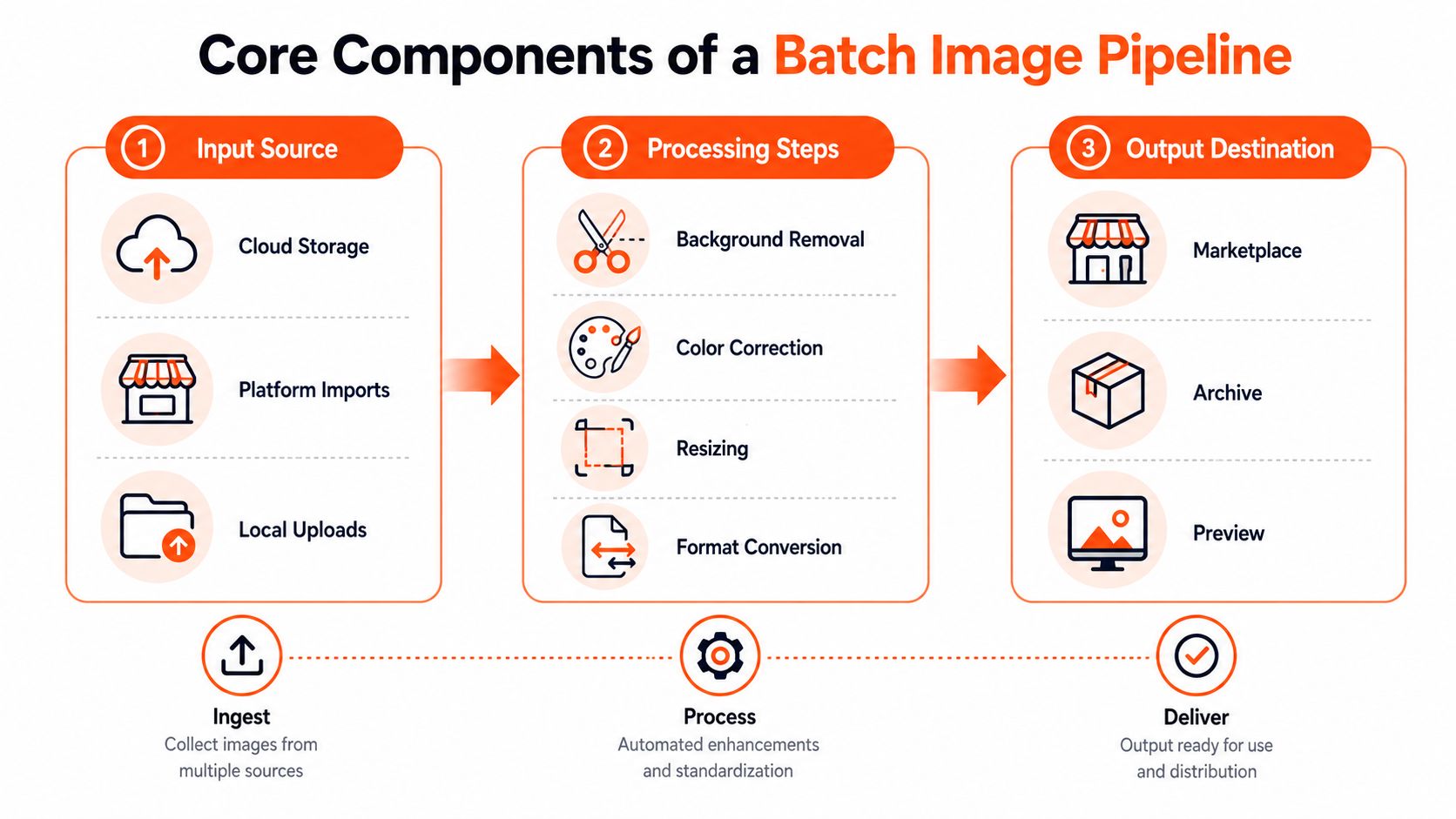
The output destination can be a marketplace upload folder, a CDN, a shared team library, or an archive of approved assets. If you pull files from a connected source such as Amazon S3, this guide to AI image processing from Amazon S3 shows why the connection itself is part of the workflow, not an afterthought.
The order matters because later steps depend on earlier results. A batch isn't just a pile of files moving through identical clicks. It's a controlled sequence where correctness, completeness, and throughput all depend on the relationships between operations.
Batch Processing Versus Real-Time and Stream Processing
For a seller, the choice is usually practical. Do you need an instant response for one image, or do you have a defined collection that needs the same treatment? Static product photography usually falls into the second category.
| Criteria | Batch Processing | Real-Time Processing | Stream Processing |
|---|---|---|---|
| Input pattern | A bounded group of files | One item arriving at a time | A continuous flow of data |
| Catalogue consistency | Strong, because one rule set covers the group | Depends on repeated manual or automated choices | Possible, but usually unnecessary for static images |
| Cost control | Easier to forecast for a defined workload | Can add overhead when repeated across many files | Often requires infrastructure for continuous data |
| Speed to first result | Starts after the queue or trigger begins | Immediate for an individual image | Immediate as data flows |
| Best fit | Repetitive edits across known collections | Instant previews and interactive editing | Live video, telemetry, and other continuous feeds |
| Seller trade-off | More efficient for uniform catalogue work | Useful for feedback, less suitable for bulk consistency | Usually excessive for ordinary product-photo folders |
Real-time processing has a clear advantage when you're adjusting one image and need immediate feedback. It becomes less attractive when you must repeat that interaction across hundreds of SKUs, particularly if each file receives slightly different treatment.
Stream processing is designed for data that keeps arriving. A live video feed is a natural example. A folder of finished product photos isn't. You can read this guide to batch versus streaming data for a broader comparison, but the e-commerce decision is straightforward.
Doing this for a whole catalog?
MerchLoom runs background removal, upscaling and AI editing across every product photo you have — one prompt, whole batch. Try 2 batches free, no signup.
Try it freeChoose batch processing when you have a known set of images, fixed rules, and a catalogue-level consistency requirement.
Batch work can still produce results progressively. That gives you some of the feedback you want from interactive tools without forcing the entire catalogue into a one-file-at-a-time process.
A Practical Batch Workflow for Product Photos
A workable pipeline starts before the first edit. Create separate locations for raw files, working outputs, and approved marketplace exports. Don't overwrite the originals. If a background removal fails or a crop needs changing, you should be able to rerun the workflow from the source.
1. Gather and check the files
Import the collection from cloud storage, a platform connection, or a local folder. Match filenames to SKUs, separate product variations, and remove obvious duplicates. Run a quality check for blur, poor exposure, missing product edges, and images that can't support the target dimensions.
2. Apply global corrections
Correct color and white balance before making platform exports. Use one treatment across the collection, then flag products that need individual review. A red garment photographed under mixed lighting may need attention, but changing every image by hand creates more inconsistency than it solves.
3. Remove backgrounds and reframe
For Amazon main images, use a pure white background, RGB 255,255,255. Marketplace guidance commonly uses 2,000×2,000 px, or at least 1,600 px on the long side, to support zoom and consistent catalogue presentation, as outlined in this product image size guide.
Create separate presets for each destination:
- Amazon: Pure white RGB 255,255,255, with the longest side at least 1,600 px.
- Etsy: 2,000 px on the shortest side, a commonly recommended setting documented in this e-commerce image size guide.
- Shopify: Square exports, up to 4,472×4,472 px where that size suits the source and storefront workflow.
Don't force one export onto every platform. The same product can use one cleaned master image while receiving different crops or dimensions for each channel.
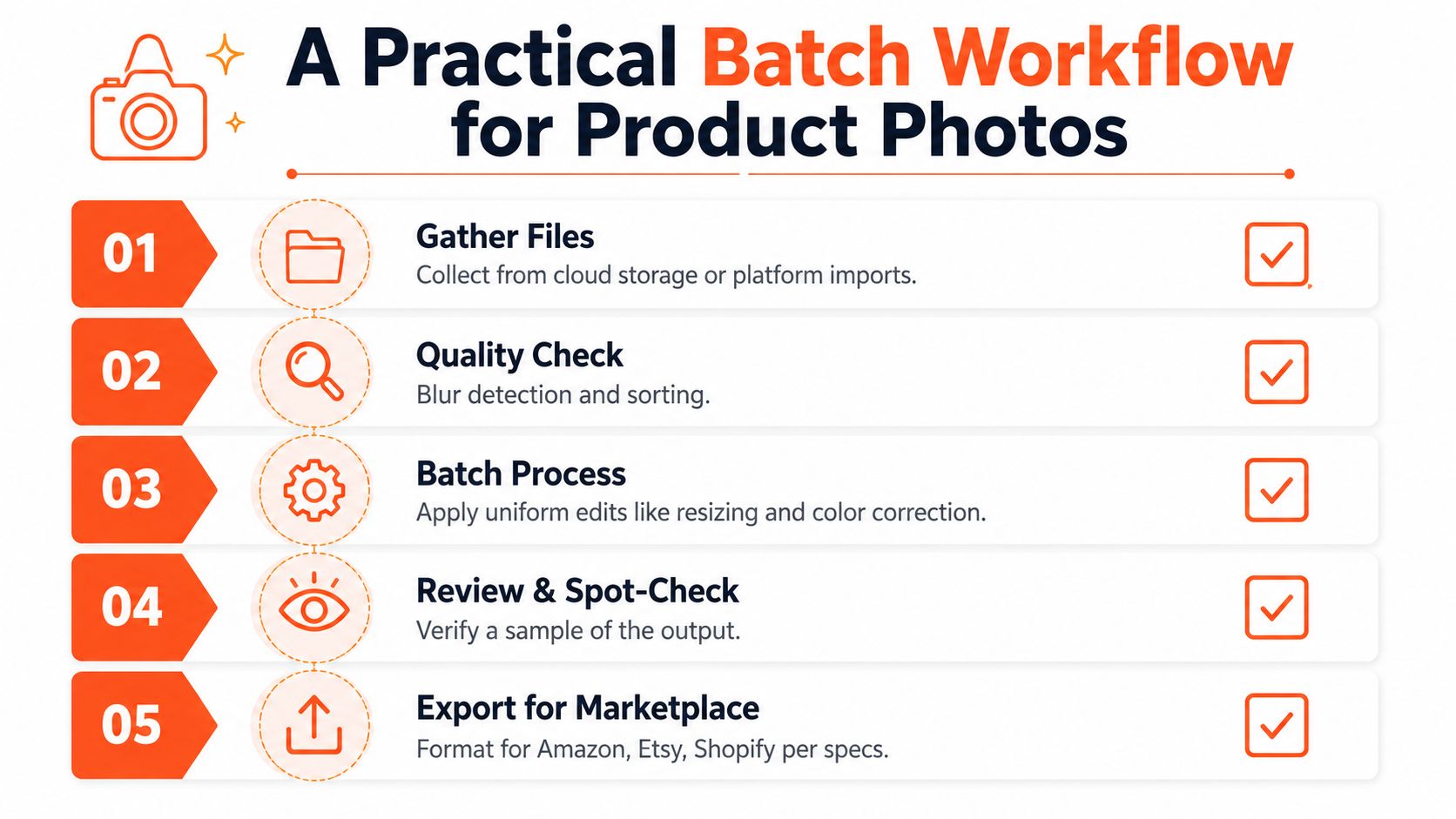
4. Review before publishing
Review a sample from each product type, color group, and source batch. Check hair, straps, handles, transparent parts, shadows, and thin edges. AI output still needs human review, especially where an incorrect mask could make the product look damaged.
Results may arrive while the batch is still running. Use that output to adjust the workflow, then rerun only the affected stage where possible. For a broader approach to bulk editing, see this bulk product photo editor workflow.
How Step Ordering Reduces Processing Costs
The most useful batch pipelines don't run more files at once. They run the right operations in the right order.
Consider background removal and upscaling. If you upscale the complete original first, the system spends compute on the entire image, including pixels that may disappear when the background is removed. Removing the background first creates a smaller subject-focused asset for the expensive enlargement step. The workflow described by dependency-aware batch image processing guidance identifies this ordering principle as a way to improve correctness, completeness, and throughput.
MerchLoom's product information also states that removing backgrounds before upscaling can save up to 87% on that operation, as described in its publisher materials. Because this is an operation-specific claim, treat it as a workflow example rather than a guaranteed result for every image, model, or source resolution.
A sensible sequence often looks like this:
- Normalize the source: Correct orientation, inspect dimensions, and standardize the input.
- Apply global edits: Make color and white-balance adjustments while the full product is still visible.
- Remove the background: Create the clean subject layer needed by later composition steps.
- Upscale or reframe: Enlarge or reposition the cleaned subject rather than the unwanted background.
- Compress and export: Convert to the final marketplace format only after all edits are complete.
- Sync and archive: Send approved files to the catalogue and retain the source-to-output relationship.
Sequence is a cost control. A pipeline that performs unnecessary high-resolution work before filtering or masking will spend resources on pixels you won't publish.
Ordering also protects quality. Color correction before edge detection gives the system a more accurate product appearance. Export compression at the end prevents later edits from working on an already degraded file. These dependencies are easy to miss in a manual workflow because the seller sees only the final image. At batch scale, they affect every SKU in the queue.
Implementation Considerations and Metrics to Track
You can build a pipeline yourself with storage connections, image-processing services, an orchestration layer, and monitoring. That offers control, but it also leaves you responsible for retries, file naming, failed steps, platform presets, and maintenance. A managed workflow is simpler when your priority is preparing listings rather than maintaining image infrastructure.
MerchLoom can run chained AI steps across a whole collection instead of processing one image at a time. It can connect sources such as Google Drive, Shopify, Amazon S3, Cloudinary, and other storage or commerce systems, then apply a repeatable workflow to the imported catalogue. You can try the first images with no account, and its model is pay-per-image with credits that never expire.
Use the AI image workflow for Cloudinary as a reference when your approved assets already live in a CDN or media library. Whichever route you choose, define the operating rules before processing the full collection.
Track metrics that expose both cost and quality:
- Cost per image: Separate source preparation, AI operations, storage, and export costs where possible.
- Processing time per batch: Record how long a collection takes from intake to approved output.
- Catalogue consistency: Compare framing, background color, scale, and visual treatment across related SKUs.
- Error rate: Count failed imports, rejected outputs, incorrect crops, missing files, and manual rework.
- Review workload: Track how many outputs require human correction instead of assuming automation removes review.
AI can handle repetitive transformations, but it doesn't understand every product edge, material, reflection, or marketplace exception. Review samples from each batch and inspect every flagged file before publishing. The aim isn't to remove judgment. It's to move judgment toward the images that require it.
Batch processing turns catalogue image preparation into a repeatable, measurable operation. Once inputs, dependencies, platform presets, outputs, and checks are defined, hundreds of product photos can move through the same system without hundreds of separate editing sessions.
MerchLoom lets you connect existing product-image sources, chain AI steps across a collection, and review outputs as the batch runs. Try your first images with no account, then visit MerchLoom to prepare consistent marketplace assets with pay-per-image credits that never expire.
Stop editing product photos one at a time
Upload your catalog or connect your store. Describe the result once. MerchLoom does the rest.
Try it free — no signup