
AI Image Processing from Amazon S3: Build Scalable Pipelines
Build a scalable pipeline for AI image processing from Amazon S3. This 2026 guide covers authentication, design, and automation for e-commerce catalogues.
Your S3 bucket already holds the hard part: the raw catalogue. The trouble starts after upload. A team needs Amazon-ready white backgrounds, Shopify square crops, Etsy-friendly larger images, maybe a few lifestyle variants, and they need that work to stay consistent across hundreds of listings instead of looking hand-edited one file at a time.
That's where AI image processing from Amazon S3 gets real. The simple demo version is easy: connect a bucket, run a model, save the output. Production is different. Regional latency slows every read, IAM policies break at the least convenient moment, and a badly ordered workflow can burn compute on pixels you were going to throw away anyway. For online sellers running collection updates, seasonal drops, or backlog clean-up, those details matter more than the model name.
Architecting Your S3 Image Ingest Strategy
Teams often begin with a bucket structure that grew organically: /raw/, /edited/, /marketplace/, a few photographer folders, and maybe an archive nobody wants to touch. That's workable, but ingest needs a deliberate shape if you want batch image processing to stay reliable when the catalogue grows.
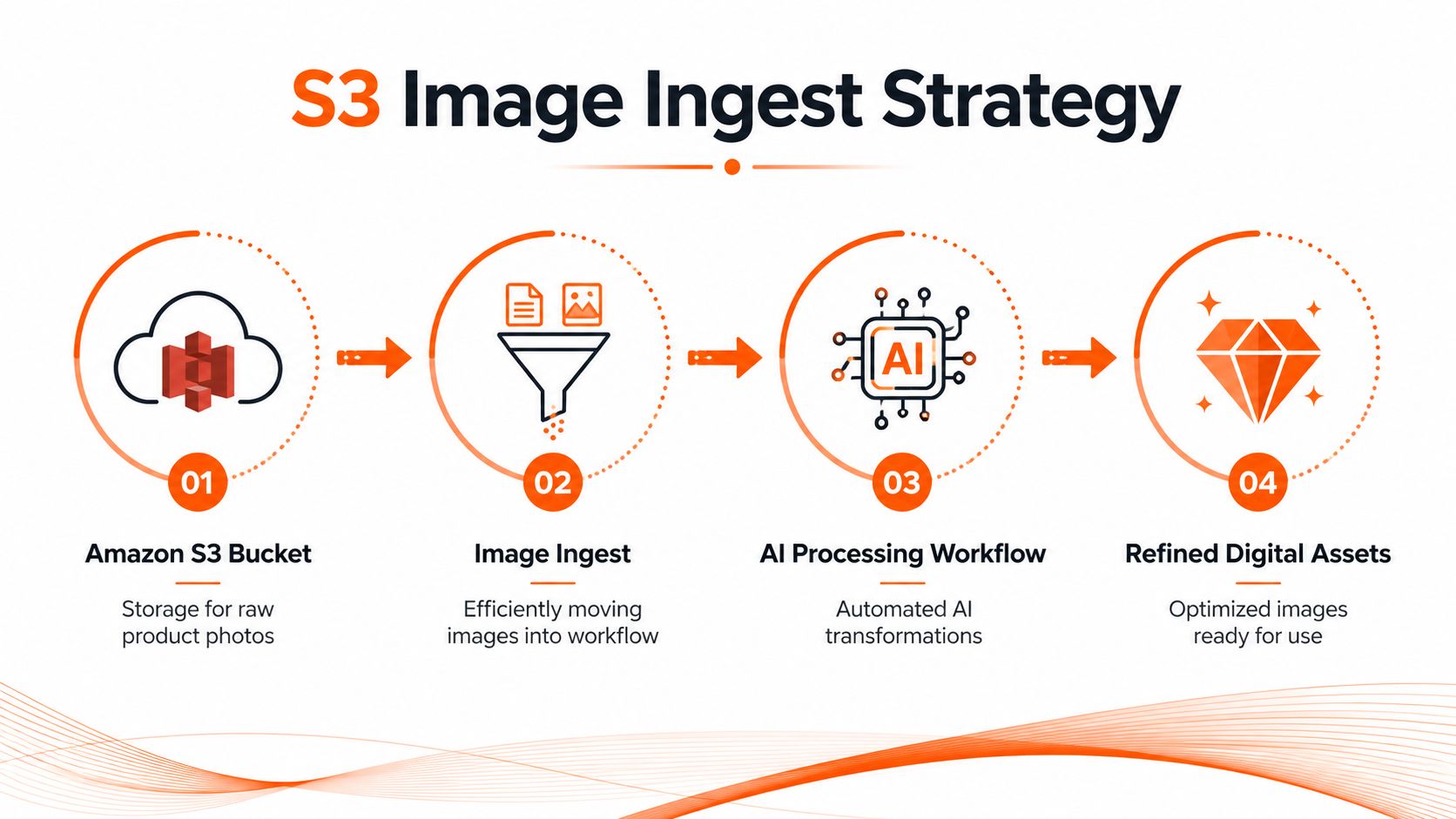
Choose between event-driven and batch-first ingest
There are two patterns worth taking seriously.
Pattern one is S3 event-driven ingest. A new object lands in a bucket or prefix, and that event kicks off processing. This is the better fit when a photographer uploads a small set of fresh product shots and the ops team wants those listing assets turned around quickly. It also works for casual one-photo edits, where immediate feedback matters more than throughput.
Pattern two is bulk ingest with S3 Batch Operations. This is the one e-commerce teams underuse. AWS describes Amazon S3 Batch Operations as a managed feature designed to process billions of objects, ranging from hundreds to trillions, with a single API request or a few clicks in the S3 console in its announcement for S3 Batch Operations. For catalogue refreshes, legacy image clean-up, or marketplace reformatting across large product collections, that model is far more stable than trying to simulate batch work with a flood of individual events.
Practical rule: Use events for arrival-based work. Use batch jobs for collection-based work.
What usually works better in practice
A lot of teams try to force everything through one ingestion path. That's where costs and operational noise pile up. A healthier split looks like this:
- New arrivals: Trigger processing from an upload event when speed matters for newly photographed SKUs.
- Backlog remediation: Use a manifest-driven batch run for old catalogue images that need background fixes, resizing, or platform-specific variants.
- Reprocessing: Keep a separate reprocess prefix or manifest list so you can rerun only the assets affected by a workflow change.
For architecture decisions at this level, I'd look at Wonderment Apps' cloud native expertise because the useful lesson isn't AWS-specific. It's that cloud-native systems work best when you separate event handling from bulk orchestration instead of blending both into one brittle pipeline.
Ingest rules that save pain later
The ingestion layer should do more than accept files. It should enforce predictability.
| Ingest concern | Better choice | Why it matters |
|---|---|---|
| Folder intent | Separate raw, processed, and published prefixes | Prevents accidental overwrites |
| Trigger scope | Narrow event rules by prefix or workflow | Stops every upload from invoking expensive jobs |
| Batch inputs | Build manifest lists by collection, season, or channel | Makes reruns controlled and auditable |
A lot of teams also benefit from keeping workflow logic outside the bucket itself. If you want a broader view of that operating model, this e-commerce image automation guide is a helpful reference for how repeatable catalogue workflows get structured beyond simple storage events.
Securely Connecting S3 to Your AI Workflow
The most common mistake isn't model choice. It's assuming the connection layer is trivial. Teams copy an IAM policy from an old project, point a service at a bucket, and expect the rest to sort itself out. That's how you end up with access denied errors, silent region mismatches, and batch jobs that crawl for reasons nobody can see at first glance.
Stop using broad IAM policies
The right S3 connection for AI image processing from Amazon S3 is narrow by design. Grant access to the specific bucket and, ideally, the specific prefixes the workflow needs. If a system only reads /raw/ and writes /processed/, don't grant broad bucket-wide powers just because it's faster to configure.
A least-privilege setup usually means being explicit about three things:
- Read scope: Limit object reads to the source paths holding original product imagery.
- Write scope: Restrict output writes to destination prefixes for transformed assets.
- Operational actions: Allow only the object and listing actions the workflow needs.
Broad access feels faster on day one. It creates slower incident response on day thirty.
This matters even more when an external workflow system is involved. If your team has dealt with image automation from shared storage before, the same discipline shows up in this AI image editing from Google Drive workflow example. Different source, same operational rule: permissions should match the exact path and job behaviour.
Region mismatch is a real throughput killer
The other failure mode is less obvious because the pipeline still “works”, just badly. The bucket lives in one region, the AI workload defaults to another, and every image read pays the penalty.
According to a Stack Overflow page discussing S3 region endpoint mismatches, 68% of Canadian e-commerce developers report latency or access errors when AI services attempt to read S3 buckets due to mismatched region-endpoint settings. The same source notes that in California, when brands store S3 data in us-west-2 but run AI workloads in us-east-1, cross-region latency adds 120–180ms per image.
For a single product photo, that's annoying. For a seller processing hundreds of listing images, each extra read compounds across the batch.
Connection checks before you run production jobs
A reliable setup review is short and unglamorous:
- Confirm the bucket region.
- Confirm the AI execution region.
- Verify the client is using the bucket's correct regional endpoint.
- Test read and write access against the exact prefixes used in production.
- Fail fast if the workflow detects a region mismatch instead of retrying indefinitely.
A lot of “AI is slow” complaints are really storage path problems. The model gets blamed, but the network path is the bottleneck. If your ops team sells across Amazon, Shopify, and Etsy with different image requirements, region hygiene is the difference between a workflow that feels operationally boring and one that becomes a weekly support issue.
Designing a Catalogue-Scale Processing Pipeline
A single transformation isn't a pipeline. A pipeline is a sequence with intent. In e-commerce, that intent is almost always channel readiness: clean product isolation for Amazon, square composition for Shopify, and larger publishable assets for marketplaces that expect more detail.
The first technical reality to respect is that S3 is storage, not an image editor.
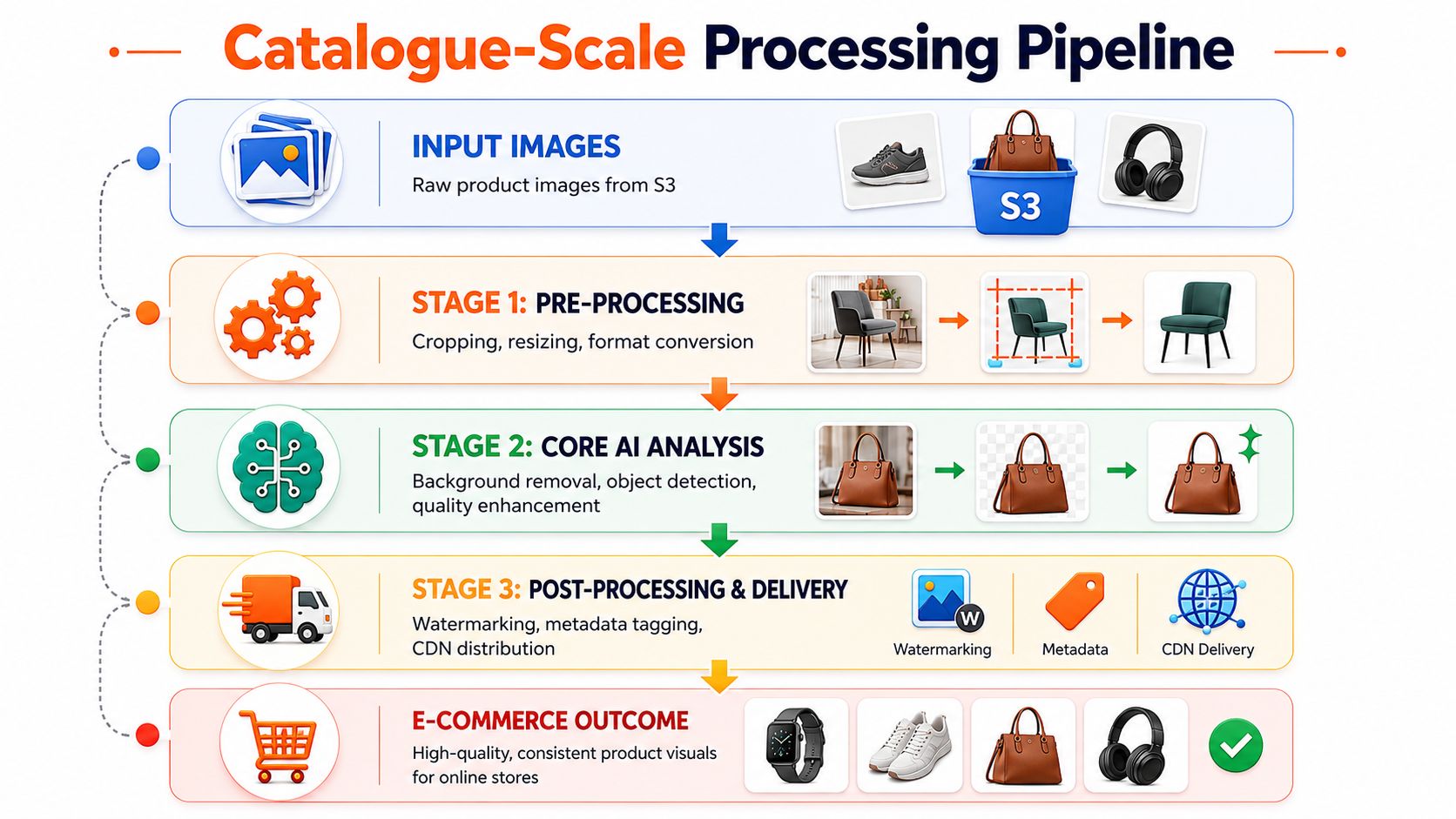
AWS-based pipelines generally download the image object to a processing environment, such as Lambda, EC2, or SageMaker, perform the transformation, and then replace the S3 object because S3 does not support in-place modifications, as noted in this discussion of S3 image processing patterns. The same source also points to a proven enterprise pattern that deploys ComfyUI workflows on SageMaker AI processing jobs with ml.g5.xlarge GPU instances.
A practical sequence for product catalogues
That constraint shapes the pipeline. For catalogue-scale work, I'd structure the transformation chain around the final selling channel, not around whichever AI feature seems most interesting.
- Start with classification and routing. Separate hero images, alternate angles, detail shots, packaging photos, and lifestyle source material. Different roles need different edits.
- Then normalise composition. Correct framing, crop intelligently, and create the aspect ratios required by each destination.
- Apply channel-specific edits. Amazon often means a pure white product image. Shopify usually needs cleaner square presentation. Etsy listings often need larger polished assets.
- Finish with enhancements. Upscaling, scene generation, and derivative variants belong after the workflow knows which image is worth enhancing.
The best catalogue pipelines are opinionated. They don't ask every image to go through every step.
Operational workflow systems become valuable. Instead of forcing the ops team to hand-build a chain for every collection, a system can recognise image roles, generate a structured edit plan, run the needed transformations, and upscale outputs when that's justified. For batch-heavy teams, this batch product photo editing workflow article captures that pattern well.
To see how adjacent teams think about multi-step media workflows, not just still images, this guide to AI real estate video tools is useful reading. The category is different, but the operating principle is the same: sequence matters, asset roles matter, and downstream publishing requirements should define the pipeline.
A short walkthrough helps visualise the flow:
What not to do at scale
Doing this for a whole catalog?
MerchLoom runs background removal, upscaling and AI editing across every product photo you have — one prompt, whole batch. Try 2 batches free, no signup.
Try it freeTeams usually run into trouble when they design pipelines as feature checklists.
| Bad pipeline habit | Result |
|---|---|
| Same workflow for every image role | Over-processing and inconsistent outputs |
| Marketplace rules added at the end | Manual cleanup before publishing |
| GPU-heavy steps too early | Slow batches and inflated compute use |
A catalogue pipeline should produce outputs that are already organised for downstream publishing. That means clear folder conventions, channel-specific destinations, and predictable file naming. If the final handoff to listing software still requires someone to sort, rename, or inspect everything manually, the automation hasn't done enough.
Optimizing Pipelines for Cost and Performance
Most cost problems in image workflows aren't caused by AWS itself. They come from doing expensive work too early. If you upscale first, then remove the background, then crop, you've paid to enhance pixels that never survive to the final listing image.
Sequence expensive work last
For AI image workflows, AWS notes in this video reference on S3-based AI optimisation that removing backgrounds before upscaling can reduce computational costs by up to 87% by shrinking image file sizes before expensive scaling operations occur. The same reference also notes that Amazon S3 can hold hundreds of petabytes of data for AI training and inference workloads, which tells you why the ordering problem matters so much at scale.
That principle is easy to apply in e-commerce:
- Remove waste first: Background removal, mask creation, and aggressive cropping reduce what later steps need to process.
- Resize with purpose: Generate only the dimensions needed for Amazon, Shopify, Etsy, or ad channels.
- Upscale only final candidates: Don't upscale drafts, rejects, or intermediary variants.
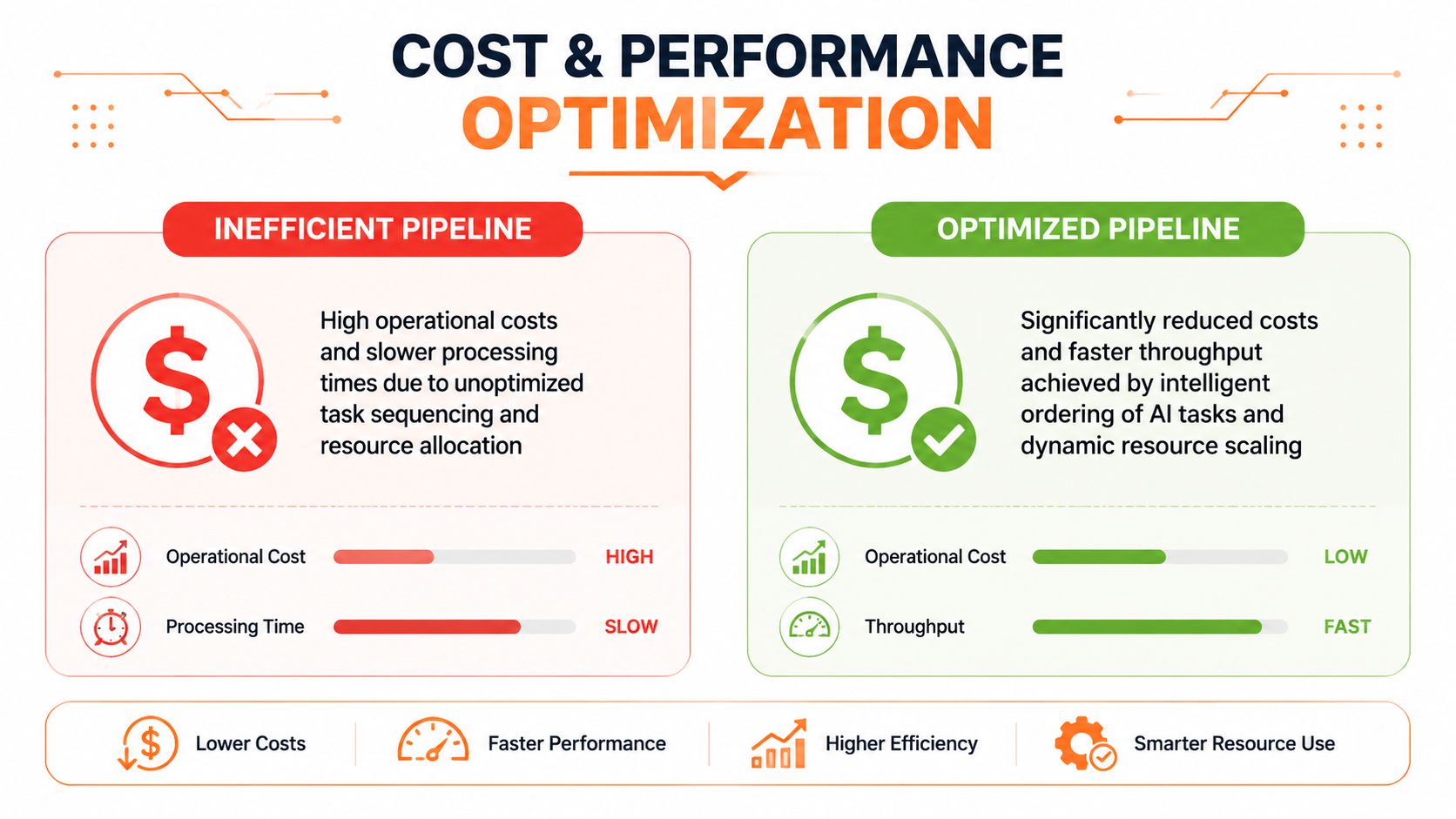
Resource choices should match the job
A small correction and resize pass might fit a lightweight runtime. A chained workflow with segmentation, relighting, and upscale steps may justify GPU-backed processing. The mistake is treating every image in the catalogue like a premium creative asset.
For online sellers with hundreds of photos, it helps to sort work into lanes:
| Job type | Better handling |
|---|---|
| Simple resize and format conversion | Lightweight serverless or CPU path |
| Background removal and quality cleanup | Standard AI processing lane |
| Heavy upscale or generative scene work | GPU-backed batch lane |
Optimisation starts before the model runs. It starts when you decide which images deserve the expensive path.
That's especially important when a collection includes mixed source quality. Some images need only formatting. Others need substantial repair. If the workflow can detect that distinction and reorder steps automatically, the batch becomes much cheaper to operate. For a wider look at that kind of planning logic in commerce workflows, this product photo automation article is worth reading.
Streaming Results and Handling Processing Errors
Batch jobs feel risky when the workflow is opaque. A team starts a run against a large collection, waits, and hopes the output is usable. If the first twenty images are wrong, the entire batch may already be halfway done before anyone notices.
Don't treat batch processing like a black box
The better operating model is progressive visibility. Review the first finished images early. Check whether the white background looks clean enough for Amazon, whether Shopify crops are centred properly, and whether your Etsy outputs still hold product detail. If the workflow is drifting, stop it before the full collection burns through time and budget.

That matters even more when external batch tooling is part of the flow. The Roboflow guide to batch processing for AWS S3 images notes that users must generate short-lived S3 signed URLs and upload a reference file such as JSONL with image names and URLs to create the batch. In practice, that means a bad reference file or malformed URL list can fail the run before the image model even sees the data.
The failures that show up most often
In production, errors are usually mundane:
- Corrupted source files: The object exists, but the processor can't decode it as a valid image.
- Mislabelled inputs: A file extension suggests one format while the binary content says another.
- Broken batch manifests: The signed URL expired, the JSONL structure is wrong, or an object path points to the wrong key.
- Permission drift: The workflow could read yesterday's prefix but can't write to today's publish path.
Good systems separate item-level failures from job-level failures. If five images fail in a batch, the team should reprocess those five, not rerun the full catalogue.
For teams building their own operational wrappers, RenderIO's documentation on managing API errors is a useful mental model. The important part isn't the platform. It's the discipline: classify transient failures differently from permanent input errors, and make retries selective.
What good monitoring looks like
A useful batch dashboard should answer four questions quickly:
- Which images finished successfully?
- Which ones failed, and why?
- Can the failed subset be rerun by itself?
- Are the outputs landing in the correct downstream folder or publishing path?
If your team still has to open raw logs to answer basic batch-status questions, the observability layer is underbuilt. E-commerce ops doesn't need glamour here. It needs clarity.
Deployment Examples and CI/CD Automation
Once the workflow is stable, the next step is removing humans from the handoff path. A photographer uploads new product images into an incoming prefix. The pipeline validates them, launches processing, and drops finished variants into a published destination that the listing system can consume.
A simple automation pattern
A common approach is to let S3 remain the source of truth and use your CI/CD layer as the orchestrator. The trigger can come from an upload event, a scheduled catalogue refresh, or a manual release action when a merch team approves a collection.
A lightweight Python example for kicking off your own batch orchestration from object events might look like this:
import boto3

s3 = boto3.client("s3")

def start_catalogue_job(bucket, manifest_key, workflow_name):
    return {
        "bucket": bucket,
        "manifest_key": manifest_key,
        "workflow": workflow_name,
        "status": "queued"
    }

def handler(event, context):
    record = event["Records"][0]
    bucket = record["s3"]["bucket"]["name"]
    key = record["s3"]["object"]["key"]

    if key.startswith("incoming/"):
        manifest_key = key
        return start_catalogue_job(
            bucket=bucket,
            manifest_key=manifest_key,
            workflow_name="marketplace-image-pipeline"
        )
The point isn't the snippet itself. The point is where it fits. Your CI pipeline can watch for a release branch, a collection approval, or a new manifest file and then submit a job to the batch processor that handles catalogue transformations.
CI/CD logic that fits e-commerce operations
A predictable release flow often looks like this:
- Incoming prefix: Photographers or upstream systems write raw assets to a controlled S3 location.
- Validation step: CI checks naming, image presence, and collection completeness.
- Processing launch: The batch workflow runs the required marketplace transformations.
- Publish step: Approved outputs move into a published prefix for listing tools, feed systems, or CDN distribution.
A lot of teams discover that “image editing” becomes release engineering once volume goes up. This AI image workflow automation article is a helpful reference if your team is trying to formalise that handoff between storage, workflow execution, and downstream publishing.
The advanced pattern for just-in-time transforms
For teams operating in the US West, there's also a more advanced option. In the US West (Northern California) region us-west-1, AWS has implemented S3 Object Lambda, which lets organisations attach a Lambda function with image resizing and conversion logic directly to an S3 Access Point for just-in-time transformations before an AI model retrieves the raw image, according to this overview of Amazon S3 capabilities.
That's useful when you don't want to pre-generate every variant. Instead of storing multiple prepared versions of the same product image, you can apply transformations at read time for specific consumers or internal processing stages. It's a strong fit for advanced teams that want fewer stored derivatives and tighter control over preprocessing logic.
The trade-off is operational complexity. JIT transformation is powerful, but it's not the first thing to deploy. Get the core batch pipeline clean first. Then decide whether reducing stored variants is worth the extra moving parts.
If your team already stores product images in S3 and needs a repeatable way to process whole collections instead of editing one file at a time, MerchLoom is built for that workflow. It works with existing object storage, recognises image roles, generates structured AI edit plans, runs chained transformations across batches, and upscales final outputs for downstream publishing.
Stop editing product photos one at a time
Upload your catalog or connect your store. Describe the result once. MerchLoom does the rest.
Try it free — no signup