
Ecommerce Image Automation: Save Time, Boost Sales
Discover how ecommerce image automation saves hours. Create consistent, high-quality images for Shopify, Amazon, & Etsy. Boost your product visuals in 2026!
If you're selling online, you already know where product photography work goes off the rails. You finish a shoot, dump a folder full of images into Drive, and then the intensive labour starts. One image needs a white background for Amazon. Another needs a square crop for Shopify. Etsy wants a larger zoom-friendly version. Instagram ads need a different composition again. By the time you've worked through one collection, the next batch is already waiting.
That cycle is why ecommerce image automation matters. Not as a flashy AI trick, and not as a replacement for judgement, but as an operational change. The shift is from editing one file at a time to processing an entire catalogue through a repeatable system.
For sellers with hundreds of images, that's the difference between a weekend lost to resizing and a catalogue that stays organised, consistent, and ready for every channel you sell on.
The Reality of Manual Image Processing for Sellers
Most sellers don't start with a broken workflow. They start with a workable one that collapses under volume.
A small catalogue can survive on manual edits. You open Photoshop or Canva, remove a background, export a square version, make another export for a marketplace, and move on. That feels manageable until you launch a seasonal collection, add colour variants, or expand from one storefront to Amazon, Etsy, eBay, WooCommerce, Instagram, and paid ads.
Then the same three problems show up together:
- Repetition piles up: the same cleanup and resizing steps happen again and again.
- Standards drift: one batch has a bright white background, another looks grey, and crops vary by product type.
- Listing speed slows down: products wait on image prep instead of going live.
For retailers managing hundreds or thousands of SKUs, scale becomes the main issue. Manual editing turns into a bottleneck, while automated processing can handle large volumes in a fraction of the time and keep outputs consistent across Shopify, Amazon, and social channels, according to Pixelixe's overview of ecommerce image workflows.
Where manual work breaks first
The first break isn't usually quality. It's coordination.
Your raw files might sit in Google Drive, edited images in Dropbox, marketplace versions on a local folder, and ad creatives in another design tool. A seller can keep that in their head for a while. A team can't. Even solo operators eventually lose track of which file is the approved cut-out, which one is the Etsy export, and which version got compressed too many times.
A related problem appears once you start automating the posting side of content. If product visuals feed into Instagram campaigns, it helps to separate image production from publishing and use a dedicated scheduling process. For that part, it's worth reviewing discover Mallary.ai for Instagram auto-posting so image prep and channel distribution don't get tangled together.
Manual image editing rarely fails because the tool is bad. It fails because the catalogue got bigger than the process.
The hidden cost of one-off edits
One-off editing also makes simple improvements harder than they should be. If you decide every hero image needs a cleaner backdrop or more consistent framing, you have to revisit old work manually. That's slow, expensive, and easy to postpone.
Sellers who are still fixing product photos by hand often benefit from tightening their original photography setup first. A better shooting environment reduces exceptions before automation even begins, which is why guidance on a studio photo backdrop setup for product photography matters more than commonly perceived.
What Ecommerce Image Automation Actually Means
Ecommerce image automation is best understood as a workflow, not a feature.
A background remover on its own is useful, but it isn't a system. A real automation setup works more like a digital assembly line. Images go in as a batch, move through a defined sequence of steps, and come out in the formats each sales channel requires.
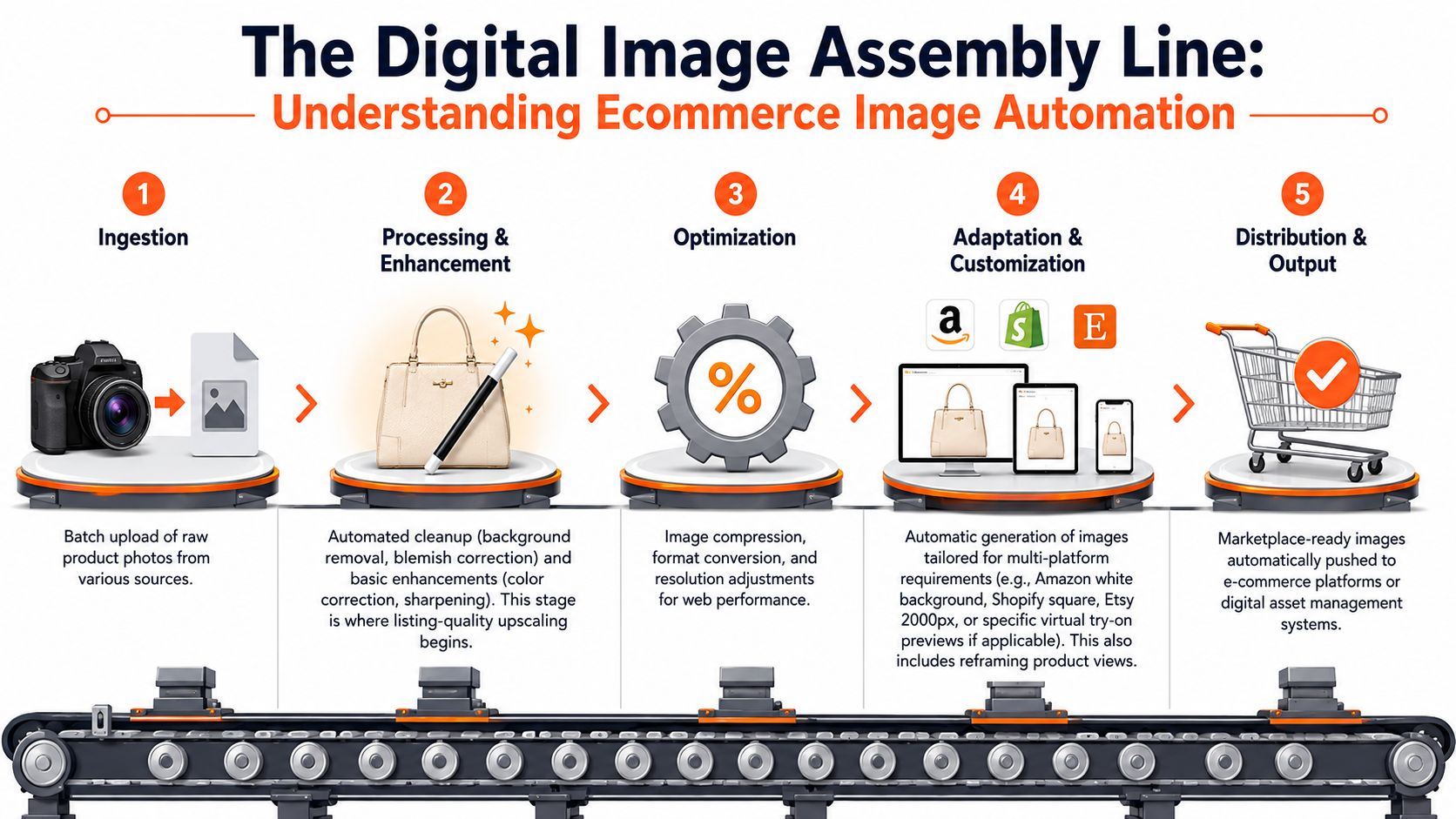
Think in pipelines, not edits
A practical pipeline often includes these stages:
Ingestion
Pull raw images from existing folders, cloud storage, or platform libraries.Cleanup
Remove backgrounds, correct colour, tidy minor distractions, and sharpen where needed.Optimisation
Compress, convert formats, and prepare output sizes that won't slow storefront pages.Adaptation
Reframe the same product for Amazon, Shopify, Etsy, eBay, Instagram, and ad placements.Export
Save the right versions back to the systems your team already uses.
That assembly-line model is a fundamental shift. A key milestone in image automation was the move from one-off editing to rules-based generation from structured data, such as a product feed or spreadsheet. Industry coverage notes that this lets merchants create many personalised graphics in seconds, and the same source also says 56% of companies are using marketing automation (Robolly on image automation and marketing automation adoption).
What a single-task tool can't do
Single-task tools usually break down in the middle of the lifecycle.
They'll remove a background, but they won't automatically generate:
- a white-background marketplace version
- a square storefront crop
- a taller social version
- a lifestyle variant for ads
- a listing-quality upscale for zoomable product pages
They also tend to force re-uploading. That's where teams lose time. If your image library already lives in Shopify files, Cloudinary, Google Drive, or S3, the better model is an automation layer that works on top of that library instead of making you rebuild it.
One example is AI product visualisation workflows for catalogue imagery, where the point isn't just generating a scene once. It's using approved product images as inputs for repeatable outputs across many listings.
Automation still needs rules
Automation doesn't remove decision-making. It moves the decision-making earlier.
You still have to define:
- which products get a pure cut-out versus a lifestyle scene
- which channels need square, portrait, or zoom-ready formats
- how much colour correction is acceptable before a product stops matching reality
- whether virtual try-on previews are suitable for the category
Practical rule: If a step should happen the same way on fifty images, it belongs in the workflow. If it needs product-by-product judgement, keep a review checkpoint.
That's why the strongest setups combine batch processing with checkpoints. The system handles repetition. A human signs off on exceptions.
Key Benefits for Batch-Processing Sellers
The biggest win from ecommerce image automation isn't novelty. It's operational control.
Sellers tend to focus on the most visible step, usually background removal. The bigger savings come from what happens around it: fewer re-exports, fewer naming mistakes, less duplicate work, and less time spent adapting the same product image for every channel.
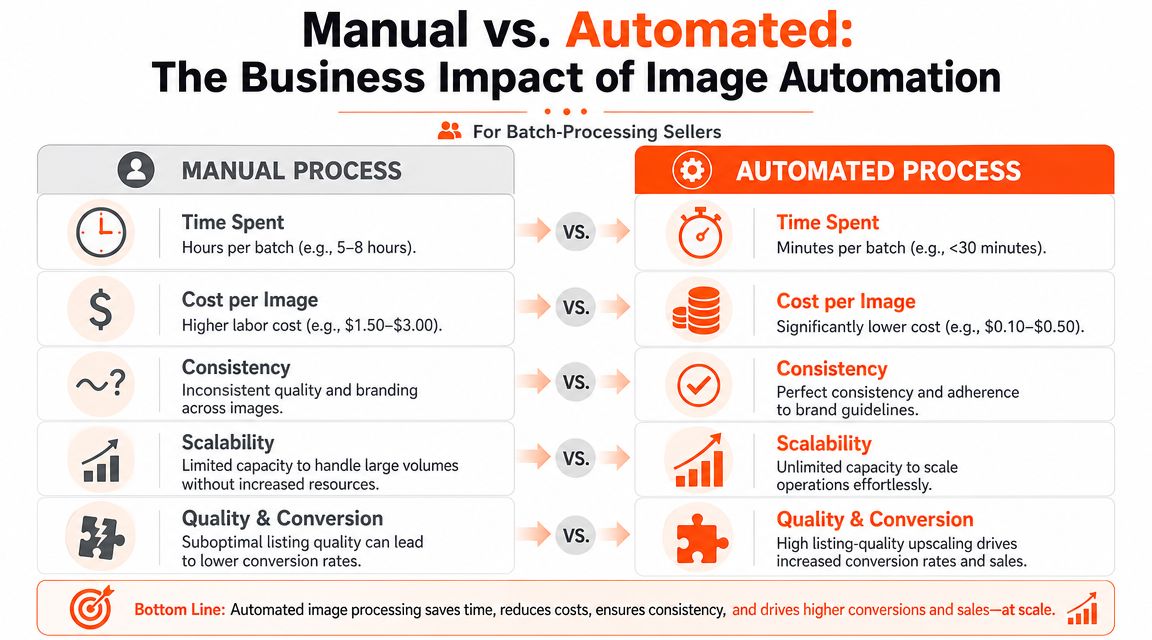
Faster time to listing
When a catalogue team works manually, image prep delays publishing. That affects launches, restocks, promotions, and reactive pricing changes.
Automated workflows speed up listing readiness because they process collections in batches instead of relying on someone to touch each file one by one. For stores with frequent drops or marketplace-heavy operations, that matters more than polished editing on a single hero image.
An organised workflow also reduces the lag between merchandising decisions and live listings. If a product image is already cleaned, reframed, and export-ready, the business can react faster.
Better consistency across channels
Consistency sounds cosmetic until you manage multiple storefronts.
Customers notice when:
- one Amazon listing uses a hard crop and another leaves too much whitespace
- Etsy images look warmer than the same item on Shopify
- ad creatives pull from a different visual standard than product pages
That inconsistency creates friction. It also forces your team to keep correcting old work. Batch automation fixes this by applying the same rules to every asset in the set.
If you're tightening the storefront side specifically, these Shopify image optimization techniques are a useful companion to batch processing because optimisation and consistency need to work together.
Lower rework and cleaner economics
The strongest argument for automation is financial, but not in the way most marketing copy suggests.
The ROI comes less from flashy outputs and more from eliminating rework, standardising variant creation across channels like Amazon and Shopify, and controlling per-image processing cost across thousands of SKUs, especially in a market where ad costs are rising, as noted by Sitetuners on product image workflow economics.
A simple way to look at it:
| Workflow issue | Manual outcome | Automated outcome |
|---|---|---|
| New marketplace requirement | Team revisits old files | Rules update once, then re-run on batches |
| Seasonal creative refresh | New exports created from scratch | Existing approved assets become reusable inputs |
| Catalogue expansion | Labour scales with volume | Processing scales more predictably |
| Team handoff | File confusion and inconsistent naming | Repeatable outputs with standard patterns |
Why catalogue-wide tooling matters
Batch-focused tools distinguish themselves from casual photo editors. A bulk product photo editor built for catalogue operations is useful because sellers don't just need edits. They need repeatable production.
Good automation doesn't just make images faster. It makes the whole catalogue easier to operate.
That's the part sellers usually feel after a few weeks. The team stops asking where the latest export sits, which background version is approved, or whether the Etsy image came from the corrected master file.
Common Automated Workflows in Action
The easiest way to judge ecommerce image automation is to look at complete workflows, not isolated tasks. Most sellers need two different production paths. One is for listings. The other is for marketing.
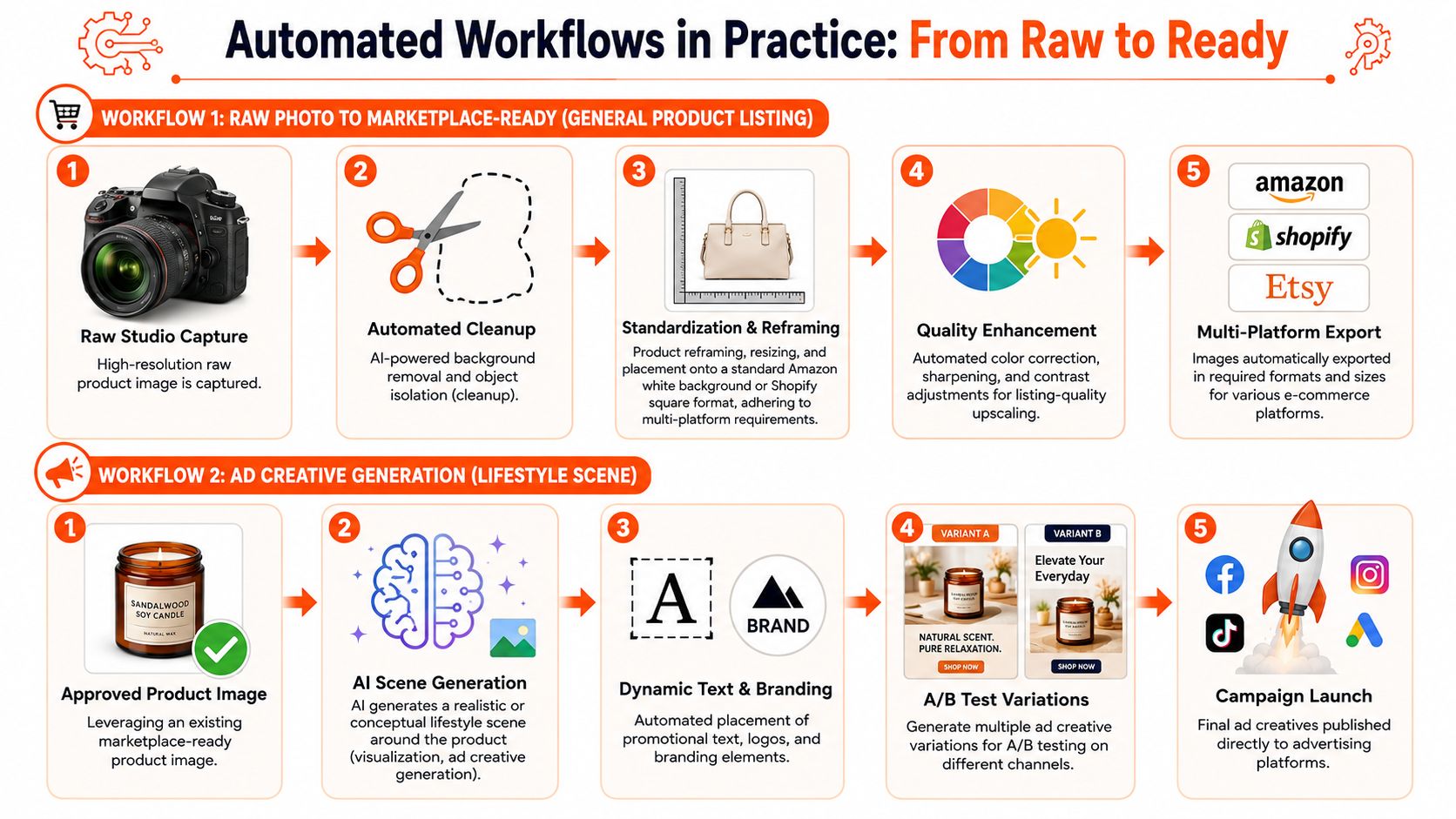
Workflow one from raw photo to marketplace-ready
Doing this for a whole catalog?
MerchLoom runs background removal, upscaling and AI editing across every product photo you have — one prompt, whole batch. Try 2 batches free, no signup.
Try it freeA typical listing workflow starts with a raw studio image. The product has decent lighting, but the file still isn't usable as-is.
The batch process usually goes like this:
- Raw capture enters the queue: original files come from a studio folder, cloud drive, or a photographer handoff.
- Cleanup runs first: backgrounds are removed, edges refined, and distracting artefacts dealt with.
- Framing gets standardised: the same product is placed correctly for an Amazon white background, a Shopify square crop, and an Etsy-ready export.
- Quality adjustments follow: mild colour correction, sharpening, and upscale decisions happen after the core composition is fixed.
- Outputs are delivered by channel: the seller receives a set of finished variants mapped to where they will be used.
This works well for stores that sell one product in several places and need every destination to follow a different house rule. Amazon often wants a very clean main image. Shopify often benefits from a square-first catalogue. Etsy sellers usually care about zoom clarity and closer presentation of craft detail. eBay and WooCommerce sit somewhere in between depending on the category.
A useful discipline here is to define the required outputs before touching the images. If your team improvises export sizes after editing, you'll create duplicate versions and naming chaos fast.
Workflow two from approved product image to ad creative
The second workflow starts later in the lifecycle. You already have an approved product cut-out or a compliant listing image. Now you need marketing assets.
That process often looks like this:
Select the approved source image
Use a marketplace-ready product image as the starting point.Generate scene variants
Place the product into styled interiors, model-led visuals, packaging compositions, or seasonal backgrounds.Create ad formats
Add text overlays, sale messaging, branded elements, or alternate crops for paid social.Produce testable versions
Export multiple visual treatments for different placements and campaign ideas.Send assets to the marketing stack
Final creatives move into the ad workflow without rebuilding from scratch.
Later-stage image work can also include virtual try-on previews, especially for categories like jewellery, eyewear, accessories, and apparel. The point isn't to replace photography entirely. It's to extend the value of approved product imagery across more uses.
For sellers experimenting with more distinctive campaign visuals, Direct AI's guide to unique visuals is a useful reference because it shows how creative variety matters once the base catalogue work is already stable.
A brief walkthrough helps make the second workflow more concrete:
Where an automation layer fits
The operational challenge is that sellers rarely want separate tools for each step. They want one system to work across the full image lifecycle, from cleanup to marketplace exports to promotional creative.
That's where an automation layer such as AI product scene generation for batch catalogues becomes useful. The practical value isn't that it can generate a scene once. It's that it can run chained AI steps against existing product image libraries and keep those outputs consistent across a whole collection.
If your ad team is rebuilding from scratch while your catalogue team edits by hand, you don't have one workflow. You have two separate production problems.
Your Implementation Checklist for Image Automation
Teams often don't require a huge migration plan. They need a controlled way to replace repetitive steps without breaking catalogue quality.
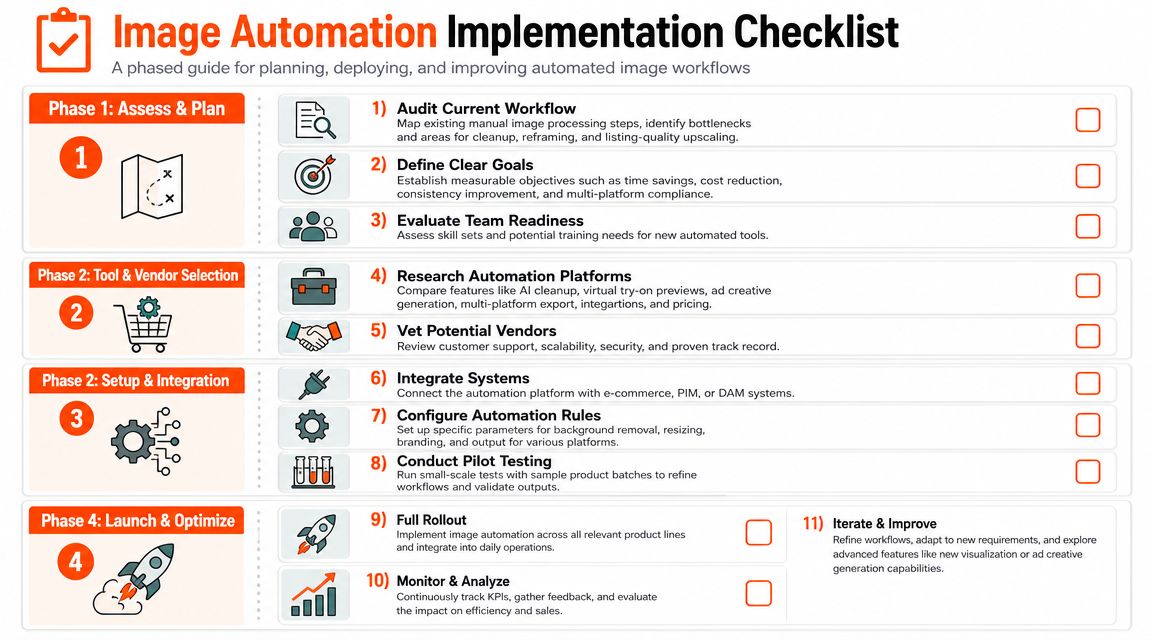
Start with your actual image library
Before you test any tool, map where images already live.
That usually includes:
- cloud folders like Google Drive, Dropbox, or Box
- ecommerce platform files
- DAM or PIM systems
- photographer delivery folders
- old exports that are still being reused in ads or listings
Don't skip this audit. If your source library is messy, automation will reproduce the mess faster.
A practical inventory should answer three questions:
- Which files are originals?
- Which files are approved outputs?
- Which files are obsolete but still circulating?
Define the output recipe before the workflow
Most failed automation projects start with a tool and only later decide what the outputs should be.
Do it in the opposite order. Write the recipe first.
For each product type, define:
- Primary listing image: white background, square crop, centred product, no text
- Storefront image: brand-consistent crop and padding
- Marketplace variants: Amazon, Etsy, eBay, WooCommerce, and other requirements
- Social versions: feed, story, reel cover, or ad-friendly dimensions
- Creative derivatives: lifestyle scenes, virtual try-on previews, promotional graphics
If Amazon is one of your main channels, it's worth keeping a current reference for Amazon product image size requirements and format expectations so the workflow starts from compliance, not correction.
Run a pilot batch, not a full rollout
Pick a representative sample. Don't start with your cleanest images or your most difficult ones only. Choose a mixed batch that reflects reality.
Then test the workflow in a limited run:
- ingest the files
- apply cleanup and reframing rules
- export the required variants
- review by channel
- revise the prompt logic or rules where outputs fail
One practical tool that fits this description is MerchLoom. MerchLoom works as an automation layer over existing product image libraries, letting sellers connect sources they already use and run chained workflows across full collections instead of re-uploading images for each task. That kind of setup is useful when you need cleanup, reframing, visualisation, ad creative generation, virtual try-on previews, and listing-quality upscaling to happen as part of one repeatable process rather than several disconnected edits.
Treat metadata as part of the asset
This step gets ignored until a store grows.
For sellers, especially in places like California where accessibility guidance is strict, image automation has to handle metadata. WCAG-based requirements mean images need meaningful alt text, and workflows should preserve or generate that metadata across variants to avoid multiplying accessibility problems through a large catalogue, as explained in Autophoto's product image automation workflow guidance.
That means your automation checklist should include:
- Alt text rules: preserve existing text where it's accurate, generate where it's missing
- Naming conventions: keep filenames understandable and channel-aware
- Context handling: make sure variants still map to the right product, colour, and angle
- System handoff: confirm metadata survives export into CMS, PIM, or storefront tools
Metadata is part of the image workflow. If it isn't automated with the asset, someone will have to repair it later.
Scale only after review cycles are stable
Once the pilot batch works, scale by product family, not by the whole catalogue at once.
A sensible rollout pattern looks like this:
| Rollout stage | What to focus on |
|---|---|
| First batch | Output accuracy and naming |
| Early expansion | Platform-specific compliance |
| Mid-scale rollout | Exception handling and team review |
| Full production | Speed, reuse, and routine refreshes |
That's slower than a big-bang launch, but it avoids one common failure mode. Teams often automate hundreds of files before they know whether the workflow makes good decisions on awkward crops, reflective packaging, soft materials, or mixed-aspect source images.
Best Practices and Common Pitfalls to Avoid
A workable image automation system should feel predictable under load. If a team can push 20 SKUs through it but starts fixing filenames, crops, and exports by hand at 200, the process is still fragile.
The setups that hold up across Shopify, Amazon, Etsy, paid social, and email usually have the same traits. They start from approved source assets, keep version control tight, and limit the number of branching paths in the workflow. That sounds plain. Plain is good when you are processing a full catalogue and need the same product to stay recognisable across every output.
What works in practice
A few operating habits prevent batch workflows from drifting:
- Keep a golden master library: store the approved source image for each SKU and variant so every downstream version traces back to one controlled asset.
- Standardise file names: include product ID, angle, colour, and channel intent where needed, so exports do not turn into manual relabelling work.
- Start with low-risk automation steps: cleanup, background handling, reframing, and export rules usually deliver value before you add lifestyle scenes or ad creative generation.
- Review outputs during the run: spot-check early and mid-batch so a bad crop rule or incorrect variant mapping does not spread across the whole job.
- Set the workflow order carefully: remove backgrounds, validate subject detection, and confirm crop logic before running heavier enhancement steps.
Order matters because processing cost and correction effort stack up fast. If an image is upscaled, retouched, and reformatted before the subject is isolated correctly, the team pays for work that may need to be rerun. In larger catalogues, that is not a minor inefficiency. It is a repeat expense.
It also helps to separate reusable transformations from channel-specific ones. A clean product cut-out can feed Amazon, Shopify, Etsy, and ad creative workflows. Platform overlays, aspect ratios, and export settings should sit later in the chain, where they can be swapped without rebuilding the whole process.
What usually goes wrong
The common failures are usually process failures.
- Set-and-forget automation: teams stop checking outputs after the first successful batch, even though new product types often break earlier rules.
- Tool sprawl: separate apps for cut-outs, resizing, mockups, copy overlays, and exports create duplicate files and unclear version ownership.
- Weak review rules for generated creative: lifestyle or promotional variants can look polished while still misrepresenting materials, scale, or colour.
- Poor source photography: automation can clean and standardise assets, but it cannot fully rescue inconsistent lighting, soft focus, or missing angles.
- Single-image buying decisions: a tool that looks impressive on one hero image may fail on mixed catalogues with packaging, apparel, reflective surfaces, or bundles.
This is why batch sellers should judge automation on workflow stability, not just output quality on a demo file. Adobe's guidance on scaling content production with consistent creative systems supports the same operational point. Consistency at scale comes from controlled inputs, defined steps, and fewer manual handoffs.
The goal is a repeatable production system for the full image lifecycle. Cleanup, standardisation, marketplace exports, refreshed seasonal variants, and ad creative should run from the same asset base with clear rules for when a human needs to step in.
If you're ready to move from scattered edits to repeatable batch workflows, MerchLoom is built for that catalogue-scale reality. It connects to existing product image libraries, runs chained AI workflows across full collections, and helps sellers produce marketplace-ready images, lifestyle variants, ad creatives, and other channel-specific outputs without rebuilding the process from scratch each time.
Stop editing product photos one at a time
Upload your catalog or connect your store. Describe the result once. MerchLoom does the rest.
Try it free — no signup