
10 Best Curve Text Maker Tools for E-commerce in 2026
Find the best curve text maker for product images and logos. We review 10 online tools and apps for e-commerce sellers creating consistent, branded visuals.
Monday morning usually starts the same way. A merchandiser needs a curved “New Arrival” badge on one Shopify hero image, then the same treatment spreads to Amazon main images, Etsy thumbnails, collection banners, promo tiles, and a late-season clearance push. The design itself takes minutes. Keeping the curve, spacing, font, export size, and placement consistent across a catalog is what burns the team's time.
A curve text maker matters less as a one-off design feature and more as a production decision. Some tools are fast enough for a marketer updating ten seasonal graphics before lunch. Others give tighter control over arcs, letter spacing, and transparent exports, which matters when the same circular logo treatment has to survive print files, marketplace image rules, and repeated resizing. For larger catalogs, the main question is not which app can bend text. It is which app fits the rest of your image pipeline without creating cleanup work later.
That trade-off shows up quickly in e-commerce operations. Browser tools are usually faster to train across a team. Design-first tools give better control but can slow handoff and approvals. Video-first platforms help if curved text is part of motion creative, but they are often a poor fit for static listing production. The strongest workflow is usually a split one. Build the curved text element in the tool that handles it best, then push the finished asset into a repeatable batch process for product images, background cleanup, and export prep. If your team already standardizes listing graphics in Canva, a documented process for removing backgrounds in Canva for product images fits naturally into that same production chain.
The tools below are worth comparing through that lens. A solo seller can get by with whatever feels quickest. A team processing hundreds of SKUs needs consistency, reusable templates, clean exports, and a path into automation platforms such as MerchLoom, where a curved badge becomes one repeatable part of a larger catalog workflow.
1. Canva
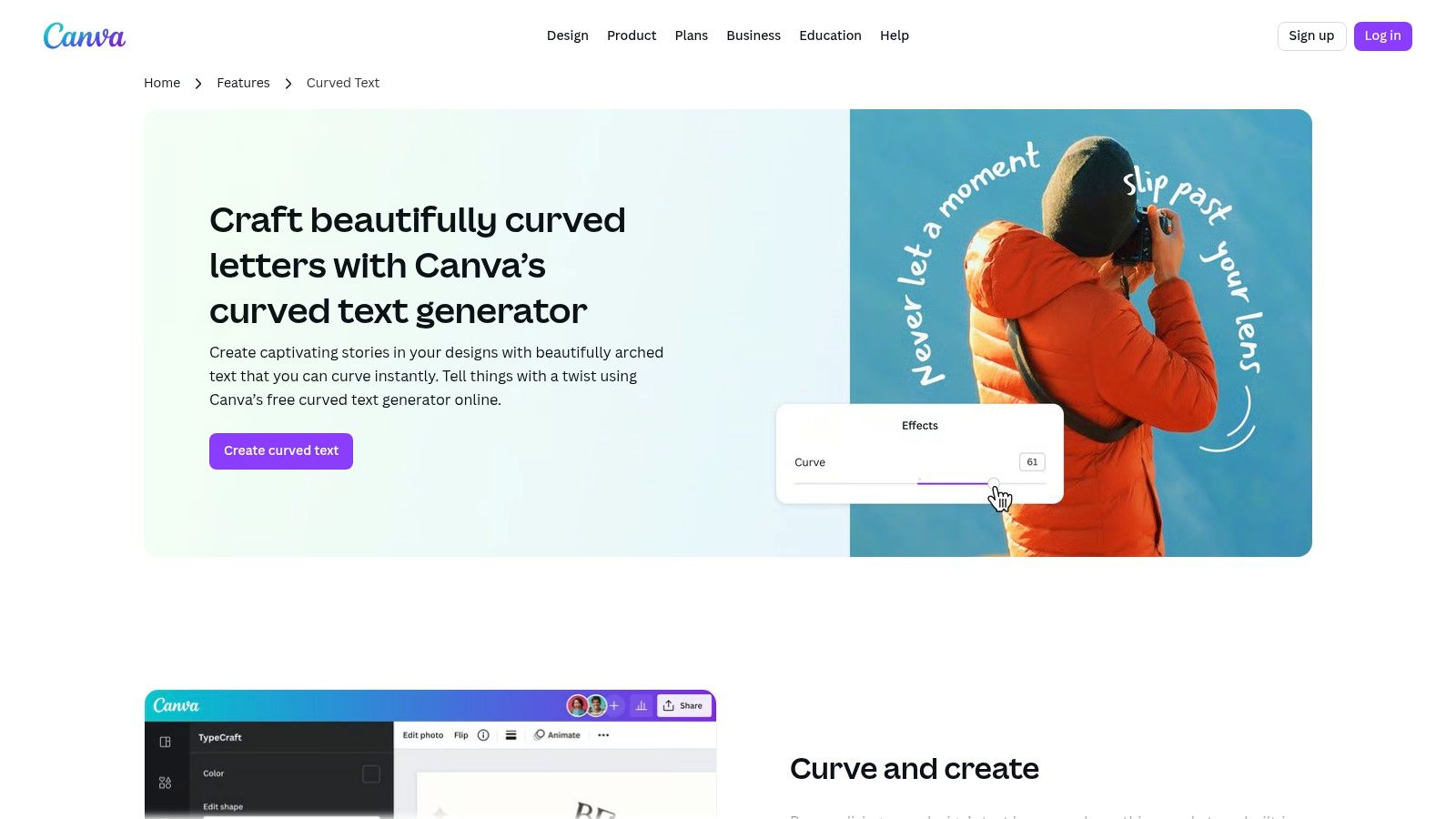
Canva is the quickest curve text maker for sellers who need something usable before lunch. If you're building “New Arrival”, “Bundle”, or “Limited Drop” arcs for product thumbnails, it gets you from blank canvas to finished badge fast, and it does it without making non-designers learn vector editing.
The biggest advantage is template discipline. You can lock in fonts, colours, logo placement, and a curved headline once, then duplicate that asset for multiple collections. That's why Canva works well for stores with frequent merchandising swaps and small teams that need everyone using the same branded parts.
Where Canva fits best
Canva is strongest when the curved text is one design layer inside a larger template system.
- Best use case: Fast badge creation for seasonal promos, Shopify collection graphics, and Etsy cover images.
- What it does well: Curve effect, simple direction changes, brand-kit reuse, cloud access across devices.
- Where it starts to strain: Complex path work, very specific letter-by-letter spacing, and circular logo builds that need production-level precision.
If you already use Canva for listing graphics, pairing it with a separate batch system makes more sense than forcing Canva to become your whole image pipeline. This is the same logic behind workflows like Canva background removal for e-commerce images, where the design app handles the creative element and another tool handles volume.
Canva is excellent at making the master asset. It's less excellent at applying that asset across hundreds of product photos in a controlled production flow.
For one-off promos, Canva is hard to beat. For catalogue-scale operations, use it to create the curved text graphic, export it cleanly, then move the repetitive image work elsewhere.
Visit Canva
2. Adobe Express
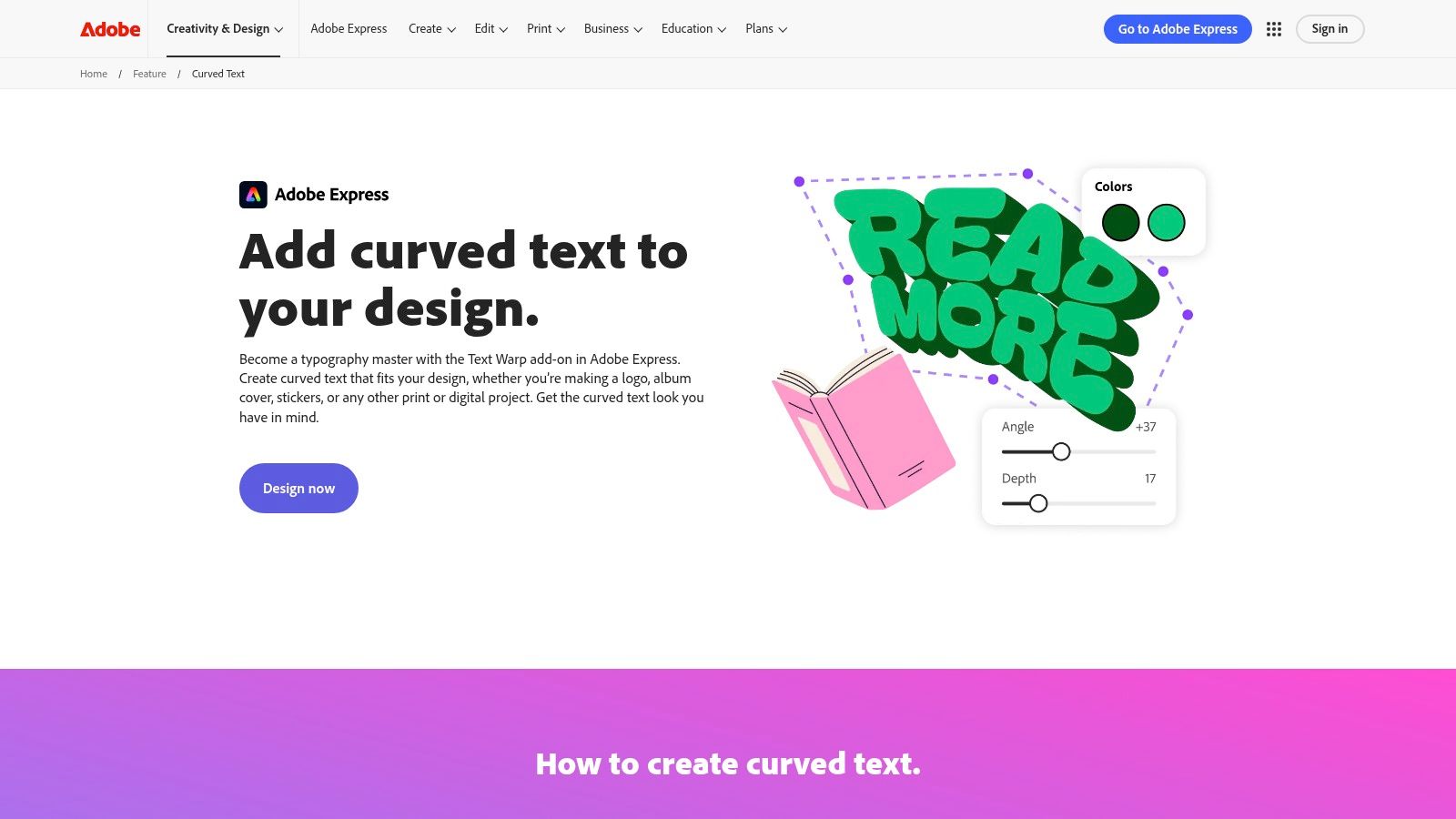
A common production bottleneck looks like this: the marketing team needs a curved sale badge by lunch, the listing team needs five size variants by the afternoon, and nobody wants to open a full desktop design app for a job that should take ten minutes. Adobe Express handles that kind of request well. It gives teams a faster path to polished curved text assets, especially when the work sits inside a browser-first approval process.
Adobe Express uses a Text Warp add-on approach, which is both its strength and its limit. The setup is simple, the controls are approachable, and new staff can usually get usable results without much training. For e-commerce teams, that matters more than feature depth if the primary job is turning around campaign graphics fast and keeping brand output consistent across product pages, email banners, and social promos.
Where Adobe Express fits in a real workflow
Adobe Express works best as a mid-pipeline design tool. Build the curved text element, export it cleanly, then pass it into the system that handles repetitive production work across the catalog.
That makes it a practical choice for:
- Fast promotional graphics: Sale circles, limited-run badges, and seasonal collection headers.
- Multi-user brand work: Shared assets, quick edits, and approvals across merchandising and marketing teams.
- Lightweight production: Jobs that need polish, but not full vector path editing or detailed typography control.
The trade-off is straightforward. Adobe Express is faster to train on than heavier design software, but it gives up precision. If you need exact baseline control, circular logo text with strict spacing rules, or path edits that must match print specs, this is not the tool I would put at the center of the process.
It does, however, fit nicely into high-volume catalog operations. Teams often pair browser design tools with a cleanup step first, especially if they are working from supplier photos or older assets. A process like removing white backgrounds in Photoshop for cleaner product image prep often happens before curved text overlays are applied at scale.
For single assets, Adobe Express is easy to justify. For hundreds of SKUs, the better approach is to use it for asset creation, then move the exported graphic into a batch workflow or an automated system like MerchLoom. That separation keeps designers out of repetitive resizing and keeps operations from rebuilding the same curved text treatment over and over.
3. Photopea
Photopea sits in a very useful middle ground. It's browser-based, but it behaves more like a real design application than a drag-and-drop template tool. If you need text on a path, layered files, and more control over curves without installing software, Photopea is one of the strongest free options.
This is the tool I'd hand to someone who already understands layers and wants precision without paying for Adobe desktop apps. You can work with paths, shapes, and imported PSD, AI, or SVG assets, which makes it practical for sellers inheriting files from freelancers or older branding packages.
Why it works for e-commerce teams
Photopea is especially good when your curved text is part of a compositing workflow, not just a decorative title.
- Useful for: Circular seals, ring text over labels, custom logo tweaks, and edits to layered marketplace assets.
- Workflow advantage: File compatibility makes it easier to modify existing brand artwork instead of recreating it.
- Main drawback: It has a steeper learning curve than Canva, Pixlr, or Fotor.
If your current process involves manual Photoshop cleanup, there's a natural overlap with white background removal workflows in Photoshop. Photopea won't replace every desktop feature, but it does cover a surprising amount of practical ground for sellers who need layered editing in a browser.
Practical rule: Use Photopea when the curved text has to align with an actual path or existing brand geometry. Don't use it if your team needs the simplest possible interface.
For catalogue managers, Photopea is a good tool to keep in the stack even if it isn't the one junior staff use daily. It solves the “we need more control right now” problem better than most web apps.
Visit Photopea
4. Pixlr
Pixlr is for speed. Its text warp and curve presets are useful when you need a visual result fast and don't care about advanced typography. For many sellers, that's enough. A promo burst, a circular callout, or a quick “Giftable” label on a marketplace image often doesn't need more than an arc preset and decent export.
What I like about Pixlr is that it keeps the job narrow. You can handle the curved text, do light image edits, remove a background, and move on. That's valuable when a merchandising team needs to produce a lot of variations and doesn't have time for path editing.
What to expect from Pixlr
Pixlr is best treated as a fast utility, not a brand system.
- Works well for: Temporary overlays, social promos, and fast listing graphics.
- Doesn't work well for: Fine curve refinement, advanced spacing, or reusable vector badge systems.
- Operational reality: Great for campaign speed, weaker for long-term consistency.
If you need to stack multiple elements, curved text often ends up being only one part of the composition. In that case, workflows like superimposing images online for product graphics are closer to what sellers do day to day than a pure text-only tutorial.
Pixlr makes sense for teams that value output speed over typographic control. If the badge only needs to survive a sale cycle, that trade-off is fine. If it needs to become part of your permanent catalogue style, choose something with better control.
Visit Pixlr
5. Fotor
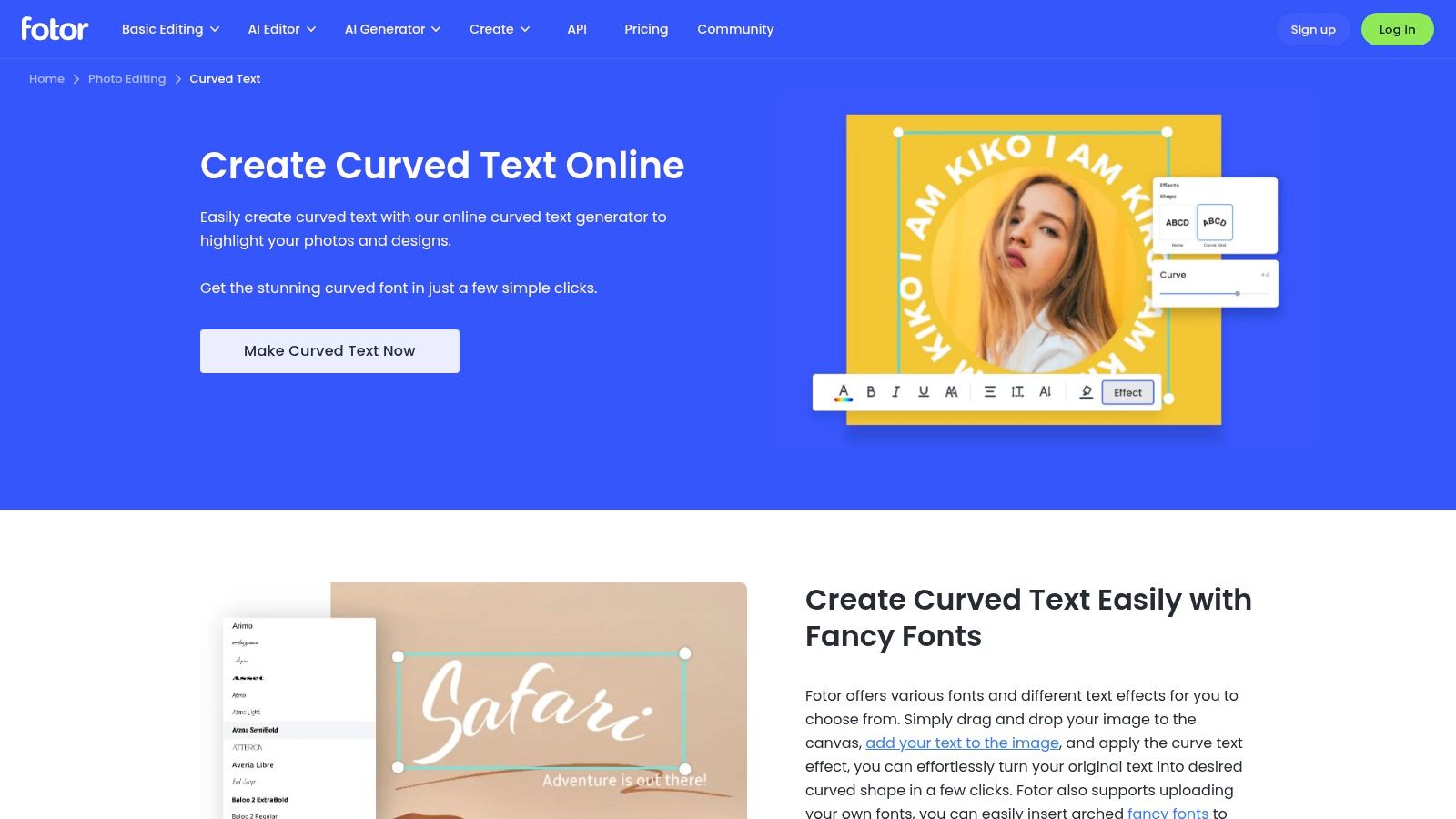
Fotor is a comfortable option for sellers who don't want to think about design software at all. It's approachable, and that matters more than people admit. A curve text maker that's slightly less powerful but gets used is more valuable than a perfect one your team avoids.
Fotor is best for simple logos, labels, and sticker-style graphics. If your store needs circular badge elements for handmade, seasonal, gift-ready, or bundle-oriented visuals, it can handle that level of work without much friction.
Where Fotor starts and stops
Fotor does well when your text treatment is simple and your output needs are mostly web-facing.
- Good fit: Lightweight brand rings, social creatives, simple packaging mockups, and quick product labels.
- Weak fit: Precision typography, exact spacing around a custom circle, or production-heavy logo builds.
- Best team profile: Solo sellers or small shops where one person handles listings, social, and basic design.
The trade-off is control. Once you need exact path behaviour, repeatable spacing standards, or deeper vector-style editing, Fotor starts feeling constrained. That doesn't make it a bad tool. It just means it's best used near the front of the business, where speed matters more than production accuracy.
A lot of catalogue work doesn't need more than that. If the badge only has to look clean at listing size and be exported quickly, Fotor is often enough.
Visit Fotor
6. Kapwing
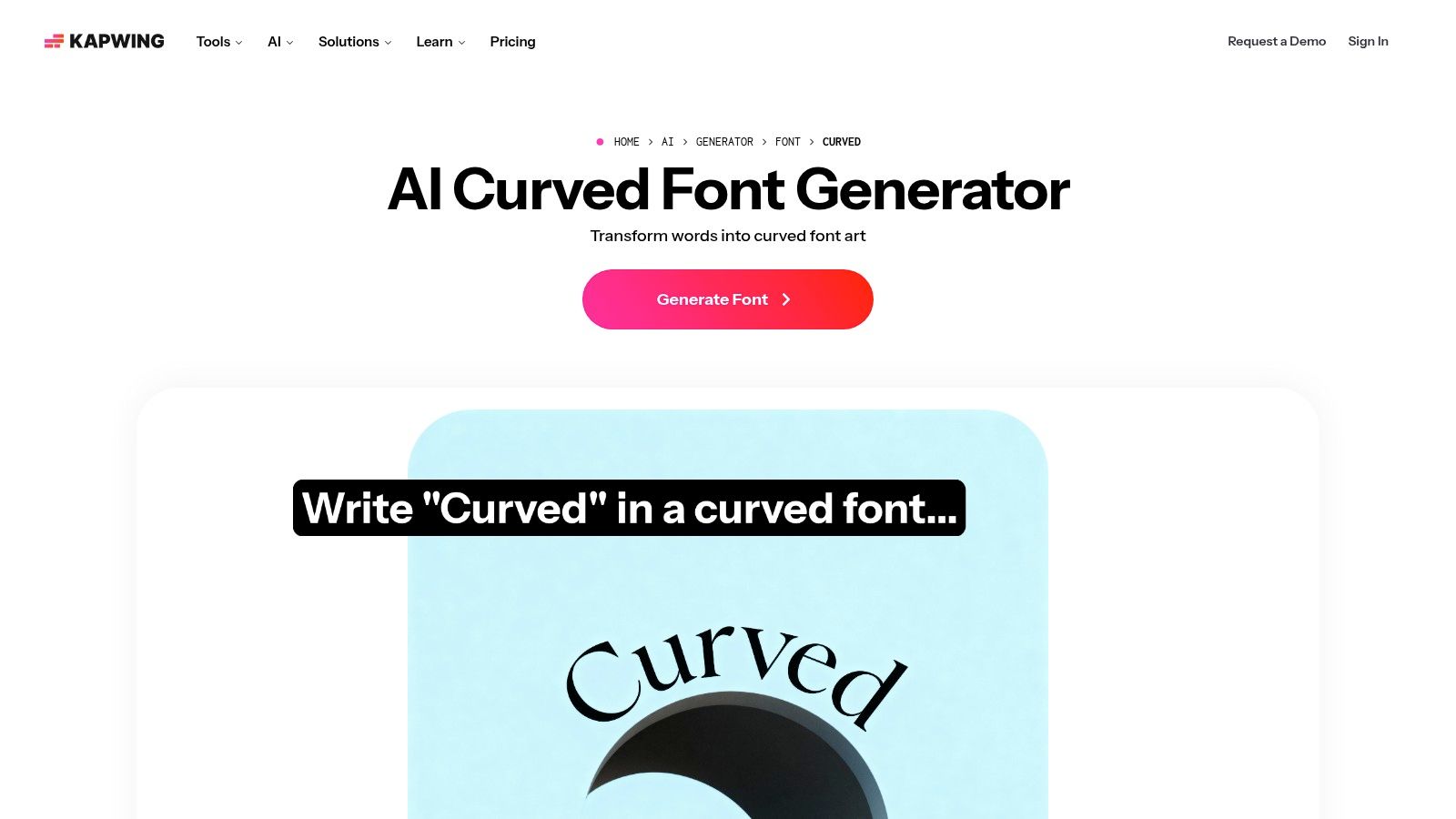
Kapwing becomes interesting when the curved text isn't for a product image at all. It's for motion. If your team cuts social ads, reels, or lightweight video promos, Kapwing's curved text tools are more useful than static-first editors because the text can live inside a timeline and move with the rest of the creative.
That makes Kapwing less of a core catalogue tool and more of a campaign tool. I wouldn't use it to define a permanent curved logo system for hundreds of SKUs. I would use it when the merch team wants animated text around a product reveal, gift guide, or launch teaser.
Best use in a real selling workflow
Kapwing earns its spot when static product photos feed into ad creative.
Doing this for a whole catalog?
MerchLoom runs background removal, upscaling and AI editing across every product photo you have — one prompt, whole batch. Try 2 batches free, no signup.
Try it free- Strong fit: Animated promos, social video, collection launches, and quick campaign variants.
- Less useful for: Print-grade seals, exact circular branding, and reusable path-accurate text assets.
- Practical advantage: Collaboration is easier when copy, motion, and export happen in one browser tool.
Curved text often ends up as part of a broader creative pipeline, especially when brands move from listing images into ads and lifestyle content. That's why it connects naturally with workflows like AI product scene generation for campaigns, where the final asset needs more than a clean badge.
If the output is motion-first, use a motion-first tool. Static typography tools can fake the look, but they won't make the workflow easier.
Kapwing is a specialist. Use it for campaign content, not as your only curve text maker.
7. PicMonkey
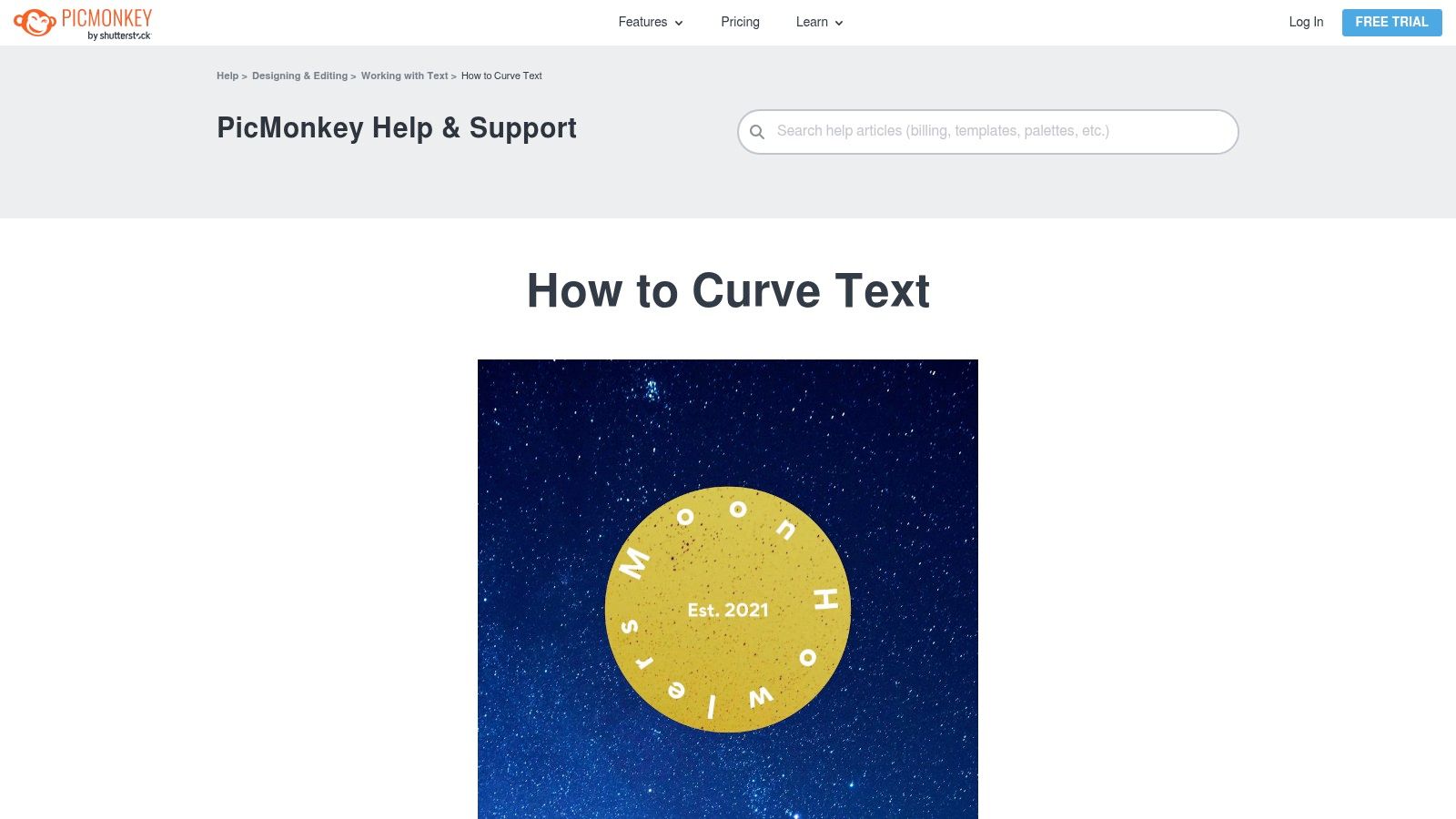
A common catalog problem looks like this. The team needs a curved promo badge for 40 new listings by end of day, the design lead is busy, and whoever touches the template next cannot be allowed to shift the logo, flatten the layers, or break the type treatment. PicMonkey handles that kind of work better than many browser editors because it stays simple.
Its curved text tools are limited to the basics, but that is often the right trade-off for e-commerce operations. Arc and circle text cover a lot of practical jobs, including sale rings, seasonal callouts, simple logo wraps, and collection badges. The interface is approachable enough for non-design staff to make copy updates, duplicate approved layouts, and export web-ready assets without much supervision.
That matters more at 200 images than it does at two.
Practical fit for small teams
PicMonkey works best as a controlled production tool, not a design lab. Build a small set of approved templates, lock in the font pairings and spacing, then let coordinators swap text, colors, and product-specific details. That setup keeps output consistent and reduces review time.
- Useful for: Reusable badge templates, quick promotional rings, simple collection graphics, and routine listing updates.
- Less useful for: Precise path editing, complex brand systems, and print files that need tighter technical control.
- Why operations teams keep it around: Training time is low, handoff is easy, and the editor is hard to break.
The limitation is scale. PicMonkey can support a repeatable process, but it does not give larger teams much automation. If your catalog workflow depends on bulk generation, strict naming rules, or direct handoff into a platform like MerchLoom, PicMonkey usually sits at the manual design step rather than the system that runs the whole pipeline.
For teams that need clean curved text without putting everyone in a heavier editor, it is a sensible middle ground.
8. MockoFun
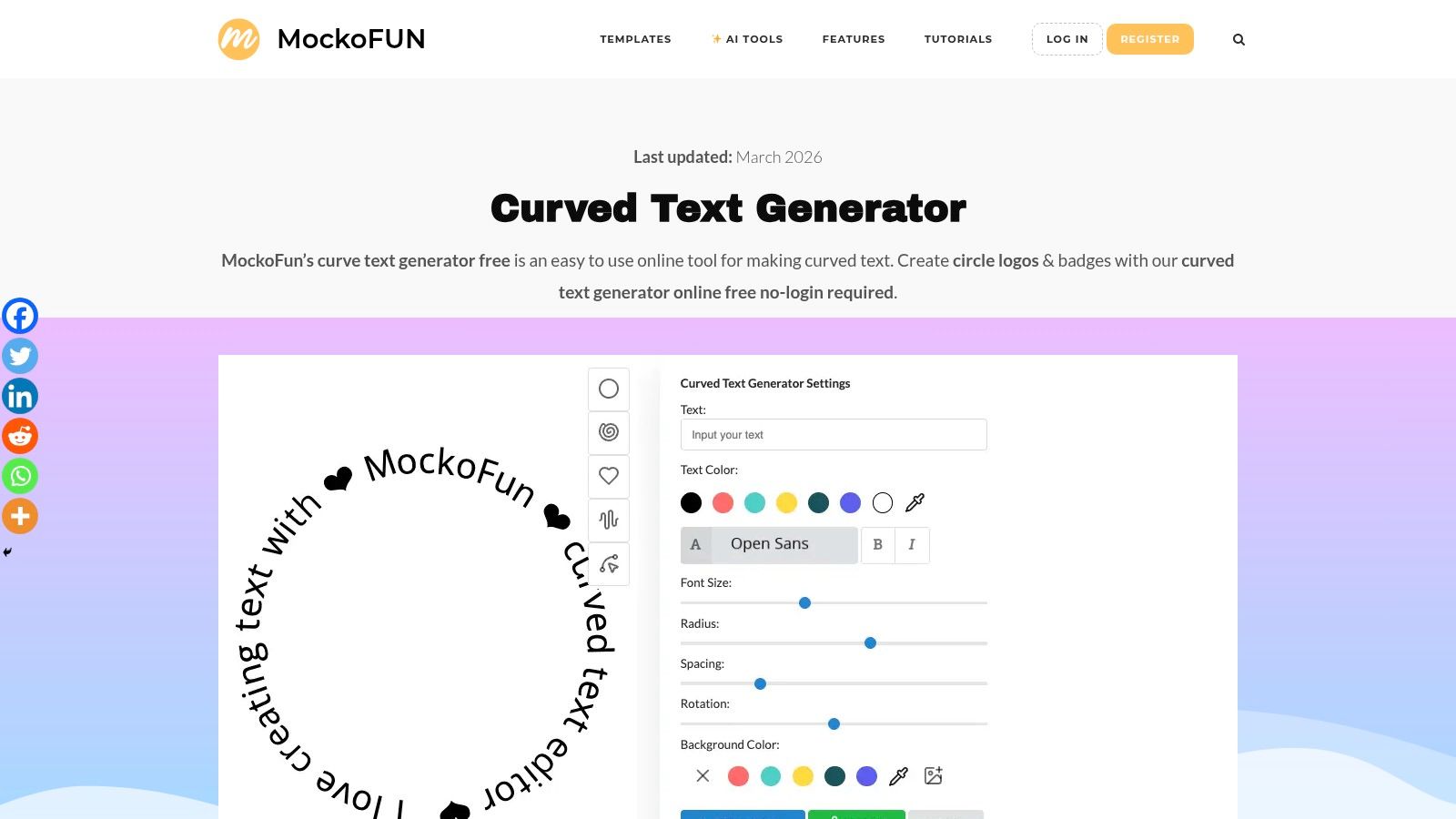
A common catalog problem looks small until volume hits. One coordinator curves text by eye, another nudges spacing until it looks close enough, and by the end of the week the same promo badge exists in six slightly different versions. MockoFun helps because it exposes the settings that many lighter editors hide. You can reuse the same curve direction, spacing, and arch values instead of rebuilding the effect from scratch each time.
That matters in e-commerce production. For one hero image, visual approximation is usually fine. For a seasonal collection, marketplace badges, and variant-specific graphics across hundreds of SKUs, repeatable settings save review time and cut rework.
Where MockoFun fits in a real workflow
MockoFun is useful for teams that need consistent curved text without moving fully into a heavier vector workflow. The editor is more practical than polished, but the numeric controls are the reason to use it. Once a team has approved settings for an arch, ring, or lower curve, staff can duplicate the treatment across product families with fewer judgment calls.
- Best for: Circular labels, promo seals, sticker-style graphics, and repeatable badge systems across a catalog.
- What makes it efficient: Parameter-based edits are easier to document in a simple SOP and hand off to coordinators.
- Trade-off: The interface is less refined than Canva or Adobe Express, so first-time users may need a short training pass.
I would treat MockoFun as a standardization tool, not a full production system. Build a small library of approved curved text treatments, pair them with export specs, and use those assets downstream in your listing pipeline. If the goal is cleaner marketplace visuals, this works well alongside a broader process for making product photos look professional.
Its limit is automation. MockoFun can help a team create consistent assets faster, but it still sits on the manual design side of the workflow. If your operation needs bulk generation, strict asset naming, and direct handoff into a platform like MerchLoom, MockoFun is better used to create the template standard than to run the entire catalog by itself.
9. Inkscape
A catalog team usually hits this point after the first few dozen SKUs. The curved badge that looked fine in a browser editor starts drifting off-center, exports soften at small sizes, and every coordinator tweaks spacing a little differently. Inkscape fixes that problem because it gives you direct control over paths, nodes, alignment, and SVG output.
This is the strongest option in this list for production-grade curved text. I would use it for logo rings, compliance badges, packaging marks, and any reusable asset that needs to stay sharp across marketplaces, print inserts, and resized product images. The learning curve is real, but so is the payoff once the file becomes a master asset instead of a one-off design.
Where Inkscape earns its place in the workflow
Browser tools are faster for a single image. Inkscape is better for standards.
- Best for: Exact text-on-path work, custom curves, inside and outside circle text, and reusable vector assets.
- What scales well: Teams can save approved SVG masters, document font and spacing settings, and reuse the same curved element across large product groups.
- Trade-off: It takes more setup time, and non-design staff usually need a short SOP before they can edit files without breaking alignment.
The practical use case is straightforward. Build the curved text asset once in Inkscape, lock the geometry, export clean PNG or SVG variants, and feed those approved overlays into the rest of your listing process. That is far more reliable than asking staff to recreate the same arc manually across hundreds of images.
It also fits well in a larger operations stack. Inkscape handles the precision work at the asset-creation stage, while platforms built for throughput handle the repetitive catalog work after that. If your team is also tightening the rest of its visual standards, this pairs naturally with a process for making product photos look professional across a large catalog.
Inkscape is not the fastest curve text maker here. It is the one to use when a curved text element needs to become a controlled production asset that can later plug into batch workflows and automation tools such as MerchLoom.
10. Stampmaker.io
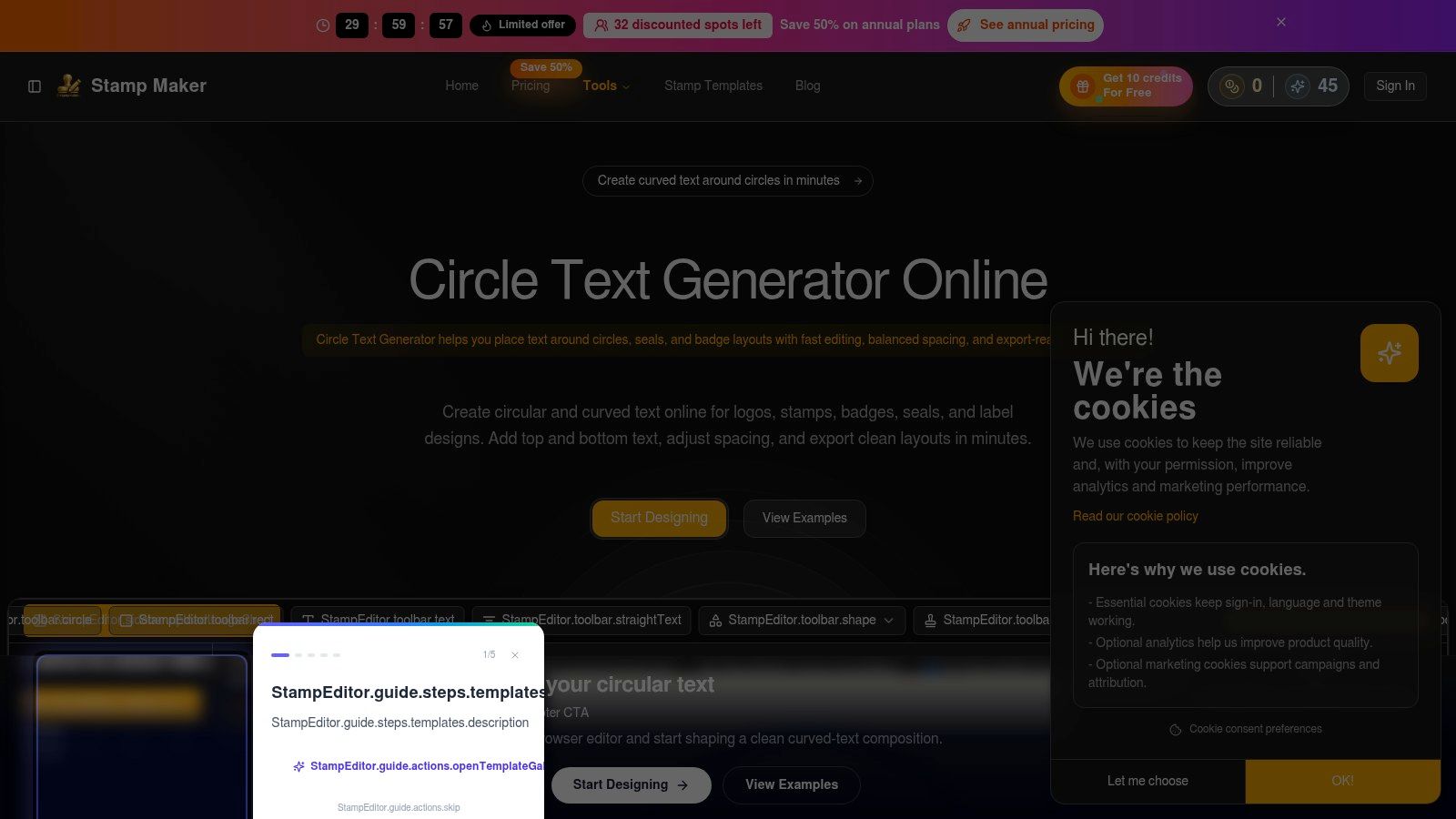
Stampmaker.io does one job and does it fast. If you need circle text for seals, packaging marks, top-and-bottom ring layouts, or badge-style branding, this is one of the most efficient tools on the list. It avoids the clutter of full editors and gets straight to the geometry that matters.
That narrow focus is exactly why it can be so useful in e-commerce. A lot of sellers don't need arbitrary paths. They need “Premium Quality” on top, brand name on the bottom, a centre icon, and clean spacing.
When a specialist tool is better
Generic editors often make circular badge work more annoying than it should be.
- Strong fit: Quality seals, organic badges, brand rings, and packaging-style overlays.
- Not a fit: Decorative wave text, freeform path typography, or broader image editing.
- Operational upside: Faster setup for repeat circular layouts.
For stores that use the same badge shape over and over, Stampmaker.io can save time because the defaults are closer to the finished result. You won't get a complete design environment, but that's not the point. This is a specialist tool for a recurring problem.
If your badge language is mostly circular, Stampmaker.io is one of the cleanest ways to build the asset before moving it into the rest of your image workflow.
Top 10 Curved Text Makers, Feature Comparison
| Tool | ✨ Core features | ★ Quality | 💰 Price / Value | 👥 Target audience | 🏆 Standout |
|---|---|---|---|---|---|
| Canva, Curved Text Generator | ✨ Curve effect + TypeCraft, templates & brand kit | ★★★★ | 💰 Freemium | 👥 Non‑designers & teams | 🏆 Ease + template ecosystem |
| Adobe Express, Curved Text (Text Warp add‑on) | ✨ Text Warp, full editor, Firefly AI | ★★★★ | 💰 Freemium → Premium for advanced | 👥 Brand teams & creators | 🏆 Adobe ecosystem + AI |
| Photopea, Text on a Curve | ✨ Type on Path, vector edit, PSD/AI/SVG support | ★★★★ | 💰 Free (ads) / Premium opt‑out | 👥 Designers needing PSD compatibility | 🏆 Photoshop‑style control in browser |
| Pixlr, Text Warp/Curve Tools | ✨ Arc/half/circle presets, quick edits, bg remove | ★★★ | 💰 Freemium | 👥 Social marketers & quick editors | 🏆 Fast presets + photo tools |
| Fotor, Curved Text Generator | ✨ One‑click curved text, templates, web/print export | ★★★ | 💰 Freemium | 👥 Beginners & small sellers | 🏆 Guided workflow for badges/logos |
| Kapwing, AI Curved Text / Font Generator | ✨ AI curved text, video timeline, animations | ★★★★ | 💰 Freemium (limits for free) | 👥 Video‑first creators & marketers | 🏆 Animated curved text + AI |
| PicMonkey, Curve Text (Arc/Circle) | ✨ Arc/full‑circle, layered editor, brand kits | ★★★ | 💰 Paid / Freemium trial | 👥 Small teams & brand owners | 🏆 Reliable curve controls across apps |
| MockoFun, Curved/Spiral/Circle Text Generator | ✨ Curve, spiral & wave presets, PNG exports | ★★★ | 💰 Freemium | 👥 Badge/sticker & label designers | 🏆 Strong spiral & decorative text tools |
| Inkscape, Text on Path (Desktop, free/open source) | ✨ Text→Put on Path, node editing, pro SVG export | ★★★★★ | 💰 Free & open‑source | 👥 Pro designers & production workflows | 🏆 Pixel‑perfect vector control |
| Stampmaker.io, Circle Text Generator | ✨ Top/bottom ring text, radius/offset & placement | ★★★★ | 💰 Free / focused tool | 👥 Packaging & seal designers | 🏆 Fast, clean circular badge defaults |
From Tool to Workflow
Monday morning usually exposes the problem. Ten new SKUs need hero images by noon, the marketplace team wants a seasonal badge on every listing, and someone is still editing curved text by hand in a browser tab. That process breaks as soon as volume shows up.
Teams handling a few hundred product images need two separate decisions. First, choose the tool that creates the curved text asset with the right level of control. Second, choose the system that applies that asset across the catalog without forcing a designer to touch every file again.
Canva, Fotor, Pixlr, and PicMonkey fit the first part when speed matters more than precision. They let junior team members build a usable arched headline or promo badge fast, and that keeps small requests out of the design queue. The trade-off is consistency. Once you need the same curve, spacing, export settings, and placement repeated across a large SKU set, these tools start to depend too much on manual discipline.
Adobe Express sits a step higher for teams already working in Adobe's cloud tools. It keeps approvals and quick edits organized better than lighter editors, which helps when marketing, design, and operations all touch the same assets. MockoFun also deserves more credit in production work than it usually gets. Its numeric controls make repeat builds easier, which matters if you need the same circular badge style across multiple categories.
Photopea and Inkscape are better picks when curved text is part of a reusable brand asset, not a one-off graphic. Photopea handles layered file compatibility well, so it fits teams passing PSD-based assets between freelancers, agencies, and in-house staff. Inkscape takes more setup time, but the SVG output is cleaner for packaging, labels, and any design that will be resized, printed, or revised later. Stampmaker.io is narrower, but that focus is useful. If the job is a seal, stamp, or ring text layout, it gets to a clean result quickly.
The workflow improvement comes from treating curved text as a reusable component.
Build the badge once at production quality. Export it with transparency. Save versioned files by campaign, marketplace, or brand line. A label such as “Small Batch,” “New Arrival,” or “Gift Ready” should live in your asset library with naming rules and approved dimensions, not in someone's download folder.
From there, batch application matters more than the editor you used. MerchLoom works well when the job shifts from design to throughput. You can keep the curved text graphic as one layer inside a repeatable image pipeline, then run background removal, resizing, reframing for Amazon and Shopify, and branded overlays across full collections instead of rebuilding each image manually.
Marketing teams already coordinating branded merchandise and promotional assets often run into the same scaling issue across print and ecommerce. Custom Mark's guide for marketing teams is useful context for that broader asset management side, especially when one logo treatment or badge concept has to stay consistent across products, packaging, and promo items.
The practical rule is simple. Use a lightweight curve text maker for quick concepting, or use a control-first tool when the asset needs to last. Then move the finished graphic into a batch workflow that can process the catalog without adding review headaches, placement drift, or duplicate work.
If you're done editing one image at a time, MerchLoom is built for the next step. You can create your curved text badge in the tool that suits you, then use MerchLoom to run that asset through repeatable image workflows across full collections, with background removal, resizing, reframing, scene generation, and marketplace-ready exports handled in one batch pipeline.
Stop editing product photos one at a time
Upload your catalog or connect your store. Describe the result once. MerchLoom does the rest.
Try it free — no signup