
How to Batch Resize Images Online for E-Commerce Catalogs
Learn how to batch resize images online for Amazon, Etsy, and Shopify catalogs. Practical steps for dimensions, quality, and automation at scale.
You've just received 500 product photos from a supplier shoot. Amazon needs a white-background main image, Shopify needs a consistent square presentation, and Etsy needs enough resolution for sharp listing images. If you open every file separately, resize it, crop it, export it, rename it, and repeat, the work quickly turns into inconsistent padding, drifting product positions, and avoidable listing rework.
Start by separating your catalog into three output groups: marketplace masters, storefront derivatives, and social or advertising assets. Keep the original files untouched. Then apply one repeatable workflow to the working copies. That's the practical meaning of batch resize images online for e-commerce. You're not making one photo smaller. You're producing a controlled set of files for an entire catalog.
Why Batch Resizing Matters for E-Commerce Catalogs
A catalog can contain hundreds of SKUs, each with a main image, gallery views, detail shots, lifestyle photography, A+ content assets, mobile derivatives, and advertising crops. Across that catalog, inconsistent resizing creates visible problems: one product sits too close to the edge, another has excessive white space, and a third is cropped around the wrong detail. Shoppers often notice those inconsistencies before they examine the product.
Manual editing also introduces operational risk. A source file can be overwritten, the wrong format can be exported, or a required variant can be missed. Batch resizing images online reduces those repeated decisions by applying defined dimensions and export rules across a working set of files.
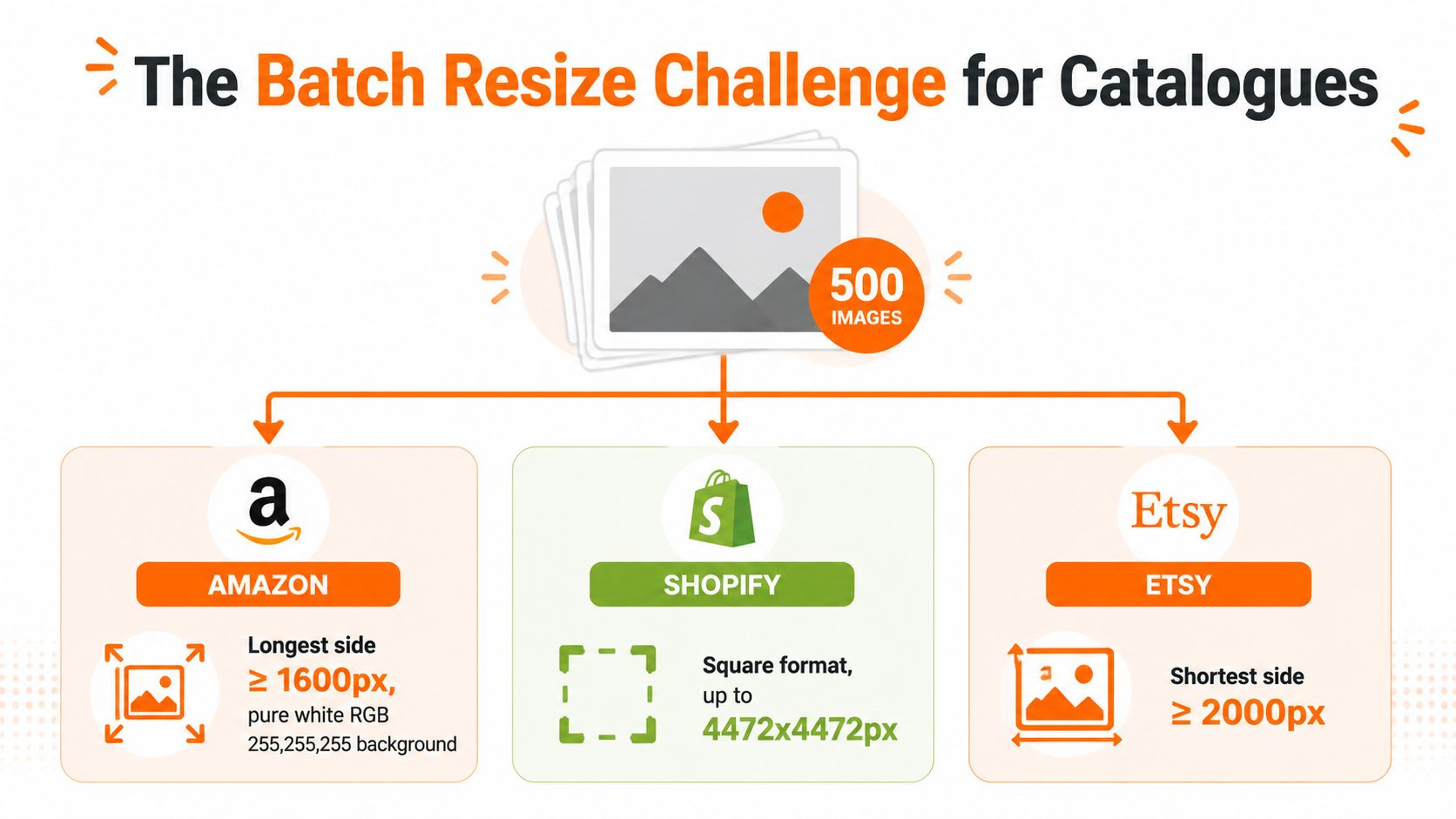
The catalog problem is consistency
The useful outcome is a controlled family of files, not a folder of smaller images. Products should occupy comparable visual positions from listing to listing, with consistent background treatment, crop logic, and file naming.
Set up separate presets for each output group:
- Amazon main images: preserve the required white background and longest-side resolution.
- Shopify product images: produce a consistent square format for product and collection pages.
- Etsy listing images: retain enough resolution on the shortest side to meet the platform's requirements.
- Storefront and ad assets: generate responsive sizes and aspect-ratio variants from the same master.
The dataset referenced by ElectroIQ's product photography statistics found that 61.49% of brands used images larger than 1000×1000 pixels, 32.91% used images larger than 1500×1500 pixels, and 15.52% used images larger than 2000×2000 pixels. That pattern supports keeping large masters and generating consistent derivatives for each channel, rather than maintaining one universal file.
Practical rule: Never resize the only copy of a product image. A batch runs quickly, but applying the wrong preset to the wrong folder creates equally fast rework.
Image payload also affects storefront performance. A 2026 e-commerce image performance guide states that images often account for 50% to 80% of page weight and cites a 7% conversion drop for each 1-second delay. Resize first, then compress, so every derivative follows the same performance target across the collection.
Marketplace Image Requirements You Cannot Ignore
A universal 2000×2000 export sounds convenient, but it doesn't solve every marketplace problem. Amazon's main image has background and framing rules. Etsy's requirement is based on the shortest side. Shopify gives you more room, but a square catalog standard still helps product grids and collection pages render consistently.
Amazon's main product image needs a pure white RGB 255,255,255 background, and its guidance recommends at least 1600 pixels on the longest side so zoom works properly. Images below 1000 pixels on the longest side don't receive zoom, according to the Amazon product image requirements guide. Amazon also expects the product to fill about 85% of the frame, so resizing without checking the product's position can leave you with a technically large image that still looks poorly framed.
Etsy requires at least 2000 pixels on the shortest side, with larger files preferred for sharper zoom behavior, as described in the Etsy product image requirements guide. Shopify accepts images up to 4472×4472 pixels and commonly uses 2048×2048 pixel square images for product and collection pages, according to this Shopify product image guide.
Marketplace Image Specifications Comparison
| Marketplace | Min Dimensions | Recommended Size | Aspect Ratio | Max File Size | Required Format |
|---|---|---|---|---|---|
| Amazon | 1000px longest side for zoom eligibility | 1600px or more on longest side | Product-dependent, consistent framing | Check current listing rules | JPEG or marketplace-supported format |
| Shopify | No single catalog-wide minimum stated here | 2048×2048px | Square is practical for catalog consistency | Platform and theme dependent | JPEG, PNG, or WebP where supported |
| Etsy | 2000px shortest side | At least 2000px on shortest side | Preserve the intended product crop | Check current listing rules | JPEG, PNG, or supported format |
| eBay | Use a high-resolution source and verify current listing rules | Set a repeatable catalog preset | Product-dependent | Check current listing rules | Marketplace-supported format |
| WooCommerce | Theme-dependent | Match the theme's display dimensions | Theme-dependent | Hosting and configuration dependent | JPEG, PNG, or WebP where supported |
| Google Shopping | Verify the current Merchant Center specification | Use a clear, high-resolution derivative | Product-dependent | Check current feed rules | Feed-supported format |
The table separates verified platform guidance from settings that depend on your store, theme, feed, or current marketplace rules. Don't invent a file-size limit for a channel you haven't checked.
Format choice still matters. For photographic catalogs, BIRME's product image guidance recommends resizing first and compressing second, with main images commonly targeting 1200 to 2000 pixels on the longest side, thumbnails at 400 to 600 pixels, and category grids at 600 to 800 pixels. The same guidance notes that PNG photographs can be 5 to 10 times larger than quality-80 JPEG exports. Keep PNG for transparency or graphics. Use JPEG or WebP for photographic derivatives when the destination supports them.
For a useful Amazon-specific checklist, keep the Amazon product image requirements for sellers beside your export presets. The important point is that pixels alone don't establish compliance. Background, product scale, crop, format, and visual inspection all belong in the same batch workflow.
Preparing Source Files for Batch Processing
The fastest way to slow down a batch is to begin with an unstructured folder. Before you upload anything, create a clean working area and make the source files read-only or otherwise protected from accidental replacement.
Use a structure that reflects how you sell:
Catalog / Raw Originals / SKUCatalog / Working Files / SKUCatalog / Exports / AmazonCatalog / Exports / ShopifyCatalog / Exports / EtsyCatalog / Exports / Social
Name files so a person and a processing system can understand them. A pattern such as SKU-angle-variant.jpg works better than IMG_4831.jpg. Keep the SKU stable, then use predictable labels such as front, back, detail, or lifestyle. Avoid renaming exported files manually after every batch.
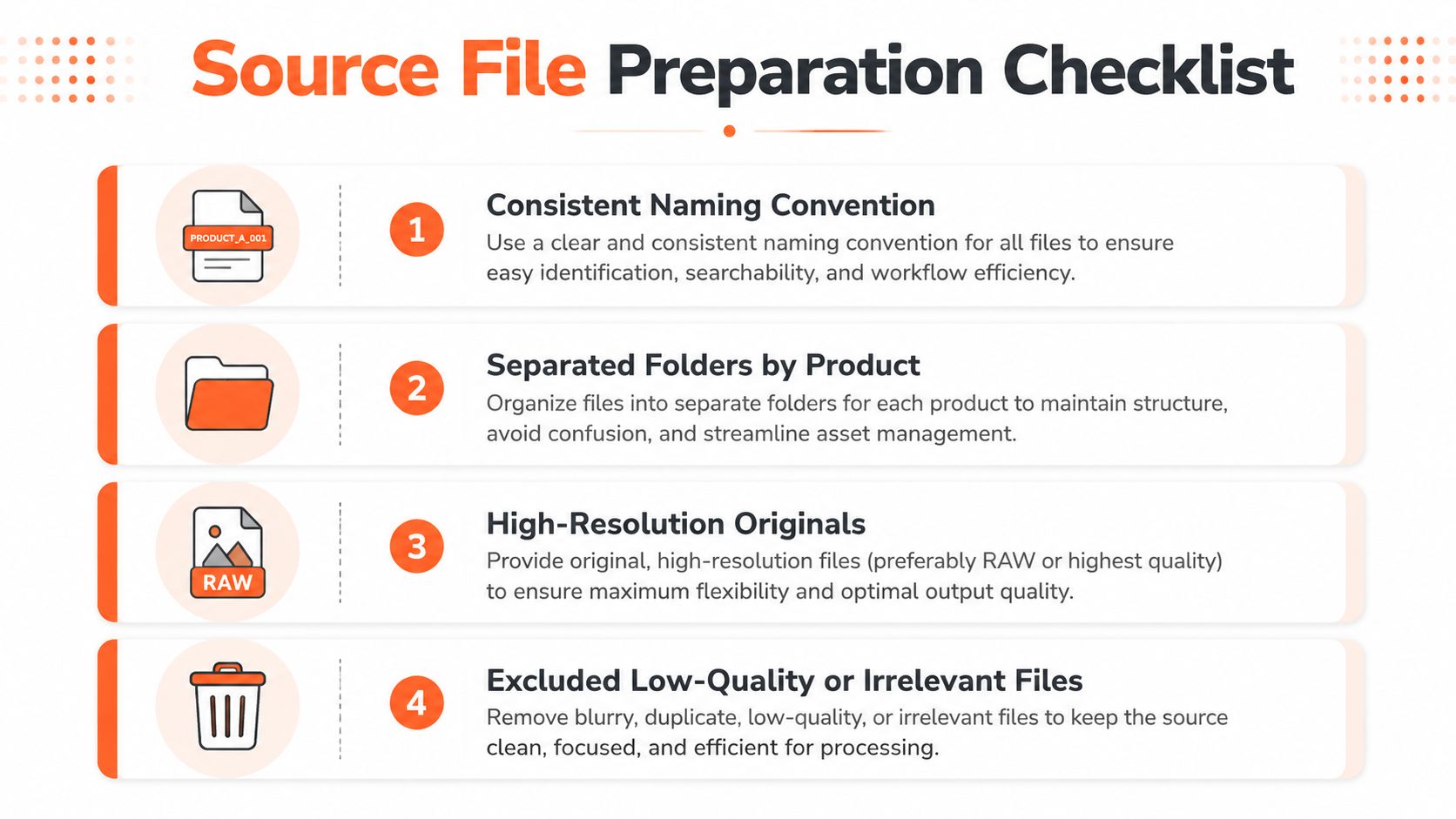
Audit the source before resizing
Check the longest and shortest sides of every source file. A small image cannot become a sharp large listing image just because you export it at a larger pixel count. Upscaling a low-resolution source may be useful as a controlled fallback, but it needs human review.
Keep high-quality masters separate from compressed working files. TIFF or PNG can preserve a higher editing ceiling, while JPEG is usually more practical for photographic delivery. Complete background work, color correction, and crop decisions on the master before making final derivatives. Repeatedly opening and exporting already-compressed JPEGs stacks avoidable quality loss.
Doing this for a whole catalog?
MerchLoom runs background removal, upscaling and AI editing across every product photo you have — one prompt, whole batch. Try 2 batches free, no signup.
Try it freeNormalize color handling before the batch starts. Use sRGB for web and marketplace delivery, and inspect a sample on the devices your buyers use. Strip irrelevant metadata if it causes processing errors, but retain fields you deliberately use for catalog management. Alt text still belongs in your commerce platform or feed. It isn't reliably created by resizing software.
For a practical checklist covering image preparation before marketplace submission, review Hopted prepare product images. For lighting and source consistency, the product photography lighting guide is useful before you start editing.
Create a simple manifest with SKU, original filename, angle, variant, source dimensions, destination preset, export filename, and review status. That list catches missing products and duplicate outputs. It also gives you a way to rerun only the failed items instead of processing the whole catalog again.
Choosing the Right Batch Resize Approach
The right approach depends on how often you process catalogs and how much control each output needs. Browser-based tools are convenient for a contained job. Desktop software gives you local control. Cloud or API workflows make more sense when image preparation is part of your catalog operation rather than an occasional task.
A local tool can be faster because it avoids upload and download time. A browser tool can be easier for a seller who doesn't want to install software. An API pipeline can connect image processing to a product information system, but it requires setup, validation, and a clear failure-handling process.
Compare the trade-offs
| Method | Throughput | Cost per 2K images | Metadata Preservation | API Integration | Manual QC Required |
|---|---|---|---|---|---|
| Browser-based bulk tool | Depends on browser, device, and batch size | Tool-dependent | Verify before use | Usually limited | Moderate |
| Desktop software | Local-device dependent | Software-dependent | Usually more controllable | Usually limited | Moderate |
| API-driven cloud pipeline | Workflow and provider dependent | Usage-dependent | Configurable if mapped correctly | Strongest option | Lower after validation, but still required |
Available benchmark data shows why delivery model matters. In a 100-file test, local XnConvert took about 20 seconds, local IrfanView about 15 seconds, client-side BIRME about 3 minutes, server-based iLoveIMG about 2 minutes, and another server tool about 2 minutes for 100 or more files. The figures come from the online bulk resizing benchmark, so treat them as a comparison of that test environment, not a guarantee for your laptop or catalog.
The same benchmark highlights operational limits. One server tool imposed a free-job limit of 30 images per job, while local and browser-side options could batch without that specific restriction. Upload time, download time, browser memory, failed exports, and repeated quality checks can matter more than the resize calculation itself.
A browser workflow works well when you need a quick preset and can inspect the downloaded files. Desktop software works better when source privacy, folder control, and repeatable local actions matter. API processing is appropriate when new images arrive regularly and you need automated naming, routing, validation, and notifications.
For sellers who need more than dimension changes, GIMP image resizing workflows can help with local editing and batch actions. MerchLoom is another category of workflow tool. It can run chained AI pipelines across a collection, so resizing can follow background cleanup or reframing instead of being repeated one image at a time. The first images can be tried with no account. It uses pay-per-image credits, and those credits never expire. AI output still needs human review, and it isn't a full Photoshop replacement.
Building Automated Pipelines Beyond Simple Resizing
A resized file can still fail a catalog review. If the product sits off-center, backgrounds vary, or color shifts between shoots, matching dimensions will not create a consistent listing. Treat resizing as the delivery stage after the visual decisions are complete.
Use a fixed sequence for every SKU:
- Upload the batch. Import raw or approved working files from storage, the commerce platform, or a DAM. Preserve the original path and SKU with each image.
- Remove or normalize the background. Create a clean cutout or white-background version. Amazon main images require RGB 255,255,255 white, so transparent output may need a separate white export.
- Reframe the product. Detect product bounds, center the object, and apply consistent padding across variants. Amazon guidance around an 85% product-to-frame ratio makes framing a compliance requirement, as discussed in Amazon main image requirements.
- Correct color. Normalize white balance, exposure, and contrast so products from different shoots share a consistent appearance.
- Create platform derivatives. Export Amazon, Shopify, Etsy, storefront, and advertising versions with their required dimensions and aspect ratios. Preserve proportions, then crop or pad deliberately.
- Upscale only when necessary. Low-resolution sources may need AI assistance. Inspect edges, text, logos, and fine details before approving the result.
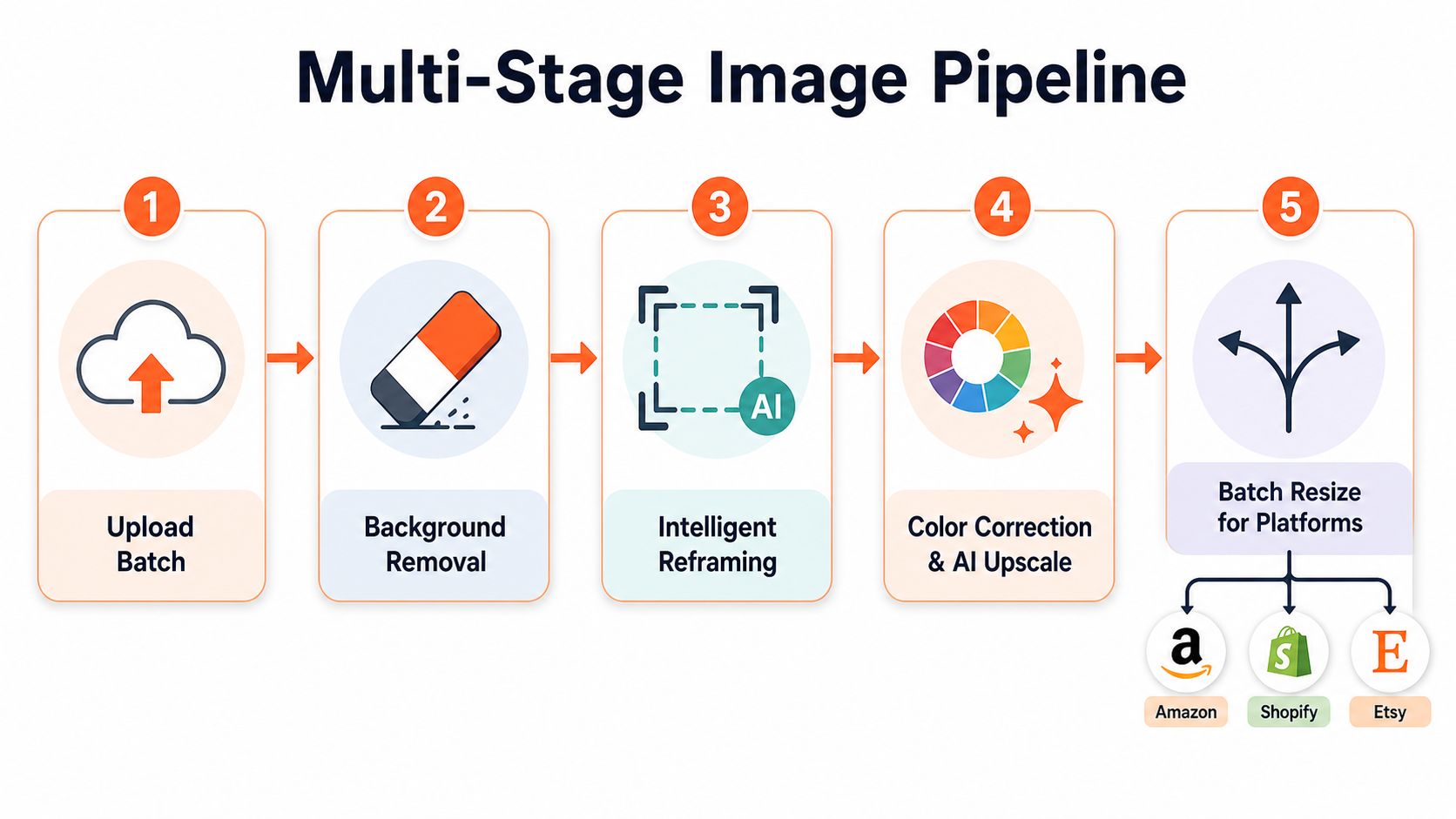
Route outputs by destination
A useful pipeline produces the right files and sends them to the right destinations. Route the Amazon main image to a folder with white-background validation. Apply a square store standard to Shopify exports. Check Etsy files by their shortest side. Let lifestyle images use a different crop without altering the source product framing.
Write these rules before building the workflow. For example: “Create a white-background Amazon main image with the product centered, preserve its proportions, export with the longest side at least 1600 pixels, then create a square Shopify derivative.” Explicit rules prevent one preset from being applied to every channel.
AI image workflow automation can combine reframing, background changes, color work, upscaling, and platform-specific exports across a collection. MerchLoom supports this chained workflow, but review a representative sample from each SKU type. Transparent parts, reflective surfaces, packaging text, and unusual proportions still need human judgment. Automation removes repetitive handling while people resolve the edge cases that presets cannot interpret reliably.
Quality Control and Performance Optimization
A batch is ready only when its files can be uploaded without exposing a catalog-wide error. Across hundreds of SKUs, visual consistency depends on checking the output set, not trusting one successful sample.
Run automated checks before manual review. Compare dimensions with each destination preset, confirm required backgrounds, verify filenames against SKU mappings, and flag clipped, stretched, or badly padded products. Send failures to a separate folder so approved exports remain clean.
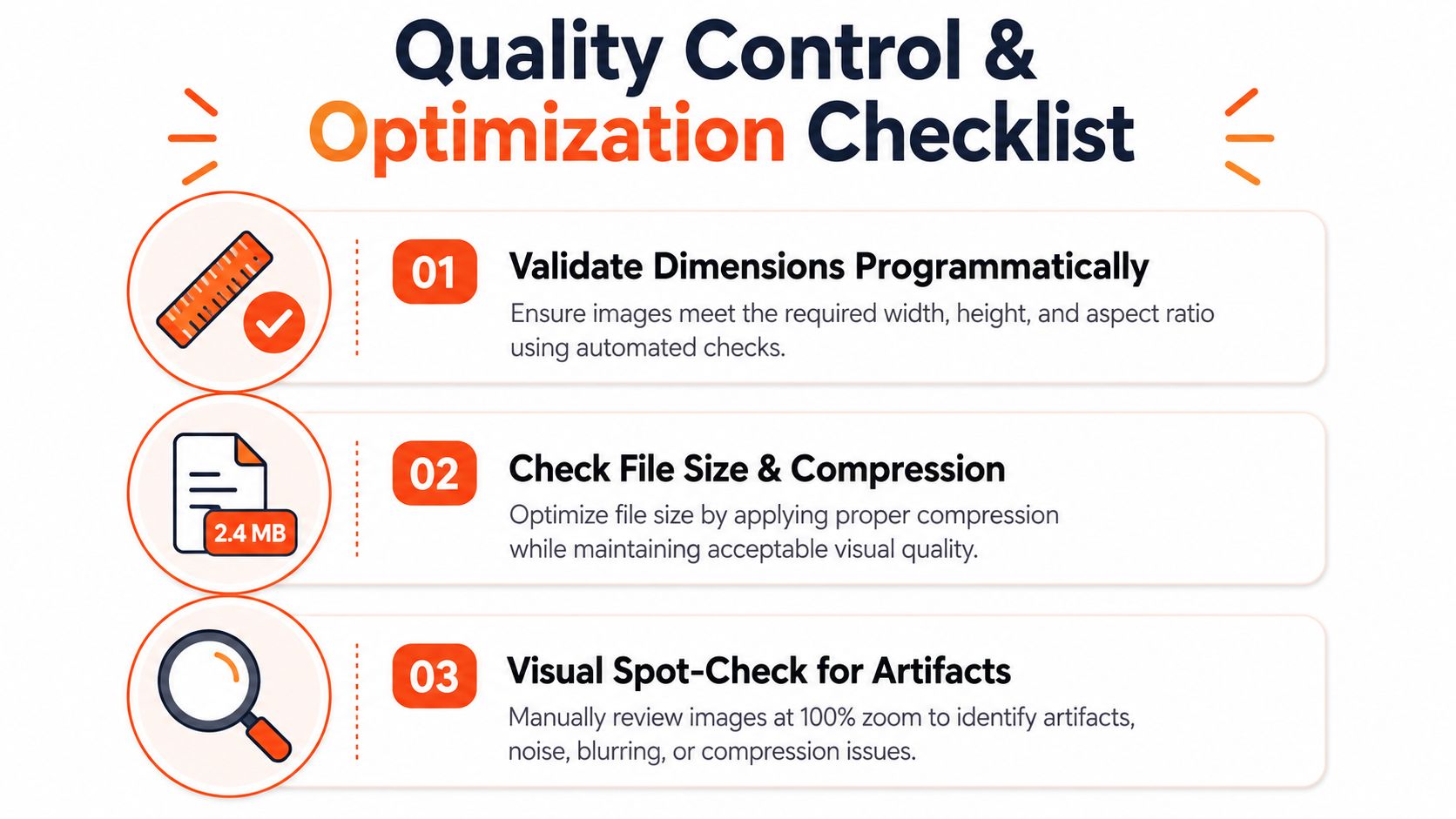
Use a release checklist
- Validate dimensions: Reject outputs that do not match the platform preset.
- Check compression: Resize before compressing. Create derivatives near 400px, 800px, and 1600px widths, then set a file-size ceiling appropriate to the channel. The guide to reduce image file size explains practical compression methods while keeping the untouched master available.
- Inspect visual quality: Check halos, jagged edges, muddy textures, banding, and unwanted padding at actual display sizes.
- Check accessibility fields: Confirm that listing alt text exists and accurately describes the product. Resizing cannot create useful alt text.
- Review mobile delivery: Serve responsive derivatives instead of sending the largest file to every device.
The Contentsquare Foundation accessibility barometer documents barriers involving alternate text and inaccessible images on retail sites. Image preparation therefore supports accessibility readiness. A sharp product photo still excludes shoppers if assistive technology cannot interpret it.
Performance work can help boost ecommerce conversion rates, alongside accurate product information, availability, mobile layouts, and useful photography. Review a sample from every SKU type before release, especially transparent packaging, reflective surfaces, printed text, and unusual proportions.
Keep masters untouched, store exports by channel, and sample the catalog after each batch. When marketplace requirements change, update the preset and rerun only affected derivatives.
MerchLoom lets you import product photos from existing storage or commerce systems and run chained AI pipelines for reframing, background work, upscaling, and marketplace exports. Review initial outputs before processing the approved catalog at scale. MerchLoom supports Amazon, Shopify, Etsy, and storefront-ready image sets.
Stop editing product photos one at a time
Upload your catalog or connect your store. Describe the result once. MerchLoom does the rest.
Try it free — no signup