
AI Product Photo Editor for Shopify: A Workflow Guide
Streamline your store with an AI product photo editor for Shopify. Learn a batch workflow to create consistent, high-quality images for your entire catalog.
You've got a folder full of product images, a Shopify store that needs to go live, and three different output requirements fighting each other. Shopify wants clean, consistent catalogue images. Amazon wants a compliant white background. Etsy needs large, clear visuals. Your social team wants vertical crops, homepage banners, and lifestyle scenes by the end of the day.
That's where most sellers lose time. Not in taking the first photo, but in turning one source image into every version the business needs.
A good AI product photo editor for Shopify isn't just a tool for touching up one image. It's a system for processing an entire catalogue without creating visual drift, broken listings, or endless rework. If you run a few SKUs, that matters. If you run hundreds, it decides whether your team spends the week merchandising products or renaming PNGs.
Why AI Is a Game Changer for Shopify Catalogs
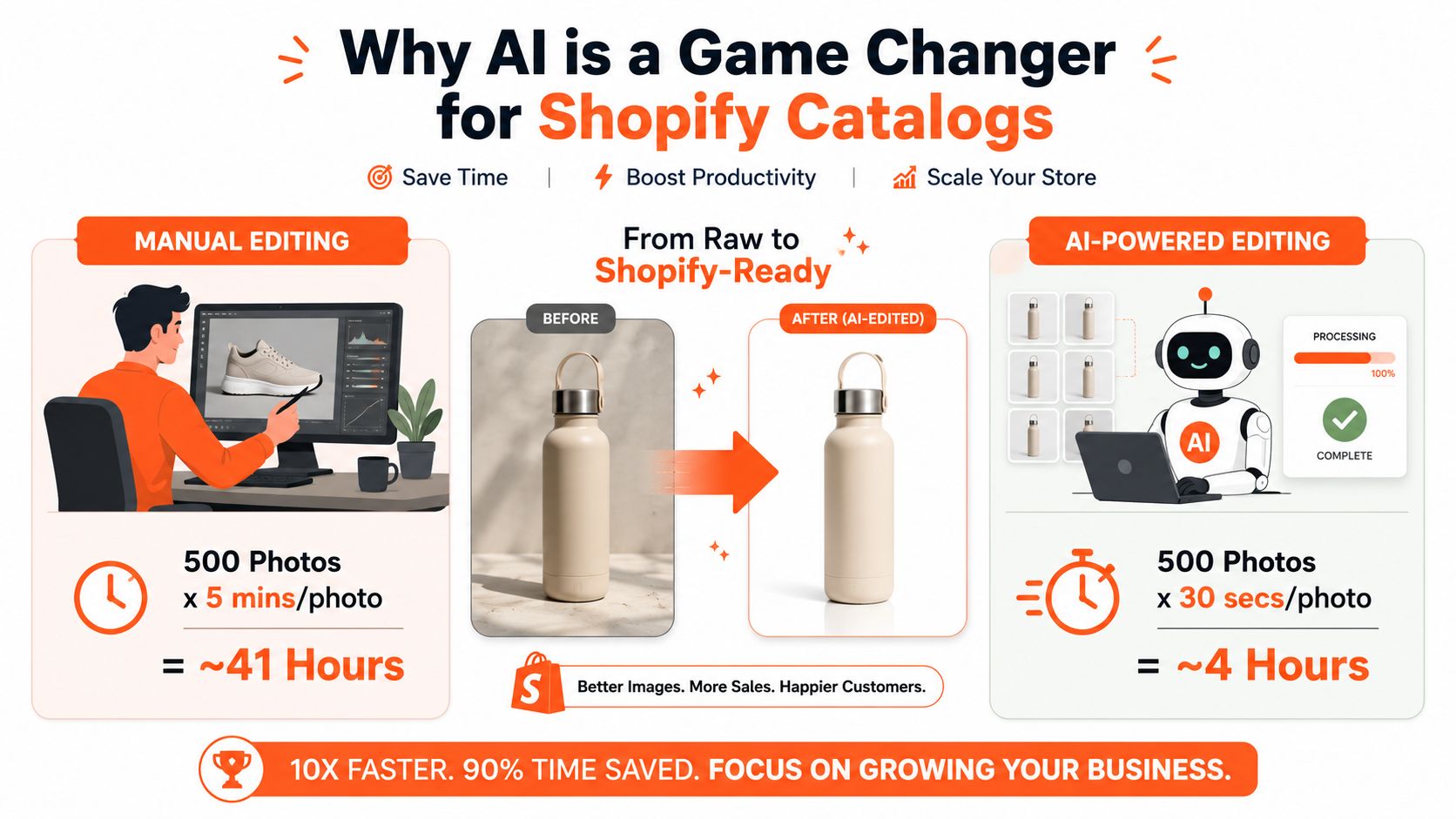
Manual editing breaks first at catalogue scale. One product is manageable. Fifty products are annoying. Hundreds of images across collections, variants, bundles, marketplaces, and campaign assets turn into operational drag.
That's why AI has moved from “nice to have” to core workflow infrastructure for Shopify teams. The shift isn't only about speed. It's about replacing one-off edits with repeatable batch processing.
The old model doesn't scale
Traditional product photography and post-production made sense when product launches were slower and channel requirements were simpler. That's not how most Shopify stores operate now. Sellers need the same product image set to work across collection pages, PDPs, ads, marketplaces, and social placements.
The cost gap is no longer small. Traditional photography costs $75,000 to $200,000 to process 1,000 products, while AI generation reduces this to under $5,000, with production time shrinking from weeks to hours, according to Prodofoto's analysis of Shopify AI product photography economics.
That changes budget decisions. Instead of pouring cash into repetitive visual production, merchants can put more of it into inventory, testing, or paid acquisition.
Practical rule: If your team is still doing upload, edit, export, rename, and re-upload for every SKU, the bottleneck isn't creative quality. It's workflow design.
Batch processing matters more than single-image polish
Most guides on AI image editing still focus on the demo moment. Remove one background. Generate one lifestyle scene. Fix one crop. That's useful for a casual seller, but it doesn't solve catalogue operations.
What works in practice is a pipeline. New product photos come in. The system recognises them, applies a consistent set of edit rules, creates multiple outputs, and sends approved versions back into the right listing flow. If you want a useful primer on the bigger customer-facing context, Quikly's piece on understanding AI's role in B2C is worth reading alongside the image workflow side.
For Shopify teams building operational discipline around this, the primary focus should be workflow orchestration, not isolated editing. That's the difference covered in this look at AI image workflow automation.
What actually changes day to day
Once AI handles routine image tasks in batches, the work shifts:
- Merchandisers stop firefighting and spend more time on assortment, launches, and merchandising logic.
- Designers review outputs instead of manually rebuilding the same crop and background treatment over and over.
- Marketplace teams get channel-specific assets without asking for separate photo shoots.
- Store owners launch collections faster because the image backlog no longer blocks publishing.
For a single-image user, AI is convenient. For a Shopify catalogue, it's an operational advantage.
Connecting Your Shopify Store and Image Sources
The biggest workflow mistake is starting from your laptop. If your image process depends on downloading files locally, editing them one by one, and uploading them back into Shopify, you've built a slow system before AI even enters the picture.
For real catalogue work, the first step is connecting the systems where images already live.

Treat Shopify as a source, not just a destination
A strong setup pulls from Shopify instead of waiting for someone to manually assemble files. That usually means connecting product records, existing media, product titles, tags, or collection context so the editing logic can follow the listing structure.
A key consideration is that product images rarely come from one clean source. Some arrive from suppliers. Some sit in Drive folders. Some are already attached to product drafts. Some live in object storage or a DAM. If your AI product photo editor for Shopify can't work across those sources, your team ends up babysitting file movement.
A practical setup usually looks like this:
- Shopify provides product context such as SKU grouping, title, category, or collection.
- Cloud storage holds originals from suppliers or internal shoots.
- The workflow pulls both together so image processing follows product structure.
- Approved outputs return to Shopify in the right place.
Keep raw assets in stable storage
Sellers with growing catalogues should keep source images in a stable cloud location rather than scattered across desktops. Google Drive, Dropbox, and S3-style storage all work if your naming is organised and product IDs are consistent.
That setup also reduces version confusion. You don't want “final-final-v3-recrop.png” floating around in Slack while the wrong image sits on a live product page. A connected workflow gives you one source of truth, then generates the channel-specific outputs from there.
A similar principle applies when your broader content workflow includes creator content. If you're blending supplier images, in-house product photos, and UGC, a platform with a strong creator marketing solution can help on the content acquisition side before those assets ever enter your image pipeline.
The more channels you sell on, the less sense manual file handling makes.
What to connect first
Don't try to wire every source on day one. Start with the systems that create the most friction now.
| Priority | Connect first | Why it matters |
|---|---|---|
| High | Shopify product records | Ties outputs to the right listings |
| High | Primary image storage | Gives the workflow access to originals |
| Medium | Supplier upload folder | Reduces intake delays |
| Medium | CDN or DAM | Helps if your team already stores approved assets there |
| Later | Extra campaign folders | Useful once the core catalogue workflow is stable |
What breaks in messy setups
The failure points are usually operational, not technical:
- Bad naming discipline means the wrong product image gets matched to the wrong listing.
- Mixed source quality leads to inconsistent outputs even if the AI step is good.
- No clear original folder makes it hard to audit what changed.
- Manual exception handling everywhere kills the time savings you expected.
If you're standardising this process, the useful lens isn't “can the tool edit photos?” It's “can the workflow absorb a new batch without human sorting?” That's the difference between a toy and an operating system for catalogue images, and it's the same idea behind modern e-commerce image automation.
Building Your Repeatable AI Editing Pipeline
The right way to think about an AI product photo editor for Shopify is as a chain of decisions. One image goes in. Several outputs come out. Each output serves a different job.
That's very different from opening a single photo editor and making visual tweaks by hand.

Start with one product family
Take a new handbag collection as an example. You've got supplier images on mixed backgrounds, a few clean studio shots, and a launch deadline. You need product page images, collection thumbnails, Instagram-ready crops, a homepage hero visual, and maybe an Amazon-safe white-background version.
That's not five separate creative projects. It's one pipeline with multiple outputs.
The strongest baseline methodology is straightforward. A robust Shopify AI product photo editing workflow involves retrieving original images, generating AI lifestyle scenes, optimising and resizing for multiple marketplaces, and uploading final images back to the product page. This can reduce manual editing time by up to 70%, based on MindStudio's workflow guidance for Shopify image automation.
Build the pipeline in layers
A repeatable workflow usually has four working layers.
Intake and normalisation
First, pull the raw images into one processing flow. Here, you separate usable originals from junk inputs.
For handbags, I'd standardise orientation, identify the hero image, and remove obvious duplicates before doing anything more expensive. If the source files vary a lot, this stage prevents the rest of the batch from drifting.
Core catalogue edits
Next comes the boring but essential work:
- Background cleanup for Shopify collections and marketplace requirements
- Consistent framing so products sit similarly across the collection
- Colour correction to keep tones close to the actual product
- Resolution cleanup so the source is strong enough for derivative outputs
Inefficiency persists as time is still wasted by thinking image by image. A proper pipeline applies the same treatment rules across the whole set.
Derivative outputs by channel
Once the base image is clean, generate the versions each channel needs.
For one handbag source, that often means:
- Shopify square asset for collection grids
- White-background marketplace asset for Amazon-style listing needs
- Large Etsy-friendly version with enough resolution for detailed browsing
- Vertical social crop for stories, reels covers, or pins
- Lifestyle scene for homepage banners, launch emails, or ads
This is the ultimate payoff. One source image becomes a structured family of assets instead of a single “finished” file.
Don't optimise for one beautiful image. Optimise for a reusable set.
Return and attach
Last, route approved outputs back into the correct product records, folders, or campaign libraries. If this step is manual, the whole process starts leaking time again.
Use plain-English instructions, not brittle one-off prompts
For teams managing volume, reusable instructions matter more than clever prompt writing. You want rules that are stable and understandable:
- place bag centred with natural shadow
- generate a clean square Shopify crop
- create a bright editorial lifestyle scene with a neutral café table
- preserve leather texture and hardware shape
- output separate social and marketplace versions
That's why plain-English batch systems are more useful than single-image prompt boxes. MerchLoom's practical distinction is that it isn't a one-photo editor. It works as a batch pipeline that recognises inputs, turns requests into structured AI edit instructions, and produces multiple Shopify-ready outputs from the same source set. That's the operating model behind AI batch image editing.
What works and what doesn't
Doing this for a whole catalog?
MerchLoom runs background removal, upscaling and AI editing across every product photo you have — one prompt, whole batch. Try 2 batches free, no signup.
Try it freeHere's where sellers usually get better results fast.
| Works well | Usually causes problems |
|---|---|
| Strong source photos with consistent angles | Mixed low-quality supplier images with no standard framing |
| Separate outputs for Shopify, Amazon, Etsy, and social | One “master image” forced into every channel |
| Reusable visual rules by product category | Prompting every image from scratch |
| Human review after generation | Blindly publishing whatever the model returns |
One caution. Lifestyle generation is useful, but only when the product itself stays accurate. If straps, stitching, hardware, or silhouette shift between outputs, the image becomes marketing fiction instead of merchandising.
Optimizing Workflows for Cost and Consistency
Fast is good. Cheap is good. Neither matters if the catalogue looks inconsistent or the workflow burns money on the wrong steps.
Most sellers focus on which AI model to use. Experienced teams focus on sequence. The order of operations decides both output quality and processing efficiency.
Sequence affects cost
If you upscale first and clean later, you're often paying to process unnecessary pixels. If you remove a messy background first, standardise framing second, and only upscale the approved base image when needed, the workflow stays leaner.
That's one reason batch pipelines outperform ad hoc editing habits. They enforce a repeatable order. According to MerchLoom's publisher guidance, removing backgrounds before upscaling can reduce costs significantly in some workflows because the expensive step happens after the image has been simplified. The exact saving depends on the files and process, but the principle is reliable: do the heavy work later, not earlier.
Consistency needs rules, not taste
A Shopify catalogue falls apart visually when every batch gets edited a little differently. One product has warm lighting. The next is cooler. One is tightly cropped. Another floats with too much white space. A few lifestyle shots look premium, then a supplier image slips in and breaks the whole collection.
The fix is simple in theory and disciplined in practice. Define category-level rules.
Create visual standards by collection
For example:
- Home décor might use bright, minimal interiors and soft natural light.
- Beauty products might use clean shadows, centred framing, and high-clarity close crops.
- Fashion accessories might need neutral editorial scenes plus plain catalogue versions.
- Food packaging might need shelf-clean PDP shots and warmer campaign visuals.
The point isn't to make every product identical. It's to make every collection feel deliberately organised.
A consistent catalogue usually converts trust before it converts clicks.
Multi-output planning beats repeated editing
The cheapest workflow is often the one that decides outputs before processing starts. If you know each source image needs a Shopify square, an Amazon-safe white-background version, an Etsy-friendly large image, and a social crop, define that as one pipeline.
That avoids three common wastes:
- Reopening finished files because a new channel request appears later
- Creating inconsistent crops when different people handle different outputs
- Duplicating QA across assets that should have come from one approved base image
Teams working on broader campaign operations often run into the same issue outside image production. If your launches involve multiple stakeholders, this guide to marketing campaign management strategies is useful because the image workflow problem is often part of a bigger operations problem.
Where sellers usually overspend
The cost leaks are predictable.
Too much generation before approval
Generate one strong base treatment first. Don't create every scene variation before confirming the product cutout, colour fidelity, and framing are right.
No category presets
If every batch starts from scratch, quality drifts and labour creeps back in. Presets or reusable instruction sets matter.
Wrong images sent through premium steps
Not every image needs the expensive path. Hero assets, homepage banners, and ad creatives usually deserve more processing attention than low-priority secondary gallery images.
Rework caused by bad handoff
If the team can't tell which version is approved for Shopify and which is meant for social, they'll duplicate work or publish the wrong file.
This is why operational discipline matters as much as AI capability. A tool that can process images isn't enough. The workflow has to keep costs controlled while preserving a catalogue-wide look. That's the practical promise behind product photo automation.
Reviewing QA and Syncing to Shopify
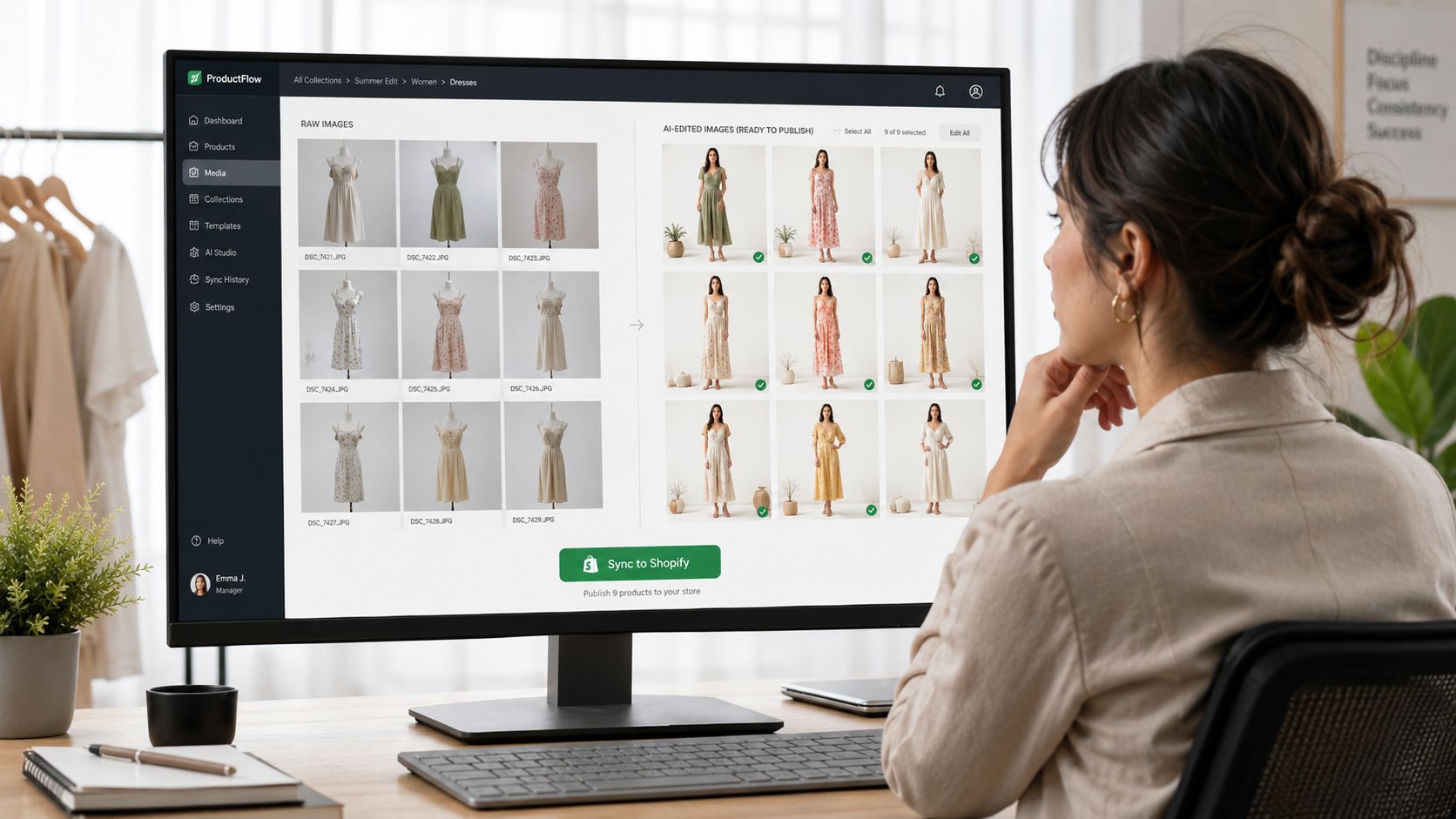
AI can generate a clean-looking image that's still wrong. That's the danger. The product may look polished, but the colour may have shifted, the shape may be softened, or a key detail may be missing. For e-commerce, that's not a creative issue. It's a merchandising and compliance issue.
QA has to check accuracy, not just artifacts
Many teams review AI output by asking one narrow question: does it look weird? That's not enough. A more useful review asks whether the image still represents the actual item the customer will receive.
This matters even more for Canadian brands. A major gap in AI image generation is standardised validation against brand guidelines. With Canadian DTC revenue at $18.3B in 2025 and rising consumer protection lawsuits over AI misrepresentation, sellers need to audit whether colours, geometry, and key attributes accurately reflect the source product to avoid false advertising risk, as discussed in Prodofoto's analysis of AI product image validation.
A practical QA checklist
Use a short checklist that a merchandiser or reviewer can apply quickly across batches.
Product truthfulness
Check whether the AI changed anything material:
- Colour accuracy so the blue bag didn't become teal
- Shape and proportions so handles, hems, sleeves, or edges still match
- Surface details so stitching, texture, closures, and printed elements remain believable
- Variant integrity so the correct product isn't attached to the wrong SKU
Brand consistency
Then check whether the image belongs in your catalogue:
- Framing matches the collection
- Lighting feels consistent with the rest of the category
- Background treatment follows your visual rules
- Lifestyle scenes fit the brand instead of looking generic
Technical readiness
Finally, confirm the image is ready to publish:
- Dimensions suit the target channel
- Cropping doesn't cut off key product features
- File quality is clean enough for zoom and mobile
- The right asset is assigned to the right listing position
Review the first outputs while the batch is still running if your system allows it. Catching a colour issue early is far cheaper than regenerating a full collection later.
Syncing approved images back into Shopify
Once images pass QA, the handoff to Shopify should be structured. Attach hero images to the primary product media slot, then route alternate angles, lifestyle shots, and campaign variants according to your merchandising rules.
That sounds obvious, but many teams still export finished files and manually upload them into product pages. That invites naming mistakes and slows launch speed. A stronger workflow pushes approved outputs back into Shopify with the correct product association already intact.
For stores also improving low-quality source files before final review, tools and workflows around HD photo conversion can help strengthen weak inputs before they enter the final publish stage.
The key point is simple. AI output should never go live unreviewed just because it looks polished.
Beyond Product Pages Automation and Advanced Uses
Once the catalogue pipeline is reliable, product imagery stops being a back-office task and starts acting like a content engine. The same source set can support product pages, collection tiles, marketplace listings, seasonal promos, paid social, and homepage creative without spinning up separate production cycles every time.
Automation changes how launches happen
The useful end state is event-driven. A new product appears in Shopify or lands in a source folder, and the workflow triggers automatically. It pulls the original image, applies the correct category rules, creates the output set, routes it to review, then syncs approved versions back to the store.
That's much more valuable than a faster editor. It means launches no longer depend on someone remembering every crop, size, and export variant.
One source image can feed multiple channels
The multi-output approach wins:
- Product pages get clean, consistent catalogue images.
- Amazon listings get compliance-friendly white-background versions.
- Etsy listings get larger, detail-friendly assets.
- Homepage banners get campaign-oriented lifestyle compositions.
- Social posts and ads get vertical and promotional crops built from the same approved product base.
When the system is stable, your visuals stay aligned across channels because they come from the same source logic, not separate manual edits.
The practical ceiling is higher than most teams think
Most sellers start by using AI for cleanup. The bigger gain comes when they use it for orchestration. That includes batch onboarding of supplier photos, seasonal creative refreshes, category-specific lifestyle generation, and consistent campaign asset production across the whole store.
That's the fundamental promise of an AI product photo editor for Shopify. Not one better image. A repeatable system that turns raw product photos into channel-ready assets at catalogue scale.
If you want to build that kind of repeatable image system, MerchLoom is worth a look. It's designed for batch e-commerce workflows rather than one-off edits, so you can import full collections, describe what you need in plain English, and generate multiple Shopify-ready outputs from the same source images without rebuilding the process every time.
Stop editing product photos one at a time
Upload your catalog or connect your store. Describe the result once. MerchLoom does the rest.
Try it free — no signup