
AI Image Editing from Shopify: A Guide for Batch Workflows
Learn how to use AI image editing from Shopify for your entire catalog. This guide covers batch workflows, cost-optimization, and multi-platform image prep.
Your Shopify catalogue probably didn't become inconsistent all at once. It happened one upload at a time. A supplier sent packshots with grey shadows. A freelancer cropped one collection tightly and another loosely. Last year's hero images looked fine on product pages, but now they don't fit square collection grids, Amazon wants white backgrounds, and Etsy wants larger files than the ones sitting in your media library.
That's why AI image editing from Shopify matters most after the shoot, not before it. Most merchants already have images. The primary job is cleaning, standardising, repurposing, and publishing those assets across a catalogue without turning image work into a weekly bottleneck.
For a single product, Shopify's native tools can help. For a store with hundreds of SKUs, the question changes. You're no longer asking, “Can I improve this image?” You're asking, “How do I process an entire collection consistently, keep platform requirements straight, and avoid redoing the same work every season?”
The Challenge of Catalogue-Scale Image Editing
A typical Shopify merchant doesn't struggle because they lack images. They struggle because they have too many images in too many conditions.
One apparel store has clean front-facing shots for half the catalogue, older lifestyle photos for a few bestsellers, and mobile photos from a supplier for the rest. A home decor brand has product cutouts that work on white backgrounds but feel flat on collection pages. A beauty seller wants fresh ad creative from existing photos, but every image crop is different and none of them line up cleanly across paid social, Shopify, and marketplace listings.
That's where most advice falls apart. Existing Shopify AI content is usually about one-off edits such as background removal or a quick background swap. It doesn't solve the operational problem of catalogue consistency. One analysis of the Canadian e-commerce sector noted that 68% of CA-based DTC brands manage catalogues exceeding 500 SKUs, and highlighted a scaling issue where 90% of AI tools “wreck the product” when scaling to square formats without distortion in large-catalogue workflows, as discussed in this LinkedIn analysis of batch workflow consistency for Shopify brands.
What the mess looks like in practice
When image operations aren't organised, the damage shows up in familiar places:
- Collection pages feel uneven: Some products are tightly cropped, others float in too much empty space, and the visual rhythm breaks.
- Marketplace prep becomes repetitive: Amazon may need a white background, Shopify may favour a square crop, and Etsy often benefits from larger listing-ready files.
- Old assets keep getting reused badly: Teams stretch, crop, or sharpen old photos manually instead of building a repeatable process.
- Launches slow down: New inventory sits in draft while someone edits images one by one.
Practical rule: If your team is touching the same type of image problem by hand more than a few times, you don't have an image issue. You have a workflow issue.
The merchants who get this under control stop thinking in single-image terms. They treat product media like catalogue infrastructure. One source image can become a clean Shopify PDP image, a marketplace-safe version, a lifestyle scene, and an ad crop, provided the process is designed once and reused.
A useful way to think about that shift is through e-commerce image automation for catalogue workflows. The core idea isn't glamorous. It's operational. Standardise inputs, define the outputs you need, then run batches instead of improvising every edit.
Why manual editing keeps failing
Manual editing feels manageable at first because each task is small. Remove a background here. Extend a canvas there. Generate one ad image for a promotion. But catalogue work compounds fast. Consistency isn't created by good intentions. It comes from repeatable rules applied to every image in a collection.
If your store has hundreds of listings, visual merchandising has already become a systems problem.
Understanding Shopify's Native AI Image Tools
Shopify made a sensible move when it introduced native AI image editing. For merchants already working inside the admin, built-in help is better than exporting every file to another app for basic fixes.
According to TechCrunch's coverage of Shopify's Magic Media Editor launch, Shopify launched Magic Media Editor on January 31, 2024. It lets merchants generate backgrounds in seven distinct styles or use custom text prompts, and it was slated to launch in spring 2024 at no additional cost for existing users. The important operational detail is this: it's integrated into the Shopify admin, but it's designed for single-image edits.
Where Magic Media Editor is genuinely useful
For one-off tasks, it's convenient.
If you need to clean up a hero image for a featured product, remove a distracting background, or test a cleaner branded backdrop on a small set of listings, Shopify's native editor is the right level of tool. You don't need another subscription, and you don't need a designer for every minor visual update.
It's also helpful for merchants who want to experiment before they commit to a larger process. A simple background style test can show whether a product line looks better in a minimal setting, a more refined backdrop, or something more natural.
A few use cases fit especially well:
- Single hero product refreshes: Updating a homepage feature image or a flagship SKU.
- Quick catalogue cleanups: Fixing a small number of images with obvious background issues.
- Prompt testing: Trying different visual directions before defining a broader standard.
- Creative exploration: Seeing whether a product suits a more editorial or lifestyle presentation.
Where it stops helping
The limitation isn't image quality. It's throughput and consistency.
If your store has hundreds of images already in Shopify, repeating prompts manually becomes the bottleneck. Even when the prompt is good, one-at-a-time editing introduces variation in framing, shadow behaviour, lighting mood, and negative space. That's manageable on ten images. It's a problem on three collections and a seasonal launch.
Native AI inside Shopify is best treated as a smart editor, not a catalogue operations layer.
That distinction matters when you're preparing assets for multiple destinations. Shopify admin media, marketplace listing images, paid social crops, collection thumbnails, and refreshed lifestyle scenes all require different outputs from the same catalogue. A manual editor can assist with a few of them. It can't run the whole visual merchandising system.
For merchants comparing options, this is the useful lens in Shopify product photo editor comparisons: use the built-in tool when the task is local and isolated. Move beyond it when the job is repeated across a full catalogue.
A practical decision test
Use Shopify's native editor if the answer to all three questions is yes:
| Question | If yes |
|---|---|
| Is this only a handful of images? | Native editing is usually enough |
| Can each image be reviewed manually without slowing launches? | Manual work may still be acceptable |
| Does inconsistency across outputs have low business impact? | You can tolerate one-off edits |
If any answer is no, you're no longer choosing an editor. You're choosing an image workflow.
Connecting Shopify to a Batch AI Workflow Engine
The cleanest setup starts with one principle. Don't build your process around downloading and re-uploading files every time you need a change.
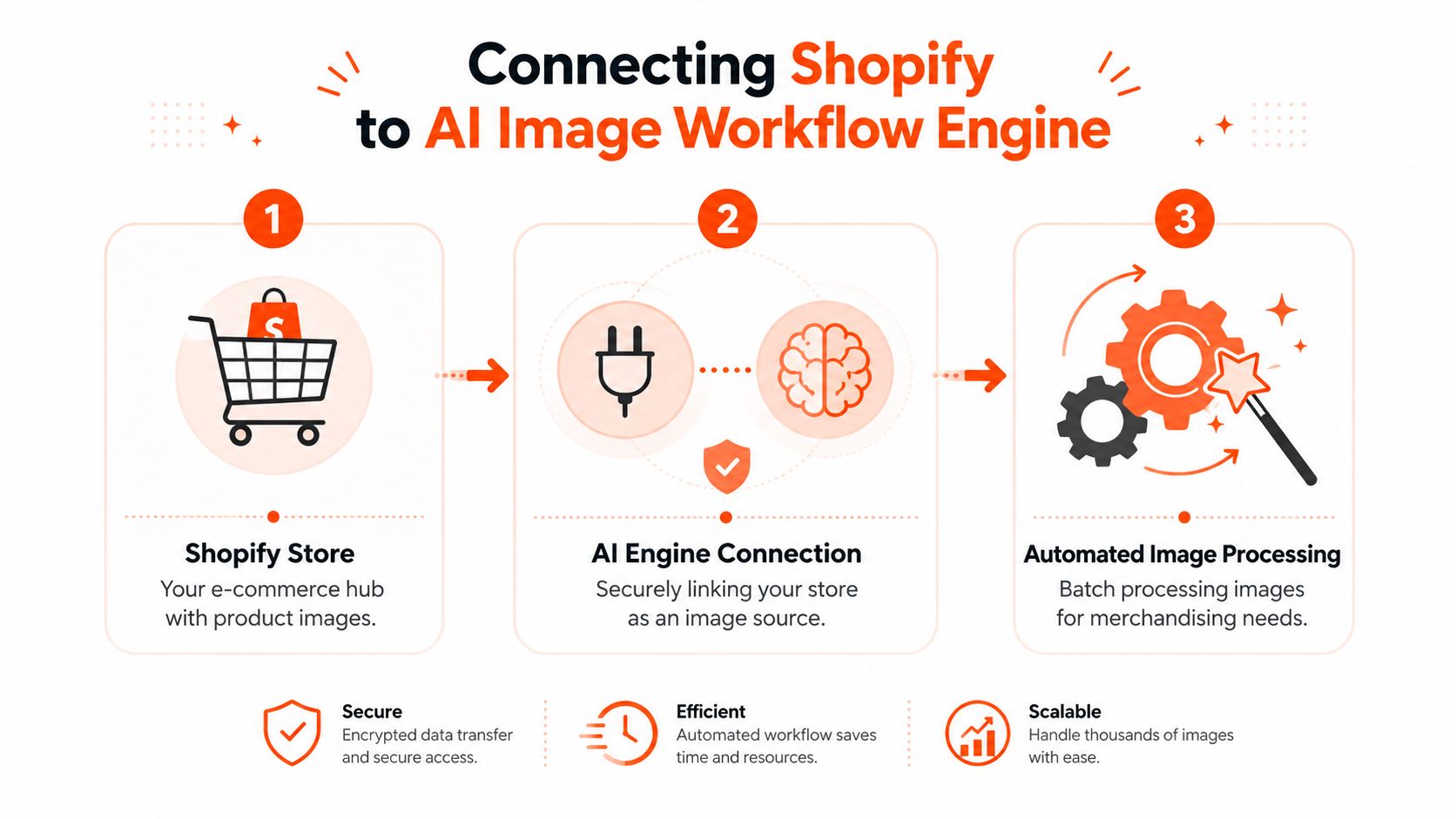
A proper batch workflow treats Shopify as a live image source. Your product media already sits in the catalogue. The goal is to connect that library to an AI processing layer that can pull images into repeatable workflows, send back approved outputs, and keep the whole operation organised by collection, product type, or publishing destination.
What the connection should actually do
For catalogue work, the connection matters more than the editing interface. If the setup is clumsy, teams avoid using it. If it's tied directly to your store images, you can work at the product and collection level instead of handling assets as loose files.
A solid connection usually needs to support these jobs:
Import existing catalogue images Pull current product media from Shopify without creating a parallel mess on someone's desktop.
Group images by merchandising need Separate “Amazon-ready clean shots” from “collection page squares” and “lifestyle scene generation” so outputs don't get mixed.
Run repeatable pipelines Apply the same image steps to all products in a collection instead of prompting each one by hand.
Review outputs before publish Teams need a checkpoint between generation and live listing updates.
Why this setup changes the economics of image work
Once Shopify is connected as the source, image processing becomes operationally lighter. A team can refresh old photos, create campaign variants, and prep marketplace-compliant images without rebuilding the process every time.
That's especially valuable when your catalogue keeps moving. New colourways, discontinued items, seasonal bundles, and revised packaging all create image work. A live workflow reduces the friction of using current store assets instead of treating each update like a mini production project.
The fastest image workflow is the one that starts with assets already in your catalogue.
Another benefit is reusability. A strong workflow engine lets you process one batch for clean product pages, then reuse those outputs as inputs for the next stage, such as ad creative or contextual lifestyle images. That's different from editing a photo. It's closer to building a visual production line.
If you want a practical framing for that setup, AI image workflow automation for product catalogues is the right mental model. The connection isn't the feature. It's the foundation that turns your Shopify media library into a working system.
What to avoid during setup
The most common mistake is connecting Shopify and then using the new system exactly like the old one. Merchants still pick individual images, still approve work one by one, and still think in terms of isolated edits.
Avoid that by defining outputs before you process anything:
- Collection standard: square Shopify images with consistent margins
- Marketplace standard: white background and listing-safe framing
- Lifestyle standard: scene-based imagery for top products only
- Campaign standard: ad-ready crops and background variations
Once those are clear, the connection starts paying off.
Building Automated AI Image Workflows
The useful shift in AI image editing from Shopify happens when you stop asking the tool for a result and start defining a pipeline. Each pipeline should solve one merchandising problem repeatedly.
For Shopify merchants in Canada, that matters because image context affects performance. One benchmark reported that AI-generated lifestyle scenes achieve a 23% higher click-through rate on product pages, and that batch workflows processing 500+ images per category reduce manual editing time by 92%, with error rates dropping from 22% in single-image editing to 4% in batch workflows with quality gates, according to this benchmark on Shopify Canada image workflow performance.
Doing this for a whole catalog?
MerchLoom runs background removal, upscaling and AI editing across every product photo you have — one prompt, whole batch. Try 2 batches free, no signup.
Try it free
Workflow one for marketplace compliance
This is the least glamorous workflow and often the most financially useful.
You take existing Shopify product images and chain a few steps in order: background cleanup, product isolation, reframing, square output for Shopify collections, white-background version for Amazon, and larger export for Etsy. The point isn't creativity. It's removing repetitive production work from the listing process.
This kind of workflow works best when you define rules before you run the batch:
- Crop policy: Keep consistent margin around the product so collection pages look organised.
- Background policy: White for marketplace listings, neutral or transparent where allowed.
- Resolution policy: Export by destination instead of resizing manually after the fact.
- Exception policy: Flag reflective, translucent, or unusually shaped products for separate review.
A merchant using this approach can clean an old catalogue once, then reuse the compliant outputs every time a channel needs updated assets.
Workflow two for lifestyle scene generation
Lifestyle imagery is where AI adds visible merchandising value. It helps products feel used, not just listed.
The mistake is generating scenes one product at a time with loose prompts. Better practice is to define a collection-level visual language first. For example, a home brand might want warm interior scenes with soft natural light and restrained styling. An outerwear brand may want urban Canadian settings that fit the product without overpowering it.
That's why prompt structure matters. If you're working on scene generation at scale, this ECORN article on optimizing eCommerce visuals with AI is useful background reading because it pushes the conversation away from novelty and toward controlled production outcomes.
If a lifestyle image makes the product look different from what ships, it's a merchandising liability, not a creative win.
The strongest workflow here usually includes product preservation checks, scene generation, consistency rules for lighting and camera angle, then a manual approval step for anything visually uncertain.
A short demo makes this easier to visualise:
Workflow three for ad creative and refresh campaigns
A lot of merchants already have enough source photography to make better ads. They just don't have enough time to repurpose it properly.
An ad creative workflow can take approved catalogue images and generate multiple outputs: social crops, alternate backgrounds, cleaner text-safe compositions, and seasonal variants. This is especially useful when you want to refresh old creative without paying for a new shoot.
Three strong use cases stand out:
Refreshing stale bestsellers Keep the product the same, update the context, crop, and campaign framing.
Launching seasonal promotions Generate a campaign look across many SKUs without rebuilding assets manually.
Testing channel-specific formats Prepare assets differently for Shopify banners, Instagram placements, and marketplace promos.
For merchants managing many SKUs, the practical next step is learning how batch product photo editing changes approval, not just production. Good workflows don't remove judgement. They move judgement to checkpoints that matter.
Optimizing for Cost Quality and Consistency
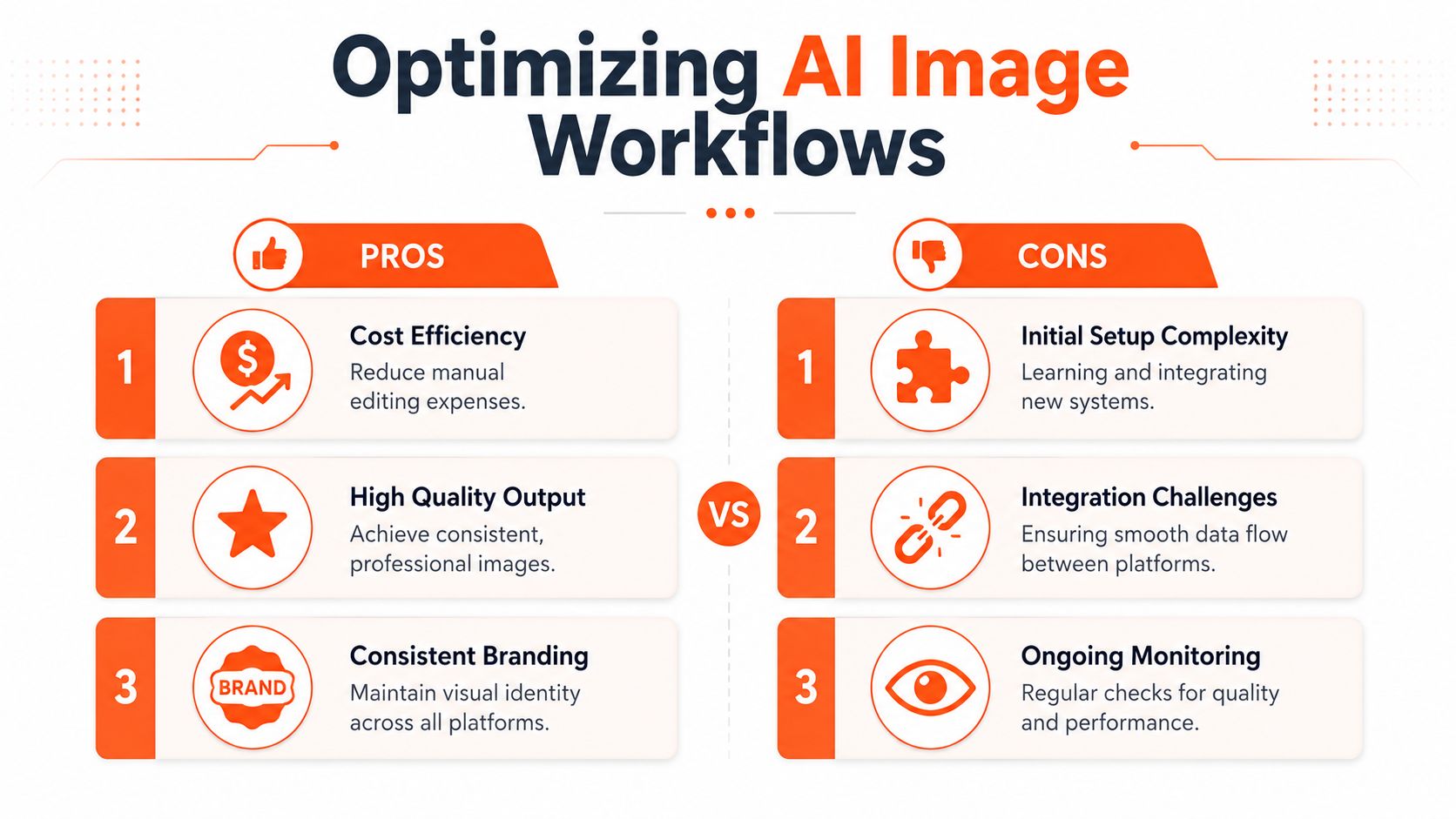
Once a batch workflow exists, the next gains come from optimisation. Through optimisation, experienced teams separate “AI-generated” from “production-ready”.
One of the most important details is processing order. A frequently missed optimisation is doing background removal before upscaling, which can cut costs by up to 87%, as discussed in this video analysis of AI image workflow cost control. The same source notes that 42% of AI-generated lifestyle scenes in CA e-commerce contain imperceptible distortions, which is exactly why catalogue-scale quality control matters.
The order of operations matters
Merchants often treat AI editing steps as interchangeable. They aren't.
If you upscale first, you may pay to enlarge image areas you'll later discard. If you generate a new background before locking product edges and colour accuracy, errors become harder to spot. If you reframe before deciding the destination format, you may create more versions than you need.
A better sequence often looks like this:
- Clean the product first: Remove or simplify the background so the subject is stable.
- Correct obvious product issues next: Colour, edge cleanup, and composition fixes should happen before expensive transformations.
- Reframe for destinations after that: Build output versions for Shopify square, Amazon white background, and Etsy-ready sizing from a clean base.
- Use scene generation selectively: Not every SKU needs a lifestyle image.
Quality control for full batches
Batch work doesn't mean blind automation. It means structured review.
The biggest trust killers are subtle ones. Warped textures on apparel. Strange reflections on packaging. Shadows that don't match the object. A collection can look fine at a glance and still create friction when shoppers zoom in or compare variants.
Use a review system that checks for:
| Review point | What to look for |
|---|---|
| Product fidelity | Has colour, shape, or material changed? |
| Shadow realism | Do contact shadows match the object and scene? |
| Edge quality | Are cut lines, transparency, or hairline details clean? |
| Collection consistency | Do products sit at a similar scale and margin across listings? |
Review habit: Don't approve a batch by scanning thumbnails only. Open enough images at full size to catch the errors customers actually notice.
For merchants dealing with many listing formats, image size strategy also matters. Resolution should be chosen based on the destination, not maximised by default. That's where a guide on resolution in AI product image workflows becomes operationally useful. Bigger files aren't always better. They're often just more expensive if the pipeline isn't planned properly.
Prompting for consistency, not novelty
The best prompts for catalogue work are usually boring. They define environment, lighting, framing, and exclusions in plain language. They don't chase “creative”. They protect repeatability.
If your brand sells across multiple collections, build prompt templates around your visual standards. That makes old product photos easier to refresh and new launches easier to process without visual drift.
Use Cases and Common Pitfalls to Avoid
The strongest use cases for AI image editing from Shopify start with existing assets. You already have product photos in the store. The value comes from extending their usefulness.
One obvious case is refreshing an ageing catalogue. A store with three-year-old product images doesn't always need a reshoot. It may need cleaner crops, more consistent collection images, updated backgrounds, and selected lifestyle scenes for the products that drive the most traffic. Another common case is launching on multiple platforms at once. The same source image may need a marketplace-safe version, a Shopify square thumbnail, and a social-first campaign crop.
There's also a straightforward financial reason to take this seriously. According to this analysis of AI product photography economics for Shopify merchants, high-quality product photos enhanced via AI can increase e-commerce conversion rates by 30–47%. The same source states that AI can reduce image costs from a traditional studio budget of $75,000–$200,000 for a large catalogue to as low as $2–$10 per image, with batch automation platforms achieving over 90% visual consistency.
Use cases that hold up operationally
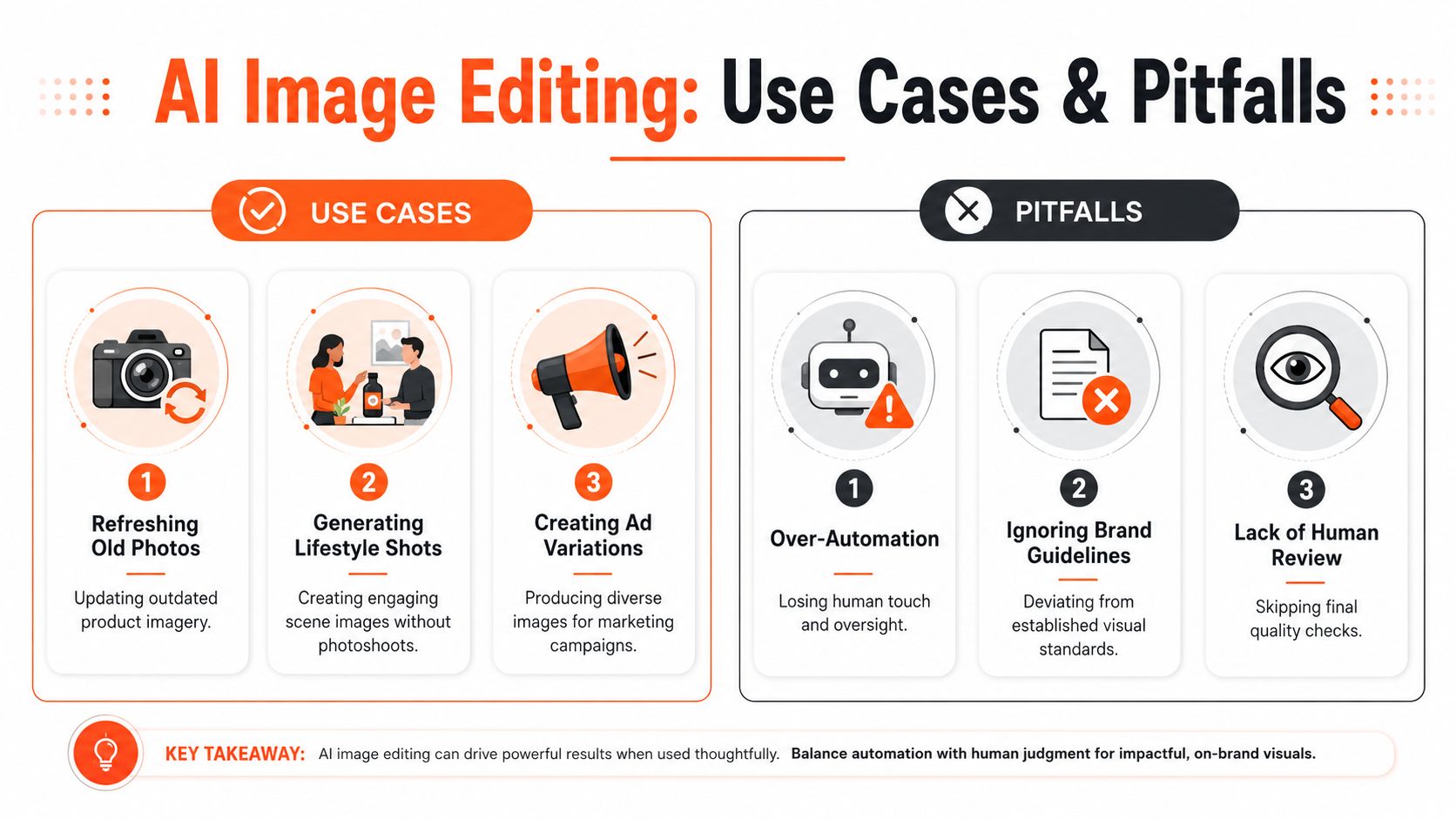
The patterns that tend to work are practical, not flashy:
- Refreshing old PDP imagery: Clean up dated catalogue photos so collection pages feel current and organised.
- Generating lifestyle scenes from existing packshots: Useful for hero products, seasonal campaigns, and category pages.
- Creating ad variations without another shoot: Repurpose approved product images into campaign-ready assets.
- Preparing consistent collection images: Align crops, margins, background treatment, and output format across a category.
The mistakes that keep costing merchants time
The failure points are also predictable.
Some merchants start with poor source images and expect AI to recover everything. Others use prompts that are too vague, so outputs drift product to product. A lot of teams forget that each platform has different visual constraints, then try to force one “master image” everywhere. The most expensive mistake is skipping review because the batch looks fine in thumbnail view.
Human review still matters most at the edges: top sellers, high-return categories, reflective products, and any image that changes context dramatically.
A reliable checklist helps:
Start with the cleanest source available Don't feed low-quality or badly cropped images into the workflow if a better source exists.
Define brand rules before generation Set your background style, crop margin, lighting direction, and scene tone up front.
Build outputs by destination Shopify, Amazon, Etsy, and paid social shouldn't all inherit the same crop automatically.
Review exceptions manually Apparel textures, jewellery, glass, and packaging details need closer inspection.
The practical goal isn't to automate taste. It's to automate repetition so your team can spend time where judgement matters.
If your Shopify store already has product images and you need a faster way to clean, reframe, repurpose, and standardise them across full collections, MerchLoom is worth a look. It acts as an AI workflow layer for catalogue-scale image processing, so you can run chained steps across batches instead of editing one photo at a time. That's useful for marketplace compliance, lifestyle scenes, ad creative, and collection consistency when manual editing no longer scales.
Stop editing product photos one at a time
Upload your catalog or connect your store. Describe the result once. MerchLoom does the rest.
Try it free — no signup