
Mastering Resolution in AI for E-Commerce Product Photos
Struggling with resolution in AI? Learn to upscale batch product photos to meet Amazon and Shopify standards and transform your entire catalog with AI.
We’ve all been there. A new shipment of products arrives, but the supplier photos are a complete disaster—a random assortment of low-quality JPEGs and blurry phone snaps. They’re absolutely unusable for Amazon’s zoom feature or the clean, professional look your Shopify storefront needs. This isn’t a rare inconvenience; for anyone managing a large product catalogue, it's a recurring nightmare.
The E-Commerce Challenge: Low Resolution vs. High Stakes

As a seller, your product photos are your most valuable currency. But managing them at scale is a huge operational headache. You're constantly trying to wrangle images from different sources, each with its own size, quality, and resolution. Manually editing hundreds, or even thousands, of these photos one by one is more than just slow—it's a costly bottleneck that grinds your business to a halt.
You can't just stretch a tiny 500-pixel image to meet a marketplace's 2000-pixel requirement and hope for the best. The result is always a pixelated, unprofessional mess that screams "low quality" to potential buyers. Customers simply won't trust what they can't see clearly, which leads directly to lower conversion rates and more returns.
Beyond Single-Image Edits
The real problem isn't just fixing one bad photo. It's about creating a consistent, high-quality visual identity across your entire catalogue. Every single product, whether it’s a new arrival or last season’s stock, has to look its best on every platform. This demands a workflow that can process entire collections at once.
This is exactly where the practical application of resolution in AI becomes a true game-changer for sellers. Instead of just making pixels bigger, AI upscaling intelligently generates new, believable detail in your images. It’s the difference between a blurry, stretched-out photo and a sharp, clean asset that’s ready for any marketplace.
For a busy seller, the goal is automation and consistency. You need a system that can take a folder of 500 inconsistent images and transform them into listing-ready assets without manual intervention for each one.
Tools built for this reality, like MerchLoom, let you build AI pipelines that process entire batches of photos sequentially. For example, you can set it up to automatically remove backgrounds from all images before upscaling them to the exact dimensions required by Etsy or Shopify. This saves an incredible amount of time and ensures every photo in your catalogue meets the same professional standard.
The True Cost of Poor Resolution
Low-resolution images do more than just look bad; they actively cost you money. The damage comes in a few forms:
- Lost Sales: If a customer can't zoom in to inspect the details of a product, they're far less likely to buy it.
- Increased Returns: Shoppers often send products back when they don't match the blurry, unclear images they saw online.
- Wasted Time: Every hour spent trying to manually "fix" photos is an hour you could have spent on marketing, customer service, or sourcing new products.
By adopting an AI-powered approach to image resolution, you're not just improving pictures. You're solving a core business problem, freeing up valuable resources, and building a brand that looks more professional and trustworthy. While creating a uniform look, it’s also important to understand the role of backdrops. For more on this, check out our guide on creating a perfect white photoshoot background for your product images.
Understanding Resolution for Product Listings That Convert
Let's get right to it and talk about what image resolution actually means for your store. Forget the technical jargon for a moment. Think of a high-resolution product photo as a beautifully detailed map. When a customer wants to get a closer look, they can zoom in and see every street, every landmark, every tiny detail that gives them confidence in their journey.
A low-resolution image? That's more like a blurry, hand-drawn sketch. The moment a shopper tries to zoom in, it all turns into a pixelated mess. This doesn't just look unprofessional; it instantly makes a buyer question the quality of your product and your entire brand.
Why Marketplaces Insist on High Resolution
Platforms like Amazon, Etsy, and Shopify have minimum pixel requirements for one simple reason: it's all about the customer experience. They know from mountains of data that a buyer's ability to zoom in and inspect a product is directly tied to their decision to click "Add to Cart."
When a shopper can see the fine texture of a leather handbag, the individual stitches on a shirt, or the intricate clasp on a piece of jewellery, they feel more secure about their purchase. That zoom feature isn't just a neat trick—it bridges the gap between seeing a product online and holding it in your hands. It reduces doubt, and just as importantly, it cuts down on returns from customers complaining, "it didn't look like the picture."
The bottom line is simple: High-resolution images enable the zoom function, the zoom function builds customer confidence, and confidence drives sales. Ignoring these requirements is like leaving money on the table.
This table gives you a quick reference for what the major players expect. The goal isn't just to meet the minimum, but to hit the recommended size to give customers the best possible zoom experience.
Quick Guide to Marketplace Resolution Requirements
| Marketplace | Minimum Side (pixels) | Recommended Side (pixels) | Why It Matters for Sellers |
|---|---|---|---|
| Amazon | 1000 | 2000 or more | Enables the highest quality zoom, a key factor in conversions. |
| Etsy | 2000 | 3000 or more | Shows off craftsmanship and detail, crucial for handmade goods. |
| Shopify | 800 | 2048 to 4472 | Provides a premium, high-end feel to your own storefront. |
Meeting these recommendations ensures your images look crisp and professional, which directly translates to buyer trust and fewer post-purchase issues.
From Pixels to Profits
For anyone managing a full catalogue, the real challenge is hitting these quality standards consistently across hundreds, or even thousands, of listings. This gets especially tough when you're working with a mixed bag of images from different suppliers or dealing with photos from older, lower-spec photoshoots.
For example, a 2000 x 2000 pixel image lets a shopper get right up close to your work. A blurry 800 x 800 pixel photo you got from a supplier just can't compete and looks amateurish in comparison. This is where understanding resolution in AI becomes a powerful business tool, not just a technical fix.
The pixel count is just a number, but what it represents is the amount of detail you can show a customer. More pixels mean more detail, which leads to more trust and fewer returns. It's a straight line from your image quality to your store's bottom line. For another way to make your products pop, check out our guide on how to blur the background on an iPhone.
The true hurdle—and where AI provides a genuine solution—is achieving this level of quality at scale. You need a reliable way to make sure every single image is sharp, clear, and ready to sell, without getting bogged down in manual, one-by-one editing. This is the very foundation of a professional e-commerce brand.
How AI Upscaling Adds Realistic Detail to Your Images
If you've ever tried to blow up a small supplier photo, you know the frustration. The old way of resizing simply stretches the pixels you already have, like pulling a small piece of fabric until it's thin and see-through. You’re left with a blurry, pixelated mess that’s an instant fail on any marketplace.
But when we talk about resolution in AI, it’s a whole different ball game. Instead of just stretching pixels, AI upscaling intelligently creates brand new ones that make sense in context. It's the difference between a cheap knock-off and a masterful restoration.
Think of it like this: an AI upscaler is like an expert art restorer given a damaged painting. They don't just slather paint over a crack. They study the artist's original style—the brushstrokes, the colour palette, the texture—and then meticulously paint in the missing pieces. When they're done, it looks like the damage was never there in the first place.
That’s exactly the approach AI takes with your product photos. It has been trained on millions of high-resolution images, so it has learned what a crisp fabric weave, a sharp edge, or a subtle texture is supposed to look like. When it sees your blurry 600-pixel image, it doesn't just guess; it draws on that massive visual library to generate the most probable, realistic details needed to build a sharp, clear picture.
The Brains Behind the Operation: GANs
So how does this digital "art restorer" actually do its thing? The magic often comes from a clever system called a Generative Adversarial Network, or GAN. Put simply, a GAN is a team of two AIs working in opposition to each other.
- The Generator: This AI is the "artist." It takes your low-res image and tries to create a new, high-res version by adding what it thinks are believable details. Its first few attempts might look a little… strange.
- The Discriminator: This AI is the "critic." It compares the Generator’s work to a database of real high-resolution images and calls it out, deciding if the upscaled version looks authentic or like a shoddy fake. It then sends its feedback to the Generator.
This back-and-forth happens thousands of times in seconds. The Generator keeps refining its work based on the Discriminator's tough critiques until it produces an image so convincing that the critic can no longer tell it apart from the real thing. This competitive process is what forges a final image with believable detail and sharpness. It’s a technique that also powers more creative edits, as you can see in our article about changing car colours in photos.
From Supplier Photo to Marketplace-Ready in One Step
For a seller managing hundreds or thousands of products, this is a game-changer. You can take a tiny 600px supplier photo and instantly turn it into a 2400px shot ready for prime time.
A 2x upscale turns that 600px image into a 1200px one, easily meeting the minimum requirements for platforms like Amazon. A 4x upscale gets you all the way to 2400px, which is perfect for the detailed zoom on Etsy or creating a premium feel on Shopify.
This isn't just some futuristic idea; it's already a core part of e-commerce workflows. You can see the demand exploding in growing markets. The AI sector in Latin America, for instance, is projected to jump from USD 21.56 billion in 2026 to a staggering USD 368.24 billion by 2033. For sellers there, AI image enhancement turns blurry phone pics into pixel-perfect listings—a must-have when markets like Brazil host 56.7% of South America’s AI data centre capacity. You can read the full research on the Latin American AI market to see just how fast things are moving.
The best part? You can do this at scale. With a tool like MerchLoom, you don’t have to upscale images one by one. You can upload an entire folder of low-quality photos, apply a 4x upscale to the whole batch, and automate the transformation of your entire catalogue into professional, high-resolution assets.
How to Build a Smart Batch Image Upscaling Workflow
Knowing the theory behind resolution in AI is great, but the real test comes when you have a folder with hundreds of product photos that need to be ready for your storefront. As a seller, your main goal is to transform those mixed-quality supplier images into polished, marketplace-ready assets as quickly and cheaply as possible. This is where a smart, repeatable workflow comes in.
There's one golden rule for any batch image process, and getting it right will save you an incredible amount of time and money. It’s all about the order of operations, especially when you need those clean, white backgrounds for platforms like Amazon.
Doing this for a whole catalog?
MerchLoom runs background removal, upscaling and AI editing across every product photo you have — one prompt, whole batch. Try 2 batches free, no signup.
Try it freeCritical Workflow Rule: Always, always remove the background before you upscale your images. Why? It's simple: you don't want to waste processing power—and your money—improving pixels you’re just going to throw away.
Think about it. When you upscale an image with a cluttered background, the AI is working overtime to sharpen the details of the factory floor, the messy stockroom, or some distracting outdoor scene. That’s all wasted effort. By removing the background first, you’re telling the AI to focus all its power on what actually matters: your product.
Designing Your Efficiency Pipeline
This is where a tool built for batch processing, like MerchLoom, becomes your best friend. Instead of performing one operation at a time, you can set up an AI pipeline that automates the whole sequence for an entire collection of images. This is how you stop clicking and start selling.
The process is surprisingly straightforward:
- Upload Your Whole Collection: Just drag and drop a folder with all your raw product photos—let's say 500 images from your latest shipment.
- Batch Remove Backgrounds: Apply the background removal step to the entire batch. The AI gets to work isolating each product, giving you clean images on a transparent or white background.
- AI Upscale to Your Target: Next, chain an AI upscaling step to the output. You can set your target size, like 2048x2048px, to hit Shopify’s premium image recommendations or meet Etsy’s listing requirements.
This automated chain reaction is the secret to getting things done fast. The system runs each image through the entire pipeline without you having to lift a finger, turning a messy pile of source files into a perfectly uniform set of professional assets.
Seeing the Process in Action
At its heart, AI upscaling is about taking a lower-quality image, letting a highly trained model analyze it, and then generating a much sharper, high-quality version.
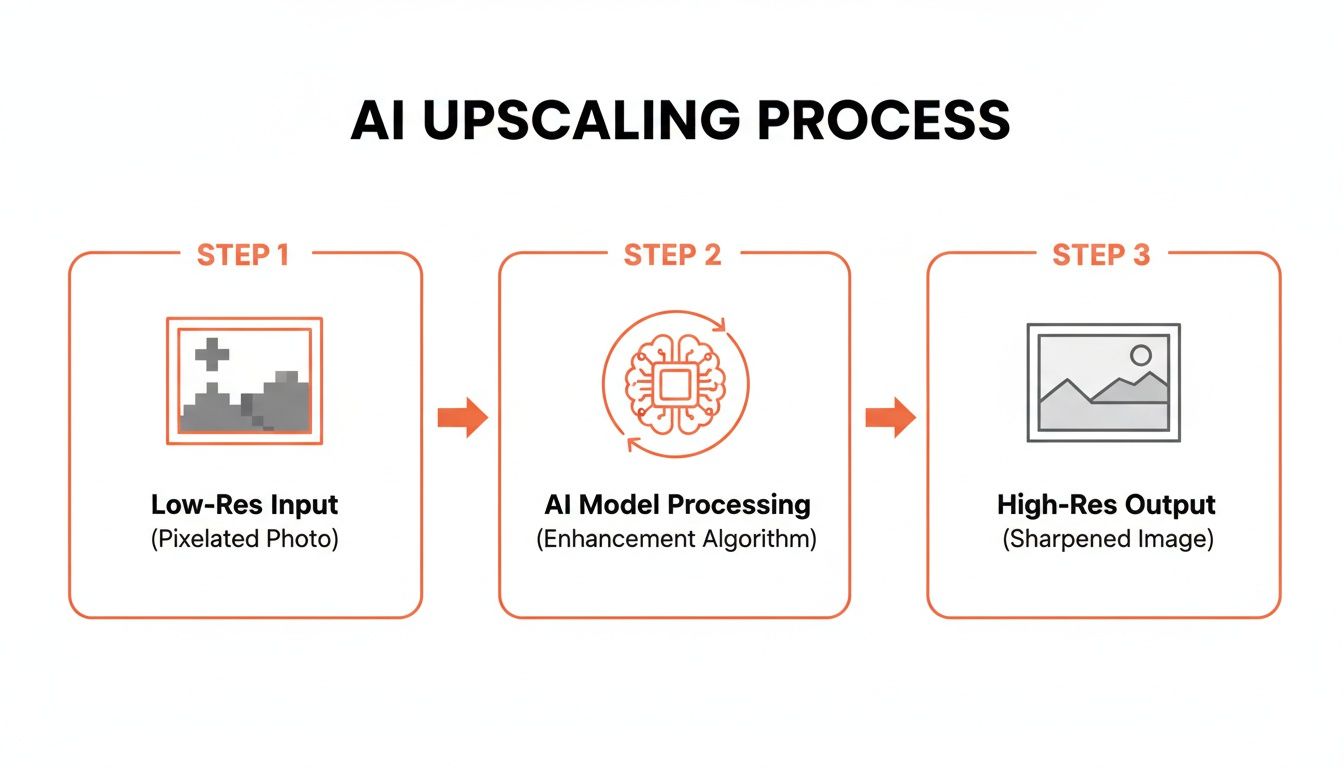
This infographic shows that journey perfectly, illustrating how a pixelated source file can be reborn as a crisp, detailed final image, all thanks to the AI.
The Real-World Cost Savings of Smart Sequencing
This pipeline approach isn't just about moving faster; it's about significant cost savings. The demand for these tools is exploding globally. Just look at Latin America's e-commerce market, where AI image upscaler revenue hit USD $254.1 million in 2026 and is forecast to grow at a compound annual growth rate (CAGR) of 26.2% through 2033. This boom is fueled by businesses needing to process thousands of images efficiently. For them, a pipeline that sequences background removal before upscaling can slash processing costs by up to 87%. You can discover more insights about the AI image upscaler market from Grand View Research.
By shrinking the image down to just the product before you upscale, you drastically cut down on the amount of data the AI has to work on. This directly translates to lower per-image costs, making it affordable to refresh your entire catalogue. For sellers, this means launching new products or reviving old listings without a huge image-editing budget. You could even take your newly upscaled images and create unique compositions; for more on that, check out our guide to using an AI image combiner.
Ultimately, a well-designed workflow turns a tedious, manual chore into a fast, automated, and genuinely cost-effective part of your business.
Avoiding Common Artifacts and Finding the Sweet Spot

While AI upscaling can work wonders, it's not a magic wand. Think of it as a powerful tool that needs a skilled hand. If you push it too hard, you’ll start seeing strange visual glitches and unnatural textures. In the industry, we call these artifacts, and they can make your products look cheap or even fake.
For an online seller, authenticity is everything. The whole point of using resolution in AI is to reveal the true detail of an image, not to invent something that isn’t there. You're looking for the sweet spot: that perfect balance where you add believable detail, keep the file size reasonable, and preserve the genuine look of your product.
Let's say you're selling a denim jacket. A good upscale will make the fabric’s texture pop, letting customers see the individual threads and the heavy weave. But crank the settings too high, and the AI might "hallucinate" details, creating a weird, plastic-like sheen that looks more like a 3D render than actual fabric. That’s an instant way to lose a customer's trust.
Practical Rules for Quality Control
When you’re processing hundreds of images in a batch, you can't afford to get it wrong. You need a few solid rules of thumb to ensure you get consistent, professional results without having to meticulously inspect every single photo.
Think of it as setting your guardrails before you let the automation take over.
- Start with the Best Source Possible: You can't make a masterpiece from a mess. An AI will always give you better results when working with a decent 800px photo compared to a tiny, compressed 200px thumbnail. The better the input, the better the output.
- Don't Upscale More Than Necessary: It might be tempting to go for a 16x upscale, but it’s almost always overkill. For most e-commerce platforms, a 2x to 4x upscale is the ideal range. That’s usually plenty to transform a standard supplier photo into a crisp image ready for any marketplace's zoom feature.
- Always Spot-Check Your Batches: You don’t need to check all 500 images, but you absolutely should check the first few. With a tool like MerchLoom, results appear in real-time. This lets you catch any weirdness early, pause the job, and tweak your settings before you’ve wasted time processing the whole batch.
Finding Your Balance
At the end of the day, the right upscaling factor comes down to two things: your source images and where they’re going. A 2x upscale could be perfect for taking a 1000px photo up to a 2000px Amazon-ready image. Meanwhile, a 4x upscale might be what you need to rescue a smaller 500px photo for a detailed Etsy listing.
For e-commerce sellers, consistency is key. Your goal is to find a setting that works reliably for the majority of your images, ensuring that your entire product catalogue has a uniform, professional appearance.
Before you process your whole collection, experiment. Take a small, representative sample of your photos and run them through a 2x and a 4x upscale. Compare them side-by-side. Does the fabric look real? Are the edges sharp but not artificial? Once you find that balance, you can confidently apply those settings to the rest of your images.
This simple testing step can save you the headache of realizing you've just processed a thousand photos with settings that make them all look slightly "off." Getting this workflow right is a huge part of mastering your image pipeline. And remember, upscaling adds detail, but sometimes you just need to improve sharpness. For that, you can check out how to sharpen an image in our dedicated guide.
Your Top Questions About AI Resolution for Product Photos
Even after you've got a workflow mapped out, it’s normal to have some lingering questions about how resolution in AI actually works on the ground. I spend my days deep in this stuff, so I've heard them all. Here are the straight-up answers to the questions that pop up most often for fellow sellers.
Can AI Really Add Detail That Wasn't There Before?
In a way, yes—but it's more of a highly educated reconstruction than pure invention. Think of it less like a magician pulling a rabbit from a hat and more like a skilled artist restoring a painting.
The AI has been trained on millions of sharp images. When it encounters a blurry section of your product photo, like the weave on a sweater or the fine brushing on a piece of jewellery, it doesn't "find" lost pixels. Instead, it predicts what the texture should look like based on its vast visual library and generates brand new pixels to match. The result turns a fuzzy, untrustworthy image into one that feels sharp and tangible to a shopper.
Will AI Upscaling Make My Images Look Fake or "Plastic"?
That's a common fear, but it's easily avoided. That weird, artificial look almost always comes from pushing the AI too far—like trying to pull off an 8x or 16x upscale on a thumbnail-sized image. It’s just too much of a leap.
For almost any e-commerce scenario, a 2x or 4x upscale is the perfect balance. It gets you the crispness you need to meet marketplace standards without veering into unnatural territory.
The smartest move is to always run a quick test. Process a small batch of five or ten images, give them a quick once-over to make sure they look right, and then run the rest of your catalogue. You'll know for sure the quality is spot-on.
This little bit of due diligence can save you the headache of discovering that a thousand of your freshly processed images look slightly "off."
Should I Upscale Before or After Removing the Background?
This one’s a hard-and-fast rule: Always remove the background before you upscale. It’s all about working smarter, not harder, and saving money.
When you cut out the background first, the AI has a much simpler job to do. You're not wasting processing power—and credits—on enhancing a messy office background or a cluttered photoshoot setup that you’re just going to delete anyway. A good workflow automates this for you, so you only spend time and money improving the part of the image that actually sells: your product.
What's the Real Cost to Batch Process an Entire Catalogue?
The cost of this technology has come way down, especially with platforms built specifically for sellers. Forget the days of pricey, complex software licenses. The best modern tools use a pay-as-you-go model, so you only ever pay for the images you process.
With a system designed for bulk work, like MerchLoom, you can upload your entire collection and see the exact cost upfront before committing a single cent. And because an efficient workflow (like removing backgrounds first) optimizes every step, the price per image often drops to mere fractions of a cent. This makes it a no-brainer for refreshing an entire product line or launching a new collection.
Ready to fix your entire image catalogue in minutes, not days? MerchLoom lets you build and run powerful AI image pipelines to remove backgrounds, upscale, and reframe hundreds of photos at once. Try it now and see how much time and money you can save.
Stop editing product photos one at a time
Upload your catalog or connect your store. Describe the result once. MerchLoom does the rest.
Try it free — no signup