
Ecommerce Photo Editing App Guide for Catalog Scale
Choose an ecommerce photo editing app for catalog scale. Compare batch workflows, background removal, upscaling, marketplace specs, and cost tradeoffs.
A 300-SKU product drop can turn a normal Monday into a catalog emergency. The photographer sends RAW files in mixed lighting, the marketplace queue rejects three images because the white background drifts, and a fourth fails because it is only 800 × 800 pixels. You have until Wednesday to relist everything, but the editing queue is already full.
The first practical move is to stop treating each photo as an isolated design task. Preserve the original file, assign every asset to a SKU, and build one repeatable path from source image to marketplace export. A high-resolution master gives background removal and compositing more edge detail to work with, while marketplace derivatives can be created later from that source. Independent ecommerce background-removal guidance recommends keeping a large source image and downsizing only for a specific processing step.
Two Hundred New SKUs and No Time
By Tuesday morning, the Photoshop plan usually starts breaking down. One editor works through clean cutouts, another checks color, and a third person uploads files. Each task looks manageable until the same product needs a white-background image, a square storefront crop, a lifestyle version, and a marketplace-specific export.
The delay isn't only the cutout work. Manual editing produces different shadow weights across SKUs, inconsistent margins, and framing that jumps from one product to the next. A category grid makes those differences obvious. A shirt sits close to the top edge, the next one floats in excessive whitespace, and the third appears larger because its crop was handled in another session.
The hidden queue behind every upload
Context switching consumes the day. The operator moves from masking to color correction, then opens a seller dashboard to investigate a rejection, returns to the image editor, renames a file, and starts again. The last hundred products remain untouched when the listing window closes.
This is also where catalog cleanup becomes relevant. If several items are duplicates, weak variants, or obsolete private-label products, a private-label SKU cleanup process can reduce the number of assets that need treatment before editing begins. That decision belongs upstream. An editing app can't fix a catalog that contains the wrong products or unstable identifiers.
The useful test for every technique in this guide is simple: can you repeat it across hundreds of images and keep the collection visually consistent? A single polished hero image proves very little. A pipeline that produces dependable outputs for an entire apparel drop is what protects the listing schedule. The operational difference between those two approaches is covered in this ecommerce photography workflow guide.
What an Ecommerce Photo Editing App Actually Does
An ecommerce photo editing app should be treated as a processing pipeline, not a one-click retouching surface. Its job is to apply the same decisions to a product collection, preserve the source files, and create exports that meet the requirements of each channel.
The core pipeline has five stages:
- Background removal creates a transparent cutout or a pure white background. For Amazon's main image, the target white is RGB 255,255,255, based on the Amazon image guidance summarized by Pixfocal.
- Reframing places the subject inside a fixed aspect ratio and safe zone. The product's bounding box should determine the crop, not the original camera framing.
- Color correction normalizes white balance, exposure, and neutral tones across a batch. The goal is accurate product color, not a different creative look for every SKU.
- Shadow and reflection treatment gives products enough separation from the background without creating artificial weight that varies between images.
- Upscaling and export happen after the final composition is approved, so the resize works on the pixels you need.
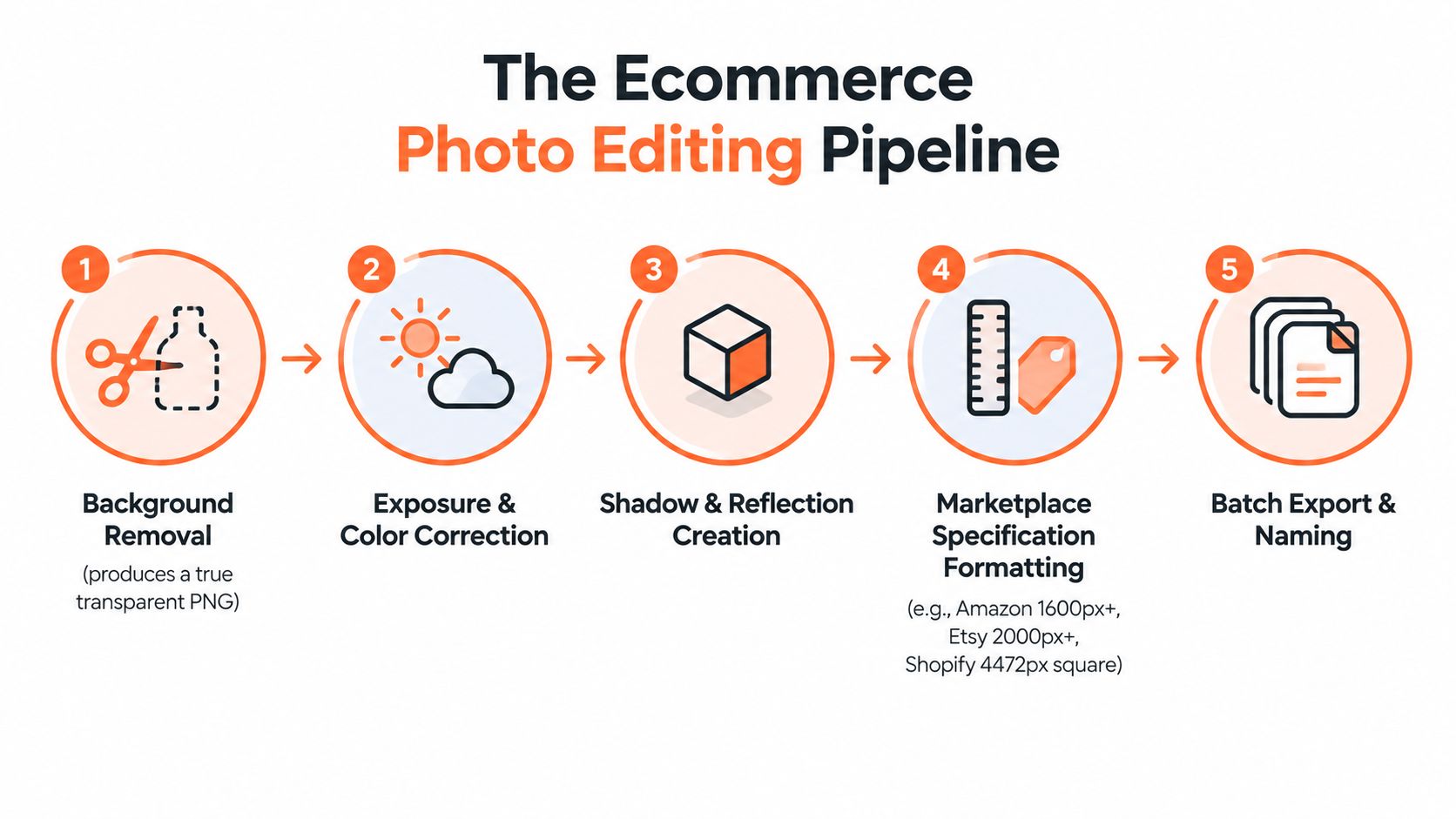
Why the order matters
Background removal comes before reframing because the subject boundary controls the final placement. Color correction works more reliably after cropping because the editor is comparing the product area rather than unrelated background pixels. Upscaling belongs at the end because enlarging the raw source before cropping wastes processing on pixels that won't appear in the finished asset.
This is the same principle behind batch processing for ecommerce image work. Store the original, process a controlled group, review representative outputs, and reuse the approved preset. Tools that also support features for Mac and Windows can be useful when source files and review tasks are split between devices, but device access doesn't replace a consistent pipeline.
The value is repeatability, not creativity. A catalog looks intentional when white levels, crop margins, color, and shadow direction stay stable from the first SKU to the last.
Core Features at Single-Image vs Catalog Scale
A tool can look capable on one image and still fail under catalog volume. The difference appears when the same feature has to handle different materials, camera angles, lighting conditions, and product categories without manual rebuilding.
| Feature | 1 SKU | 100 SKUs | 1,000 SKUs |
|---|---|---|---|
| Batch operations | Helpful for renaming and export | Saves handling time when presets are reusable | Essential for folders, metadata, and channel derivatives |
| Background removal | Manual refinement can deliver nuance | Accuracy becomes the main review bottleneck | Scales only when the model handles your product categories well |
| Scene placement | Easy to adjust by eye | Works when one template can be reused | Fails when templates must be rebuilt for every session |
| Upscaling | A final polish step | Practical after the crop is approved | Scales only when it runs on the final frame, not the raw source |
At one SKU, per-image editing often wins on judgment. You can correct a difficult transparent edge, adjust a reflection, or move the subject by eye. At one hundred SKUs, the economics change. Batch renaming, export presets, and metadata writing begin to remove repetitive handling, but the operator still needs to inspect cutouts for halos, missing straps, soft fur, glass edges, and reflective surfaces.
Where automation starts to fail
At one thousand SKUs, manual color correction drifts. A scene template gets uploaded again with a slightly different scale. Upscaling runs on full source files even though most of those pixels disappear during the crop. Those small inefficiencies become a second production queue.
Background removal is the most obvious quality gate. A model trained on shoes may handle shoes well but struggle with jewelry, sheer apparel, or products with thin cables. Scene placement is different. It scales when the system stores templates server-side and reapplies the same camera angle, product scale, lighting direction, and safe margins.
Upscaling also has a hard limit. It can make an approved output suitable for a required pixel dimension, but it can't restore detail that never existed in the source. A blurry image remains a weak source, even after enlargement.
Catalog rule: Test the ten-image demo less than the hundred-image failure pattern. The real question is how many outputs need correction after the batch finishes.
Marketplace Specs the Pipeline Must Hit
Marketplace rules belong in the export template, not in a last-minute correction queue. Keep one untouched master for each SKU, then create channel-specific derivatives with defined dimensions, color checks, crop rules, and filenames. That structure keeps hundreds of products aligned when requirements change.
Amazon's main image needs a pure white background, RGB 255,255,255. The Amazon product image requirements and the Million Dollar Sellers Amazon image guide distinguish the minimum longest-side size from the larger size that supports zoom. Images must be at least 500 pixels on the longest side, while 1,000 or more pixels on the longest side enables zoom. Preserve a larger master and generate the required derivative. Enlarging a rejected small file at the end produces inconsistent results across a catalog.
Etsy guidance calls for at least 2,000 pixels on the shortest side, with common ratios of 4:3 or 1:1, as outlined in this Etsy listing photo size guide. Shopify permits more control over presentation. A square catalog default is practical, and commonly recommended Shopify product images use 2,048 × 2,048 pixels. Shopify also allows images up to 4,472 × 4,472 pixels and 20 megapixels, according to the Shopify image requirements guidance.
| Platform | Typical image rules | Pipeline check |
|---|---|---|
| Amazon | Main image uses pure white RGB 255,255,255. Minimum longest side is 500 pixels, with 1,000 or more pixels enabling zoom | Verify background, longest side, framing, file integrity, and prohibited elements |
| Etsy | At least 2,000 pixels on the shortest side. Common ratios are 4:3 or 1:1 | Verify shortest side, ratio, crop, and accurate product presentation |
| Shopify | Square images are a practical catalog default. Maximum guidance includes 4,472 × 4,472 pixels and 20 megapixels | Verify square framing, mobile readability, file size, and consistent margins |
Build checks into the template
Doing this for a whole catalog?
MerchLoom runs background removal, upscaling and AI editing across every product photo you have — one prompt, whole batch.
Try MerchLoomInclude filename conventions, aspect ratio, safe margins, color space, and duplicate detection in the export preset. Add automated checks for background color, minimum resolution, corrupted files, and visible artifacts. Apply the same rules to every SKU, then review exceptions separately. When a marketplace changes a requirement, update the template once and rerun the affected folder instead of reopening each finished image.
How to Evaluate an Ecommerce Photo Editing App
Don't evaluate an app with its cleanest demo image. Upload a representative group of 20 to 50 real SKUs, including the products that usually cause trouble. Include dark items on dark backgrounds, reflective packaging, transparent parts, patterned fabric, and products photographed in different rooms.
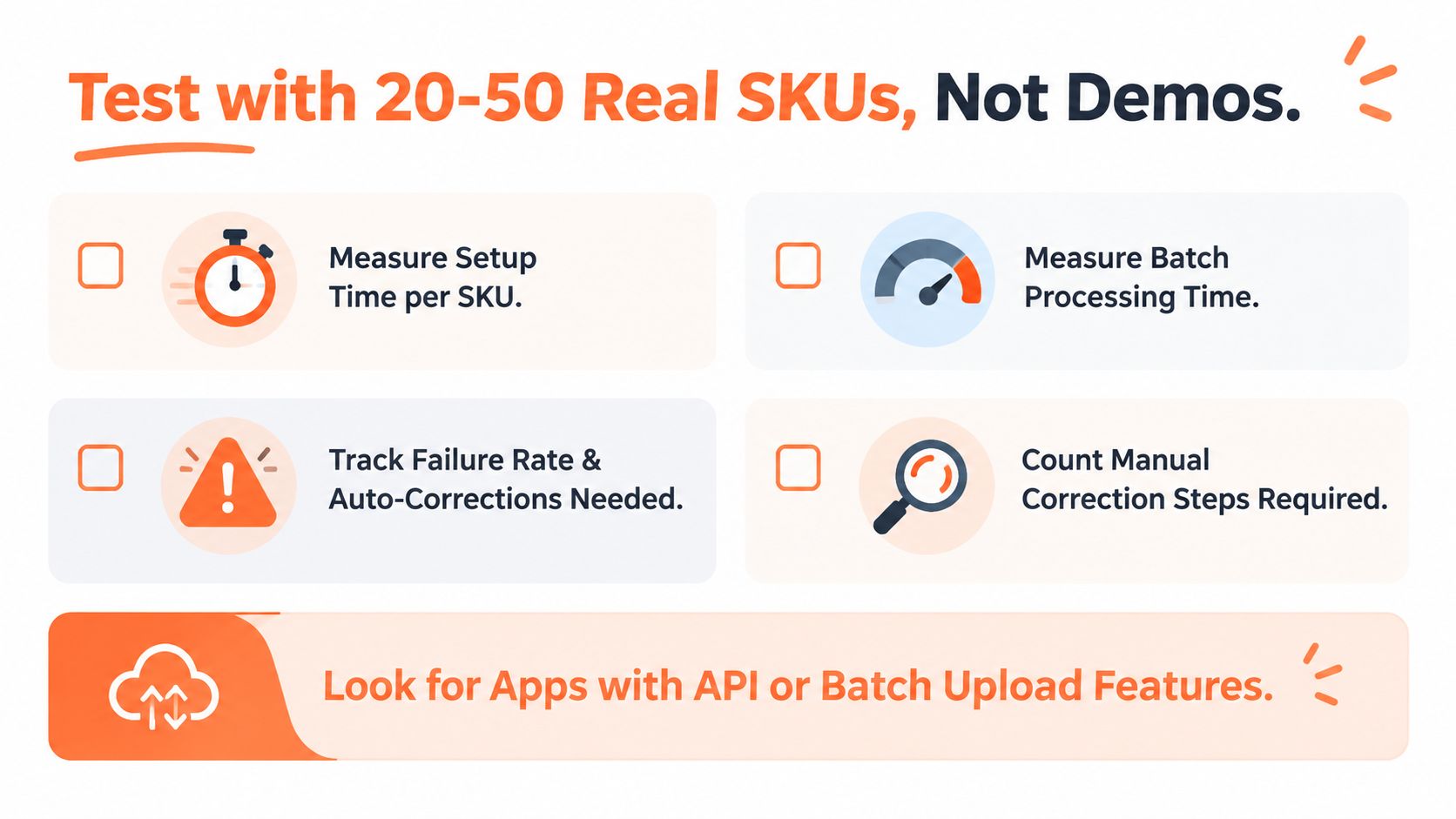
Record setup time, batch processing time, failed outputs, and the number of manual corrections. Also record whether the app preserves your SKU identifiers and makes it easy to trace an exported image back to its source.
Compare the workflow, not the feature list
| Evaluation area | What to test | Failure signal |
|---|---|---|
| Automation | Background removal, reframing, shadows, upscaling, and scene placement | Every SKU needs a separate adjustment |
| Presets | Reusable settings by category and marketplace | The operator rebuilds the same treatment for each folder |
| Source connectivity | Cloud storage, ecommerce platforms, object storage, and local upload | Files must be downloaded and re-uploaded between stages |
| Cost model | Subscription, credits, retries, and review time | The advertised price excludes failed or repeated exports |
| Output consistency | Color, crop, edge quality, and shadow direction | The grid looks uneven after processing |
| Operator fit | Daily interface, device support, and help process | Routine corrections require specialist knowledge |
Calculate the effective cost per approved image, not just the cost per processed image. A background removal that needs repeated correction has a higher operational cost than one that passes review on the first run, even if both consume the same nominal credit.
Language and device support matter when the store owner, photographer, and listing operator work in different places. An app can connect well to source files yet still slow the workflow if review tools are difficult to use. For a neutral side-by-side reference, compare the workflow criteria in MerchLoom versus Photoroom, then run the same test set through any other option you're considering.
Test this before paying: Export the same SKU twice. If the crop, color, or shadow changes without a deliberate setting change, the system isn't predictable enough for a large catalog.
Building a Repeatable Batch Workflow
Start with controlled intake. Every file should arrive with a stable SKU identifier, source path, product category, and target marketplace. Don't apply creative treatment to an anonymous file called IMG_4821; if the output fails, you won't know which listing or source asset needs attention.
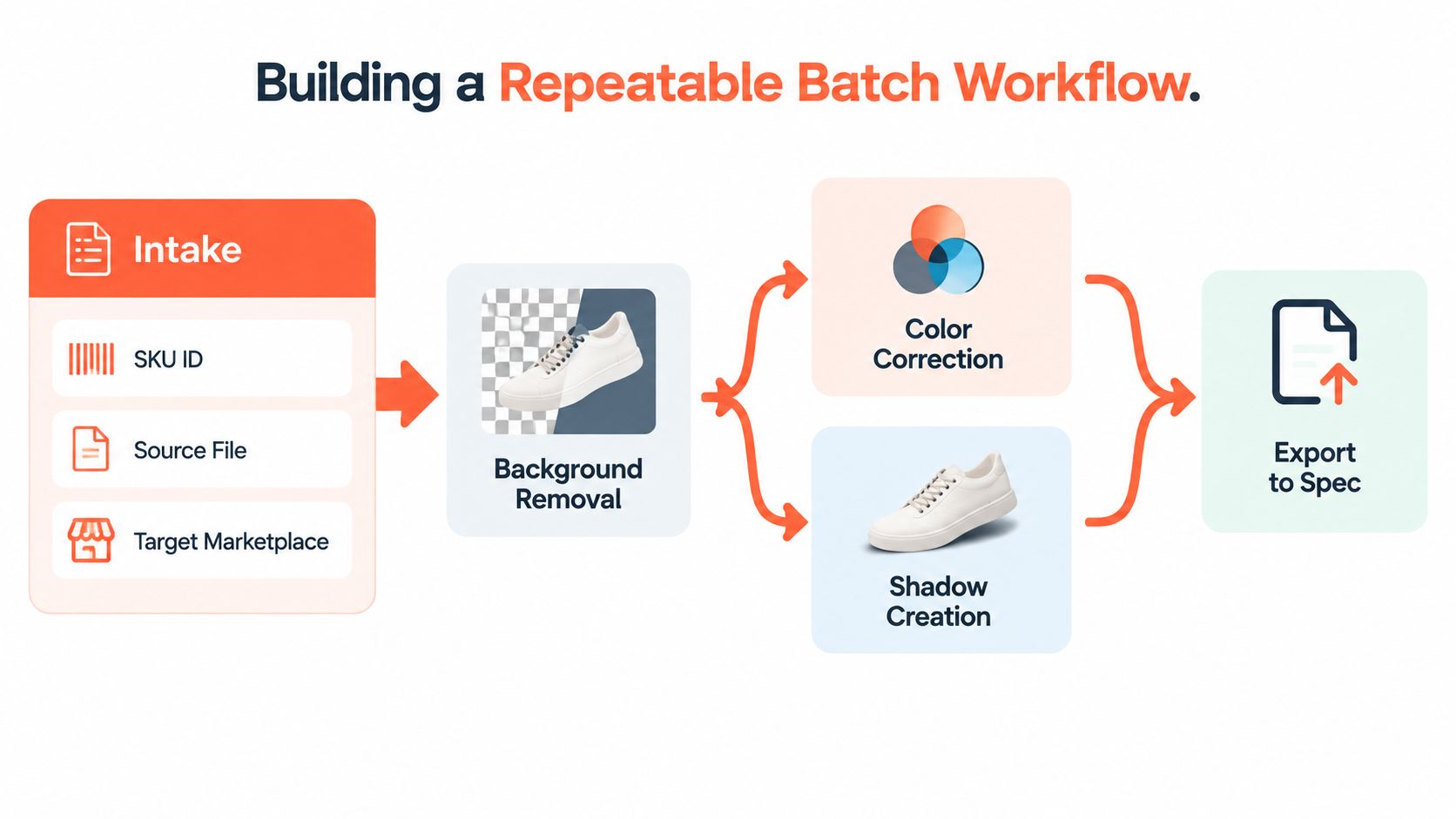
Use this order:
- Intake and validate: Check that the source opens, the SKU exists, and the marketplace destination is recorded.
- Remove the background: Create a transparent cutout or the required white-background composition.
- Correct difficult details: Review thin edges, shadows, reflective surfaces, and small accessories before continuing.
- Normalize color: Apply the category preset for white balance, exposure, and product color.
- Set the composition: Reframe to the target ratio, preserve safe margins, and align the subject consistently.
- Add context selectively: Place the product in an approved lifestyle scene only when the scene helps explain use, fit, or scale.
- Upscale the final frame: Resize after the background and crop are fixed. The source remains the high-resolution master.
- Export and verify: Create channel-specific filenames and check dimensions, format, background, transparency, and visible artifacts.
Stop the line when defects repeat
For a large update, process homogeneous groups first. A group might contain black T-shirts, ceramic mugs, or identical packaging variations. Review a sample from each group before releasing the full folder. If the same edge defect appears repeatedly, stop processing and fix the preset or source setup before producing more rejected files.
Log every rejection and its reason. “Bad image” isn't useful. “White background reads 254,254,254,” “left strap removed,” or “subject too small in square crop” gives you a fix that can be applied upstream.
The correct sequence also controls processing cost. Removing the background before upscaling can reduce the image size handled by the expensive resize operation, with one industry guide reporting savings of up to 87% for that sequence in suitable workflows (source guidance on ecommerce image editing techniques). A batch product photo editing workflow should therefore reuse approved outputs rather than sending the same raw file through every stage again.
Use a queue that shows partial results, not just a final download. That lets you catch a category-wide defect early and revise the workflow before the remaining SKUs consume more processing time.
Cost and Performance Tradeoffs at Scale
Pricing only makes sense against your drop pattern. A flat subscription is predictable for recurring work, credits suit irregular bursts, and a free tier can help with initial testing but may add manual work through watermarks, size caps, or daily limits.
The important calculation is the approved output, not the first render. Count retries, failed masks, manual corrections, downloads, and uploads. A cheap credit can become expensive when every difficult SKU needs another pass.
| Pricing model | 3 SKUs | 300 SKUs | 3,000 SKUs | Per-image time |
|---|---|---|---|---|
| Flat subscription | Predictable for a small test | Predictable for a large drop | Predictable if usage remains within the plan | Depends on queue and review |
| Credit packs | Low commitment for occasional work | Rises with each processed stage | Rises quickly when several stages use credits | Depends on processing and retries |
| Free tier | Useful for testing | Often requires workarounds after limits | Usually unsuitable for a full catalog run | Manual limits can dominate |
Cloud rendering reduces local hardware pressure, but uploads and downloads add handling time. Batch queuing only helps when the app maintains consistent throughput across a full folder, rather than processing a few files quickly and slowing during peak usage. Choose the pricing shape that matches your catalog cadence and review capacity, not the lowest displayed number.
When the Workflow Earns Its Place
A repeatable pipeline earns its place when one operator can't retouch the next catalog drop within the listing window. Below that point, manual editing may be faster because setup takes longer than the work. Above it, every missed background, inconsistent crop, and rejected export creates another handling cycle.
The workflow also becomes valuable when marketplace requirements change. A stored preset can be updated and applied to a folder, while a manual process forces the operator to reopen finished assets one by one.
MerchLoom fits this operating model as a batch image workflow platform. You can try the first images without an account, it uses pay-per-image credits that never expire, and it can chain background removal, reframing, color correction, scene placement, upscaling, and export across a collection. Human review still matters, especially for difficult edges, reflective products, accurate color, and AI-generated scenes.
The practical question isn't whether an app can make one product photo look polished. It's whether the same rules hold for the next hundred products, the next seasonal folder, and every marketplace derivative.
Start with a representative folder, record the failures, and turn the approved steps into a reusable queue. Visit MerchLoom to try the first images without an account, then use its pay-per-image credits that never expire to run consistent AI pipelines across your catalog instead of editing one SKU at a time.
Stop editing product photos one at a time
Upload your catalog or connect your store. Describe the result once. MerchLoom does the rest.
Try MerchLoom