
White Background on iPhone: Seller's Guide for 2026
Master white background on iPhone for product photography at scale. Step-by-step guide for Amazon, Etsy, Shopify sellers.
You've photographed two hundred products on your iPhone. The files look close enough in the camera roll, but once they're uploaded, some backgrounds are gray, others have visible shadows, and a few exports look soft at zoom. Fixing each SKU separately turns a quick catalog update into several days of rework.
Start by fixing the physical setup before opening an editing app. Stabilize the iPhone, separate the product from the backdrop, light both independently, and create one export preset for each sales channel. A repeatable white background on iPhone workflow protects listing consistency far better than trying to rescue inconsistent files afterward.
Why White Background Product Photos Drive Listings
A catalog's first image decides whether a scroll stops or skips. Its job is to identify the product while the shopper moves through a crowded search page. A white background separates the item from navigation elements, neighboring listings, and changing page layouts, giving every SKU a consistent starting point.
A review of e-commerce imagery found that about 76% of 7 million product images used a plain white background, while 16% used transparent backgrounds and the remainder used original backgrounds (LumePixa's e-commerce product image review). White remains the dominant presentation style across online catalogs. Amazon, Walmart, and eBay also require a pure white background for main listing images, so this format often has to be correct before creative gallery images matter.

The hero image still has a catalog role
White does not mean every gallery image should look identical. The first frame provides a clean reference point, while additional images can show packaging, details, scale, back views, or use context. The hero image must make the item obvious at thumbnail size, even when dozens of listings share the same search page.
Commerce platforms report that listings with 7 or more images convert at 2.4 times the rate of single-image listings. Use the white-background image as the stable anchor, then build the rest of the gallery around it. That approach also reduces batch rework, since the primary frame follows one visual standard across the catalog.
A separate industry summary reports that white-background product photos can produce 23% higher conversion rates than cluttered or colored backgrounds, while another source cited in that ecosystem says white backgrounds can increase listing clicks by up to 20% (ClipTics' white-background product photo summary). The same source says 94.1% of online shoppers report that product images influence buying behavior, and 83.6% say the product's appearance in the photo shapes their decision.
For sellers managing Shopify, Etsy, Amazon, eBay, WooCommerce, Poshmark, or Depop, the point is operational. A plain background is a shared visual standard that helps shoppers compare products and helps listings meet marketplace requirements. Keep the capture, background treatment, and export rules consistent across every SKU. For a deeper workflow view, see how to create images with a white background.
Setting Up iPhone Capture for a Clean White Backdrop
The phone isn't the main variable. The setup is. Put the iPhone on a tripod or another fixed support, and mark the product position on the table. When you photograph a long run of similar SKUs, a fixed camera height and angle keep the collection aligned.
Use a white sweep, poster board, paper roll, or other matte white surface behind the product. Keep the item a few feet in front of that surface instead of pressing it against the backdrop. This distance gives shadows somewhere to fall and reduces dark contamination around the product edge.

Build the light before adjusting the app
A dependable setup uses two soft lights, one on each side of the product, placed at about 45 degrees left and right. Add a separate background light if the surface still looks gray. Soft diffusion matters because small, hard sources create sharp shadows that are difficult to remove cleanly.
Keep the product away from the backdrop. If it sits directly on the white surface, the contact shadow and reflected light can make the lower edge muddy. That problem repeats across every SKU, so solve it physically rather than correcting each file.
A practical camera benchmark is ISO 100–200 and roughly f/8–f/11, where those controls are available. Guidance for iPhone product photography also recommends tapping the product to set focus and exposure, then increasing exposure by about 1–1.5 stops so the white paper doesn't render gray (Alan Ranger's iPhone product photography guidance). Check the product's texture and color after brightening. More exposure is useful only until highlights on the product begin to disappear.
Practical rule: Meter the product first, brighten the background separately, and inspect one reference frame before shooting the whole batch.
Lock focus and exposure after the test frame looks right. If your iPhone or camera app keeps changing white balance, HDR, or brightness between products, turn off the automatic behavior where possible. The goal isn't a dramatic photograph. It's a repeatable source file that needs minimal correction across the catalog.
If you're deciding whether to outsource part of the setup, a guide to vetting product photographers Los Angeles can help you assess portfolio consistency, lighting experience, and catalog capacity. For a home-based version of this arrangement, use the principles in how to photograph products at home.
Removing the Background and Exporting for Marketplaces
Once the capture is clean, choose between two processing routes.
The first route keeps the work on the iPhone. Shoot with the backdrop already close to white, use the native Photos editor for exposure and color corrections, and use iOS subject isolation or shortcuts where they produce clean edges. This route is quick for a small correction or a handful of products. It becomes less practical when reflective metal, glass, pale fabrics, hair-like fibers, or low-contrast edges appear throughout a large catalog.
The second route uses a dedicated background-removal app or batch image service. This category is designed for product cutouts and can be useful when it supports fixed canvas dimensions, a specified white point, and repeatable output across all SKUs. The important question isn't whether it removes one background successfully. It's whether the same settings work on a mixed batch without changing crop, scale, or edge treatment from item to item.
Keep the white point exact
For Amazon, the main product image must use a pure white background, RGB 255,255,255. Amazon listings should use an image at least 1000 pixels on the longest side, and 1600 pixels or more is needed to enable zoom (Pinnacle Edits' Amazon image requirements guide). Create one Amazon preset with the white value, canvas shape, and output size locked. Don't correct these values manually after every export.
Etsy recommends listing photos at 2000 pixels on the shortest side, and Etsy's announcement identifies JPG, GIF, and PNG as acceptable photo types (Etsy's listing image size announcement). A consistent shortest-side target prevents soft zoomed views when you process a collection with varied original orientations.
Shopify's community guidance says product images can be uploaded at up to 4472 x 4472 pixels, with a file size up to 20 MB. It also identifies 2048 x 2048 pixels as a commonly recommended square size for product photos (Shopify's image standardization guidance). A square master makes collection pages and product pages easier to manage, provided the product remains centered with enough breathing room.
Use separate masters and channel exports
Keep the isolated cutout as a master file before creating marketplace exports. Then generate channel-specific versions from that master. This avoids repeatedly removing the background and gives you one clean source if a platform changes its crop or if you need a lifestyle version later.
A useful file structure is:
Doing this for a whole catalog?
MerchLoom runs background removal, upscaling and AI editing across every product photo you have — one prompt, whole batch. Try 2 batches free, no signup.
Try it free- Raw: Original iPhone captures, unchanged.
- Isolated: Cutouts with the product separated from the original scene.
- Amazon, Etsy, Shopify: Channel exports with the correct canvas and white point.
For additional guidance on the isolation stage, use removing white backgrounds from product images. Review transparent edges at high magnification, then review the complete batch as thumbnails. A cutout can look acceptable when large but show a gray halo once reduced on a marketplace page.
Building a Batch Workflow Instead of One-by-One Edits
A catalog process should have one decision point for each setting, not one decision per SKU. Decide the target dimensions, color space, white point, file type, naming pattern, and crop position before importing the collection. Save those choices as presets or document them where another person can reproduce them.
Use a fixed order of operations
The order affects both speed and cost. Remove the background before upscaling when the workflow allows it. MerchLoom's publisher materials state that this order can save up to 87% because the image may be smaller before the more expensive upscale step (MerchLoom's batch image workflow information). Treat that as a processing strategy, not a reason to skip visual review.
Use this sequence for a repeatable catalog run:
- Capture consistently: Keep the tripod, product mark, lighting positions, and exposure approach unchanged.
- Import by collection: Place the raw files in a folder named for the collection, with filenames tied to SKU identifiers.
- Remove the background: Run the same isolation settings across the batch.
- Resize once: Apply the chosen Amazon, Etsy, or Shopify preset after isolation.
- Export by channel: Write each final file to the correct platform folder.
- Review thumbnails: Look for halos, gray corners, cut-off products, uneven scale, and shifted color.
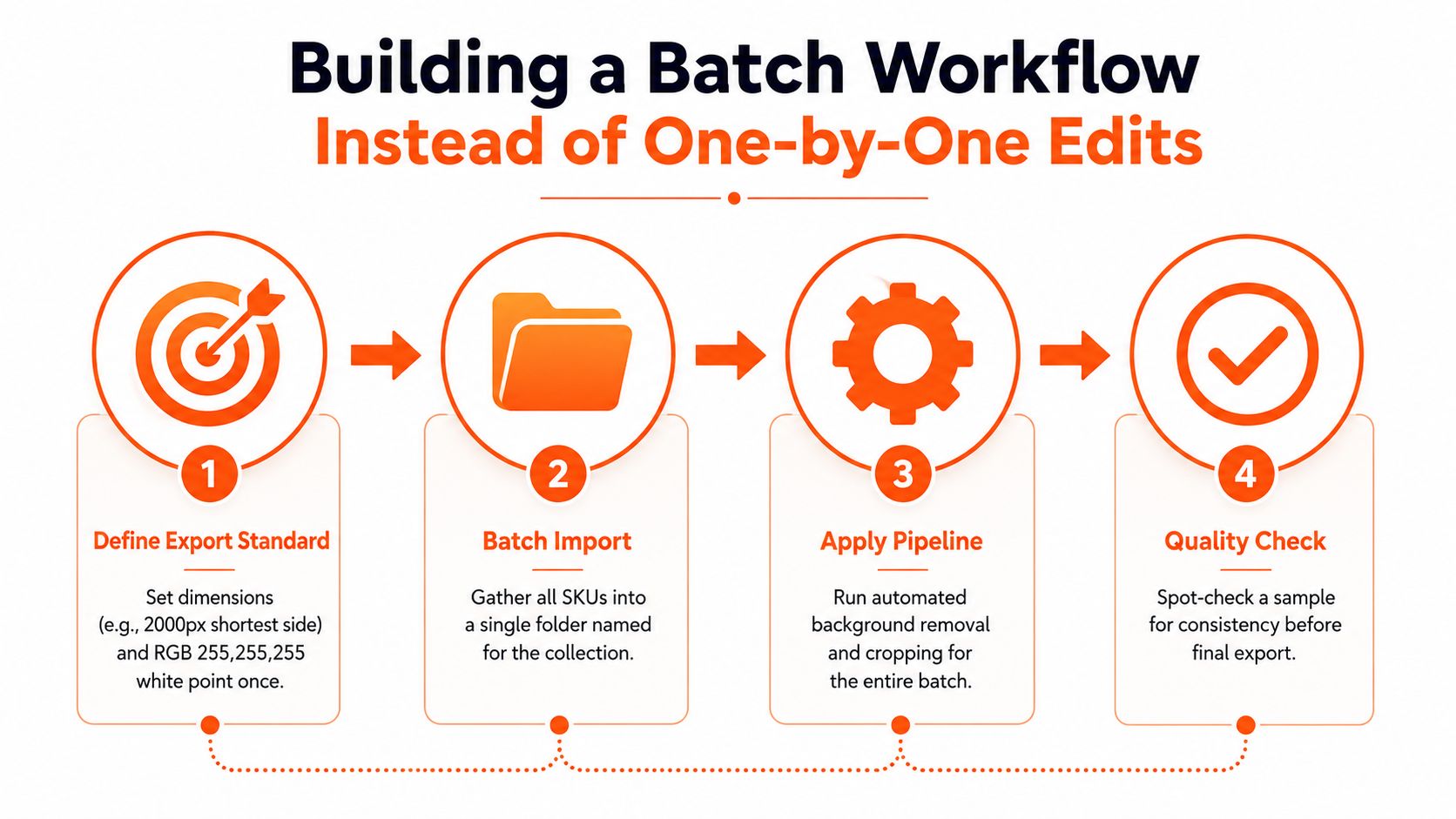
The thumbnail review is a quality gate, not a cosmetic extra. If one product is visibly larger, darker, or closer to the frame edge, shoppers may read the collection as inconsistent. Fix the capture or preset before processing the remaining SKUs.
Catalog habit: Keep raw captures, isolated files, and final exports separate. Never overwrite the only version of an image.
Reflective products and pale products expose weak workflows first. A clean white capture improves downstream background-removal accuracy because the subject edge starts with less gray spill and fewer competing tones. You can find a broader approach to batch product photo editing when the collection is too large for manual file handling.
Running White-Background Removal Through a Chained Pipeline
When manual review becomes the bottleneck, use a chained pipeline instead of opening and exporting every file separately. MerchLoom lets you import images from sources such as Google Drive, Dropbox, Box, Shopify, WooCommerce, BigCommerce, Amazon S3, Cloudinary, Google Cloud, DigitalOcean Spaces, Cloudflare R2, and Backblaze B2. That matters when your product photos already live in storage, a store platform, a CDN, or an established photography workflow.

Configure the pipeline around the catalog
Import a small test group first. Describe the required result in plain English, such as removing the original background, placing the product on RGB 255,255,255, centering it on a square canvas, and exporting a platform-ready file. Check the first results for edge quality, product scale, color, and shadow behavior before sending the full collection through the same workflow.
The pipeline can combine background removal with reframing for Amazon, Shopify, Etsy, or Instagram, color correction, listing-resolution upscaling, background replacement, and scene generation. Those later steps should remain separate from the main white-background hero image unless the marketplace permits and the listing strategy calls for them.
Control cost and retain review points
MerchLoom runs repeatable workflows across full batches rather than requiring one-image-at-a-time editing. Its processing order is optimized to reduce cost, results stream in real time, and processed images can be reused as inputs without uploading them again. You can review output during the batch, adjust the workflow, and continue with the corrected settings.
The payment model is pay per image, with no subscriptions. Credits never expire, and the exact cost is shown before processing starts. You can try the first images without an account. It works on any device, in 10 languages, with nothing to install.
AI isolation still needs human approval. Check products with transparent packaging, reflective surfaces, fine straps, dark edges, and light-colored materials individually, even when the rest of the batch looks consistent. A pipeline reduces repetitive handling, but it doesn't remove the seller's responsibility for accurate product presentation.
Shipping Marketplace-Ready Images at Scale
Before uploading a collection, check the same three conditions on every channel. The background should be pure white without gray spill, the product edge should be free of halos and accidental shadows, and the export should match the platform preset.
Keep one preset for each channel. Amazon needs the pure white RGB value and its longest-side rules, Etsy needs its shortest-side recommendation, and Shopify benefits from a consistent square master. Don't recalculate dimensions for each product.
Use the same SKU identifier through every folder:
- Raw captures: Original iPhone files.
- Processed masters: Background-removed images.
- Channel exports: Final Amazon, Etsy, Shopify, eBay, WooCommerce, Poshmark, or Depop versions.
Run the first few SKUs as a test batch. If the product is washing out, adjust exposure or lighting before processing the rest. If the background is white but the edge is dirty, change the isolation settings or increase the product-to-backdrop distance. Catching the problem early is cheaper than reviewing a full failed collection.
For stores that also publish product videos, handle compression as a separate task from still-image export. A practical resource to compare top video compressors can help you evaluate that workflow without mixing video settings into your product-photo presets.
Once the batch passes review, upload by channel and keep the approved exports. For a focused Amazon checklist, see Amazon main image white background requirements. The reliable system is simple: fixed capture, fixed processing order, fixed export presets, and a human quality gate.
MerchLoom runs chained AI pipelines for white-background removal, resizing, reframing, and related catalog image tasks across full batches instead of one file at a time. Try your first images without an account, pay per image with credits that never expire, and review the workflow at MerchLoom before processing the rest of your collection.
Stop editing product photos one at a time
Upload your catalog or connect your store. Describe the result once. MerchLoom does the rest.
Try it free — no signup