
Product Photography Color Correction That Scales
Run product photography color correction across a whole catalogue, not one image at a time. Practical setup, batch rules, and QA for online stores.
Product photography color correction is the repeatable normalization of white balance, exposure, and color profile across your catalogue so each SKU renders consistently on customer screens. Pick sRGB as the delivery color space, and don't let files with different or missing profiles escape the batch.
You've probably got a folder of new product shots beside older images, with photos from different phones, cameras, or lighting setups. One blue item looks slate in the listing grid; another looks bright cobalt on a different device. Don't fix those images one by one by eye. Standardize the workflow, then check the exceptions.
What Color Correction Actually Means at Catalogue Scale
For a store with hundreds of listings, color correction isn't making one photograph look pleasing. It's applying the same controlled adjustments to a group of related product images so the same colorway doesn't shift from shot to shot or channel to channel.
Start with three things: white balance, so neutral surfaces look neutral; exposure, so comparable products have consistent brightness; and color profile, so software can interpret the image's RGB values correctly. Keep those decisions consistent across each SKU group. If one red shirt gets a warmer correction than the next because you edited each image on a different screen, shoppers see a collection that doesn't match the product.
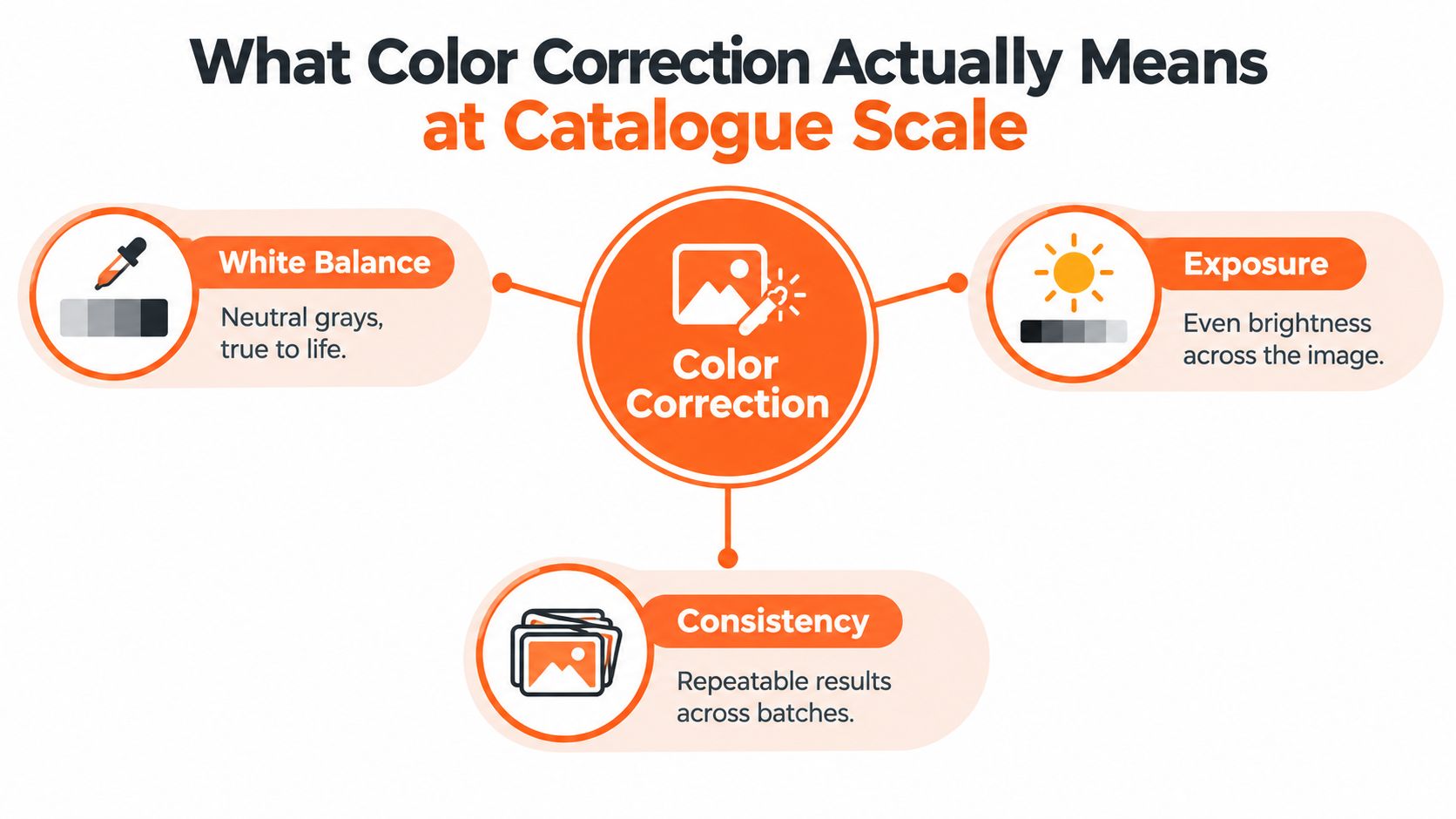
The rule that keeps the rest of the process manageable is one delivery color space: sRGB. Use it for web exports, and check that every file in the batch has the correct profile embedded. A product photo's RGB numbers don't guarantee a consistent physical color on their own. The device profile, rendering software, viewing conditions, and output medium all affect how those numbers appear. The master color theory for photo edits is useful background, but your day-to-day job is to apply one repeatable output standard.
Treat the work like a manufacturing tolerance problem, not an art project. You're aiming for reliable color across products and exports, not the most dramatic edit on a single image. The question to ask before choosing any setting is simple: will this routine still give me consistent results when it has to run on two hundred photos?
The Four Settings to Lock Down Before You Touch a Slider
Batch consistency starts before editing. Lock down white balance, exposure, color profile, and file format so the process doesn't depend on remembering how each image was handled last time.
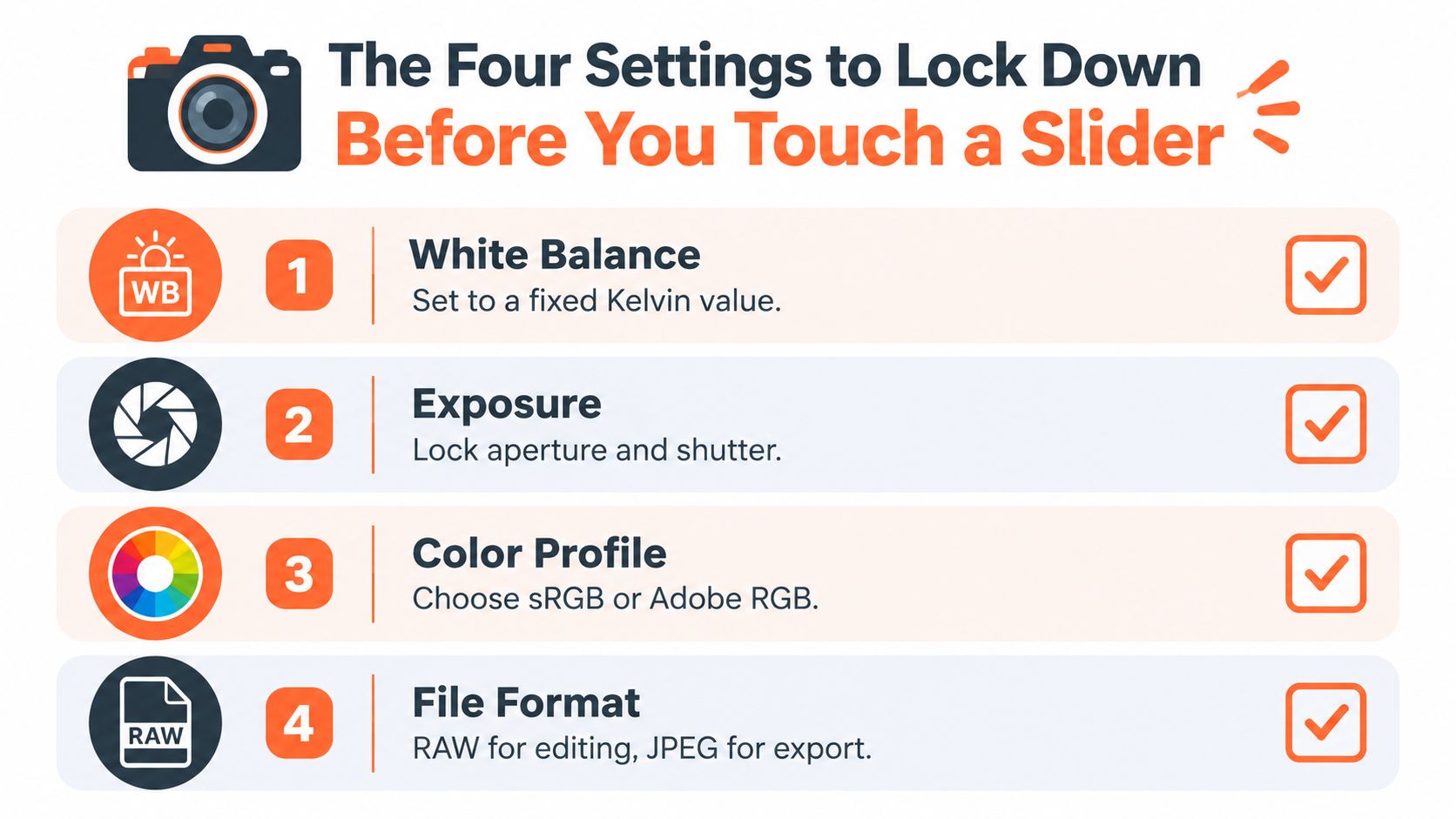
- White balance: Photograph a gray card or color target at the start of a SKU group, or set a fixed camera white-balance preset that matches your lighting. Apply the same correction across that group. Don't adjust each image independently unless the lighting changed. For a practical walkthrough, see white balance for product photography.
- Exposure: Keep your camera and lighting setup fixed, including the exposure settings that control brightness. When the capture conditions are stable, you can apply a consistent exposure correction to the batch instead of chasing brightness file by file.
- Color profile: Work in a suitable RGB space, then convert the final files to sRGB for web use. Don't assign a different profile to make the image appear right on one screen. Conversion and assignment do different jobs, which matters when you're correcting a whole collection.
- File format: Keep RAW originals when your camera provides them, so you can correct or export again later. For routine marketplace main images, use high-quality JPEG files with a consistent compression setting unless a platform or workflow calls for another accepted format.
A fixed Kelvin value can help when your light source stays consistent, but don't copy a number from a camera-settings graphic and apply it to every studio. The correct setting depends on the actual light. The same goes for exposure: the point is to lock a repeatable setup, not to force one camera setting onto every product or lighting condition.
With two hundred files, one shared setup makes a batch easier to review and repeat. If a handful of favorites get custom edits while the rest follow a preset, your catalogue has two standards. Keep the exceptions, but flag them and record why they needed individual treatment.
Color Profiles, sRGB, and Why Conversion Is Not the Same as Assignment
A color profile tells software how to interpret an image's RGB values. Those values aren't a universal description of the product's physical color. Without the right profile and rendering chain, the same file can look different on a monitor, in a browser, or in a print.
The historical fix was standardization. In 1993, eight technology companies established the International Color Consortium to create an open color-management architecture. Its device-profile specification followed within roughly 18 months, and the format was formally published in 1994. Hewlett-Packard and Microsoft proposed sRGB for web content in 1996, and the International Electrotechnical Commission adopted it as IEC 61966-2-1 in 1999. The ICC history and specification paper provides context for why device profiles and a shared delivery space matter.
Conversion remaps colors; assignment changes their interpretation. When you convert an image to sRGB, the software uses the source profile to remap the image into the destination space while preserving its appearance as far as that space allows. When you assign sRGB to an Adobe RGB image, you change how its existing RGB numbers are interpreted without remapping them. The result can look shifted or less saturated.
The rule for mixed-profile files
If your source supports a wider-gamut working space, you can edit there and convert to sRGB when exporting for the web. Don't label an Adobe RGB image as sRGB and call it converted. Preserve embedded profiles during editing, and make profile conversion a deliberate batch step.
An untagged file is an audit risk because the receiving software must decide what the numbers mean. Some platforms or browsers assume sRGB when no profile is present, but that assumption doesn't repair an image that was processed under another profile. For a contractor, the instruction is clear: retain the source profile during editing, convert each web export to sRGB, and verify that the output is tagged consistently.
A Repeatable Batch Workflow From Capture to Export
A repeatable workflow is a control system for SKU consistency. Its job is to make the red of a replacement unit match the red of the first unit, so a customer who reorders sees the same product and a marketplace reviewer sees one coherent catalogue.
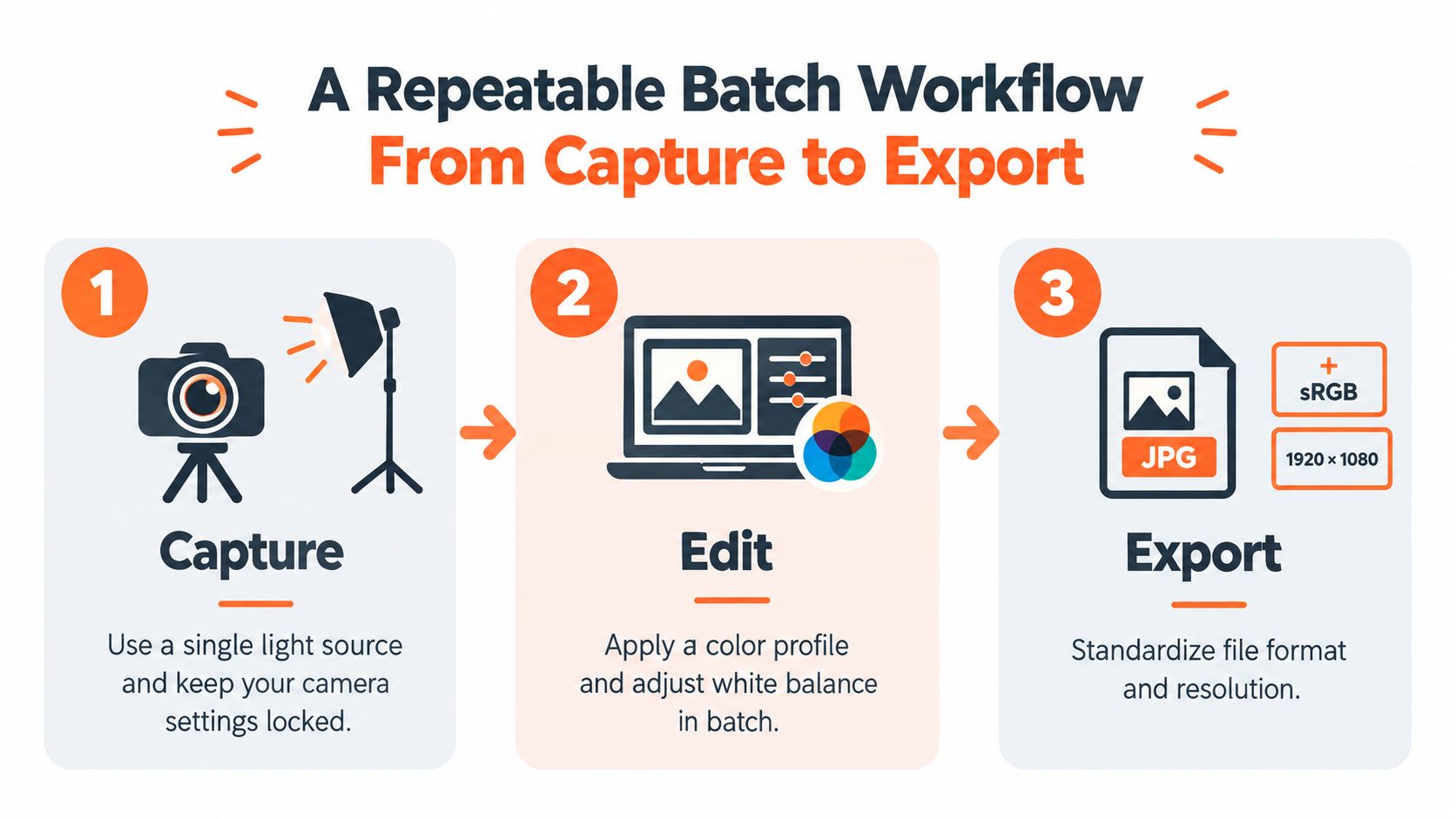
Run every file through the same sequence:
- Capture against a reference. Standardize the light, lock camera settings, and shoot a gray card or color target with each SKU group. Keep the originals. A target gives you an objective neutral point when a shade dispute reaches returns.
- Normalize before styling. Set white balance, then exposure, then contrast, using the same baseline for files from the same setup. Move anything shot under different lighting into a separate queue. Do not cover capture errors with a global saturation bump.
- Convert, resize, export. Convert to sRGB for web, resize to the destination's preset, and apply one compression standard. Verify profile tag, dimensions, format, and background on every file, not one per batch.
Scaling this across a collection is a batch problem. MerchLoom's batch image editing guide notes that removing backgrounds before upscaling shrinks files before the more expensive step and can cut that part of the pipeline cost by up to 87 percent. Order matters: run cheap, deterministic steps first and expensive pixel generation last. MerchLoom can run chained AI pipelines across a batch instead of making you process one image at a time, though unusual materials still need a human check.
Close the loop with sampling. Pull a fixed percentage of exported files per SKU group and compare them against the approved master. If a fabric, metallic finish, or fluorescent dye fails, hold that SKU group rather than pushing the whole batch. That is how you keep colour drift from becoming a return reason.
Platform-Specific Export Rules You Cannot Guess
Marketplace export rules aren't interchangeable. Choose a preset for each destination, and validate it before processing the whole collection.
Doing this for a whole catalog?
MerchLoom runs background removal, upscaling and AI editing across every product photo you have — one prompt, whole batch.
Try MerchLoom| Marketplace | Main image background | Minimum size for zoom or quality | Accepted formats | Color-space rule |
|---|---|---|---|---|
| Amazon | Main image must be pure white, RGB 255, 255, 255 | Longest side must be at least 500 pixels and no more than 10,000 pixels. At least 1,000 pixels in height or width enables zoom. | JPEG is preferred; TIFF and GIF are also supported. | Follow a consistent color-managed workflow and check the exported profile. |
| Etsy | No universal main-image background rule listed here | Recommended width and height are both at least 2,000 pixels. The first photo should be landscape or square and at least 635 pixels wide and high enough to avoid appearing lower in search. | JPG, GIF, and PNG. Animated GIFs and transparent PNGs aren't supported. | Etsy recommends converting to sRGB when colors appear incorrectly. |
| Shopify | No universal main-image background rule listed here | Upload guidance allows images up to 5,000 by 5,000 pixels or 25 megapixels. Uploads can't exceed 20 megapixels or 20 megabytes. | Check the current destination and theme requirements before choosing a format. | Shopify removes embedded profiles on display; an unprofiled file is assumed to be sRGB. Convert before upload. |
For Amazon, apply pure white only to the main image. Don't blindly make every supporting image white. The actual guidance covers a longest side from 500 to 10,000 pixels, and zoom is enabled when an image is at least 1,000 pixels high or wide. Amazon's image requirements are the reference for that channel.
Etsy recommends images at least 2,000 pixels on both sides and advises conversion to sRGB if colors look wrong. Etsy's listing photo guidance also describes supported formats and first-photo requirements. Shopify's profile behavior and file constraints are documented in its image upload guidance.
Build separate presets rather than forcing every destination into one export. For eBay, WooCommerce, Poshmark, and Depop, check the current channel requirements before setting dimensions or formats. A JPEG versus PNG comparison can help you choose a working format, but the destination's current rules decide what you upload.
Acceptance Testing with CIEDE2000 Instead of Eyeballs
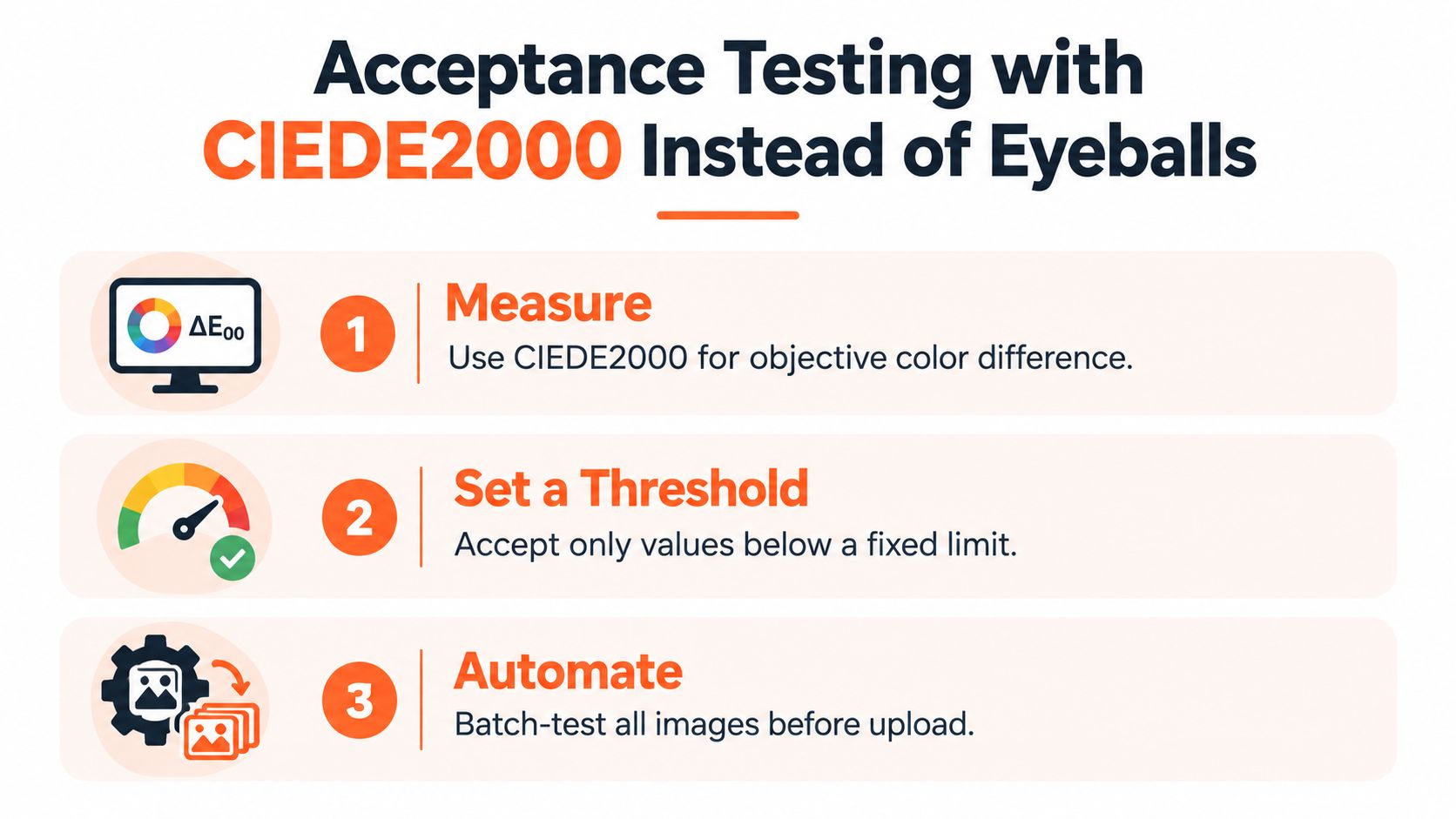
An uncalibrated monitor is not an acceptance test. Use CIEDE2000, written ΔE00, to compare sampled colors in a corrected image with a physical reference. It accounts for perceptual differences in lightness, chroma, and hue more usefully than subtracting RGB channel values.
In an e-commerce color-consistency study, researchers photographed product references under standardized D65 illumination and compared their displayed colors on a consumer Samsung SyncMaster P20500 monitor and a professional EIZO CG243W monitor. They used a ColorChecker SG chart, a spectrophotometer, and CIEDE2000, with average differences reaching 8 ΔE2000 units. The study report shows why capture, profile, and display conditions all matter. A difference at that scale can be noticeable, especially in saturated and dark colors.
Set an operational tolerance
Don't adopt a universal threshold without testing it against your products and workflow. Use the same capture and viewing conditions for the physical reference and corrected image, then establish stricter tolerances for colors that define the product or brand.
- Sample critical patches: Measure brand colors, neutral backgrounds, and product regions where a color name affects the buying decision.
- Record both mean and maximum: A low mean error can hide one badly shifted logo, accent, or color panel.
- Route outliers to review: Ask a person to check the product against its physical reference before approving the batch.
A ΔE value depends on the illuminant. Materials that look like a match under one light can diverge under another. That's why a target, controlled capture, and profile checks belong in the same acceptance process. The history of color management and ΔE00 offers further context on perceptual color difference.
A simple RGB check can treat equal channel changes as equivalent even when people perceive them differently. Test the colors that matter to your catalogue, log exceptions, and use the same method each time. The video below gives a visual introduction to the testing approach.
Mixed Lighting, Metamerism, and the Real Reasons Colours Drift
The editing slider isn't always the source of color inconsistency. Metamerism means two materials can appear to match under one light and differ under another. A fabric that looks right in your studio may look different in daylight or a shopper's home. One reference image per SKU can't capture every viewing condition.
This matters most when a catalogue combines images from different photographers, cameras, phone pipelines, LED fixtures, and JPEG processing. One commercial industry summary warns that camera JPEG processing can increase saturation by 10–20% in some colors and that wide-gamut captures may clip when converted to web-oriented sRGB. Treat those figures as directional, not universal, and inspect the source files rather than applying a blanket correction.
Make the capture conditions part of the record
- Identify the light source: Keep lighting consistent within a SKU group, and note when the source changes.
- Photograph a color target: Include one whenever practical, especially when adding a new camera or photographer to the workflow.
- Preserve the original: Keep RAW or a high-bit-depth working file when available, then convert deliberately for web delivery.
- Check critical colors on real displays: Validate a calibrated monitor and representative mobile devices before approving a new workflow.
- Flag difficult materials: Route fluorescent fabrics, metallic finishes, neon colors, transparent packaging, and mixed-light images to human review.
Apparel and home goods need particular care because the material itself can change appearance with lighting. A guide to matching fabric colors at home gives useful context for why a screen match and a fabric match aren't always the same thing. For capture setup, use consistent light placement and review the product photography lighting guide.
Don't force every image through one preset just because it's convenient. A global batch should handle predictable images; an exception queue should handle the rest. That's how you avoid shifting the colors that shoppers care about most.
Color Correction as a Returns Problem and What to Install This Week
Color accuracy sets customer expectations. In a survey of 2,712 shoppers in the US, Canada, and UK conducted in October 2025, 24.5% cited color as a reason for returning an online purchase, as summarized by WisePIM's report on e-commerce returns. For a seller, that makes color correction an operations and returns issue, not just a retouching preference.
Install a simple standard this week:
- Use sRGB for web delivery and verify every export's profile.
- Lock white balance and exposure for each SKU group.
- Create a marketplace preset for each destination you sell on.
- Measure ΔE00 on sample products with brand-critical colors.
- Send exceptions to a human review queue instead of approving them by eye.
MerchLoom is one way to run those rules across a collection through chained AI pipelines rather than one image at a time. It can repeat batch corrections, but a person still needs to review flagged SKUs. For the wider operational case, see the guide to workflow automation benefits.
Don't optimize for maximum thumbnail saturation. Optimize for a consistent, defensible representation of the product that ships.
MerchLoom lets you run chained AI image workflows across product-photo batches, including color correction, marketplace resizing, and export preparation. Try your first images without an account, then visit MerchLoom to process a collection with pay-per-image credits that never expire.
Stop editing product photos one at a time
Upload your catalog or connect your store. Describe the result once. MerchLoom does the rest.
Try MerchLoom