
7 Best AI Image Upscalers for Product Catalogs
Compare the best AI image upscalers for e-commerce catalogs, including batch processing, output quality, pricing, and marketplace requirements.
You've got 200 product photos to prepare, but they don't look like one catalogue. Some supplier files are small. Others have soft packaging text, uneven backgrounds, or fabric that loses definition when shoppers zoom. You need consistent listings, not another editing task that consumes the afternoon.
Export a small sample containing labels, fabric texture, product edges, and reflections. Run it through your shortlisted upscalers at the same target dimensions, then compare the results against the originals before processing the full batch. For Amazon, use pure white RGB 255,255,255; its published guidance permits a longest side from 500 to 10,000 pixels, with zoom enabled at 1,000 pixels or more in either dimension, rather than requiring a particular larger target (Amazon image requirements).
- Etsy: Aim for at least 2,000 pixels in both dimensions, following Etsy's listing-photo recommendations.
- Shopify: Square product images usually display best at 2,048 × 2,048 pixels; product-media guidance permits 5,000 × 5,000 pixels, subject to its other upload constraints (Shopify product-media guidance).
A larger file isn't automatically a more accurate product image. MerchLoom can run the resulting workflow across a collection through chained AI pipelines; first images need no account, and pay-per-image credits never expire.
1. Photoroom
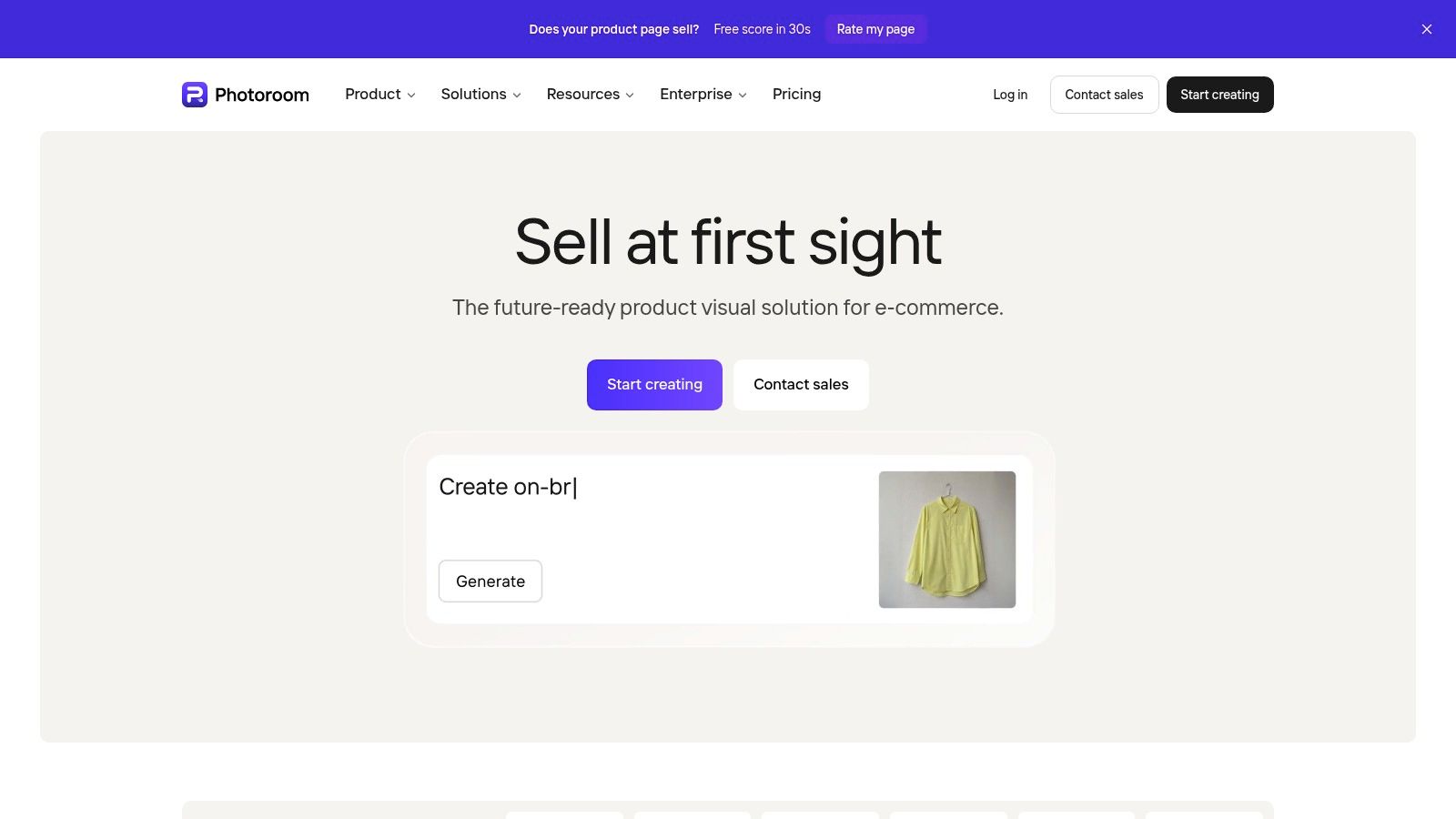
An integrated product-photo editor puts enlargement beside background editing, retouching, and resizing. That's the category Photoroom occupies. For a seller, the question isn't whether those controls exist, but whether the same settings can be applied consistently to every product without repeated intervention.
Photoroom's product-photo platform offers 2×, 3×, and 4× export upscaling in supported Batch and Product Catalog workflows, with supported batches of up to 250 images; availability depends on subscription, workflow, and rollout. Its broader offering includes Shopify integration on some plans and business API options. Check the specific workflow you'll use before treating a feature shown elsewhere in the application as available for your catalogue.
Separate enlargement from listing preparation
Keep the evaluation neutral. Test background removal, crop, retouching, and enlargement as separate decisions, even if the application lets you combine them.
- Output consistency: Check product position, canvas shape, background color, and edge treatment across different product categories.
- Paid access: Batch and Product Catalog upscaling require a paid subscription and AI credits. Confirm which operations consume credits before estimating a full run.
- Fidelity review: Compare packaging text and surface texture before approving a reusable preset.
Don't confuse print metadata with usable online detail. The distinction explained in how to increase an image's DPI matters when supplier files have inconsistent export settings.
An integrated editor and a dedicated restoration application answer different needs. Evaluate Photoroom's publication workflow separately from Topaz Gigapixel's model controls. Neither a tidy background nor a consistent crop proves that an enlarged label still describes the same product.
2. Topaz Gigapixel

Custom dimensions matter more than maximum enlargement when your catalogue contains mixed source sizes. Applying one multiplication factor to every file won't necessarily produce consistent final dimensions. A target-edge control addresses a different problem from making each source larger.
Topaz Gigapixel is a dedicated desktop upscaler with multiple AI models, custom dimensions, documented scaling up to 6×, and batch controls that include a target longest edge for selected images. Local rendering is available, with cloud rendering included in applicable subscriptions. That gives sellers model and output-size decisions to test, rather than only an upload-and-export workflow.
Choose a model, then freeze the settings
Start with conservative settings on identity-sensitive products. Compare a label-heavy package, a textured garment, and a reflective accessory before choosing a model for the wider collection. Do not keep changing enhancement strength between products because one preview looks more dramatic.
Acceptance rule: Reject an output that changes a product-defining detail, even when its overall sharpness looks better.
The risk isn't hypothetical at the category level. Research comparing super-resolution models explains why numerical fidelity and perceptual sharpness can favor different outputs, and why GAN-based reconstruction can introduce invented texture or lettering.
For cost planning, account for the subscription, your computer's rendering capacity, and any cloud use available under your plan. Record processing time and review time separately. A desktop batch that finishes without supervision still creates work if you must inspect and re-export inconsistent results.
Gigapixel addresses enlargement and restoration. You'll still need a separate process for marketplace backgrounds, naming, delivery formats, and upload checks.
3. Let's Enhance

A supplier sends 300 photos as a zip file and the only free machine is a browser tab. The appeal fades at the first rejected upload or an output that cannot be traced back to a SKU. Let's Enhance fits a catalogue pipeline when its limits, credits, and API behavior match the way products move through production.
Let's Enhance provides browser-based processing, with upscaling, background removal, and image generation on paid plans; its highest listed tier supports outputs up to 512 megapixels. Its business offering includes API access and custom pipelines. For ordinary listings, test whether it can repeatedly hit your marketplace dimensions before treating that ceiling as useful.
Three checks decide the cost. Estimate credit burn from processing operations, plan tier, and reruns rather than from product count alone. Confirm file-size and megapixel restrictions before importing supplier folders. Ask how a business pipeline handles filenames, rejected inputs, retries, and outputs that need human review.
Buy the output you need
A large master can serve zoom views or later creative work, while storefront derivatives can stay smaller and faster. E-commerce image-optimization guidance supports separating an approved master from compressed, appropriately sized delivery images across Shopify, WooCommerce, marketplace listings, and ads.
For automation, review how an image upscaling API fits a processing workflow. Large exports prove dimensions. Fine text, labels, and packaging still need a side-by-side pass against the original before approval.
4. Pixelcut

Photographing new stock on the shop floor with a phone is fast. Publishing those same photos at fixed marketplace dimensions is where phone-first tools get tested. A seller capturing intake away from a desk still needs consistent export settings across the finished collection, so the device used for editing should never decide how each listing looks.
Pixelcut offers browser and mobile access, with upscaling alongside background removal, image cleanup, and generative editing. Paid plans include batch exports and team features, and an upscaler API is available for developers. Those are workflow characteristics to verify, not proof that its reconstruction preserves every product detail.
Keep intake separate from final approval
Run the same sample set and platform target you use for the other tools. Record which controls stay consistent between mobile, browser, batch export, and API paths. If those routes produce different crops or enhancement settings, pick one production path instead of mixing them through the catalogue.
- Usage limits: Check credits, export allowances, and relevant plan restrictions before committing a collection.
- Editing boundaries: Keep optional generative changes separate from faithful listing-image enlargement.
- Detail checks: Inspect labels, stitching, jewelry edges, and transparent surfaces after processing.
The difference between integrated editing and dedicated restoration is covered in image upscaling software workflow considerations. Use it to define what you're testing rather than expecting one tool category to cover every preparation step.
A matching background across the catalogue is useful. Matching backgrounds around altered products isn't an acceptable result.
A solo seller should count the manual steps between upload and publication. Batch export is only part of the process; stable naming, channel-specific output settings, and a clear route for products that fail inspection matter just as much.
Doing this for a whole catalog?
MerchLoom runs background removal, upscaling and AI editing across every product photo you have — one prompt, whole batch.
Try MerchLoom5. Clipdrop Image Upscaler

Ten files per upload means a 400-image catalogue takes forty manual upload-download-inspect cycles. The enlargement options and cleanup controls are worth testing, but count the handling repetitions before committing the store.
Clipdrop Image Upscaler accepts up to 10 files at a time and offers 2×, 4×, 8×, and 16× enlargement choices, together with denoising and sharpening. It runs in the browser with no desktop installation, which suits sellers working across machines or on hardware that cannot run local models. Free-tier limits apply, so check current access conditions before planning a production run.
Test the smallest sufficient enlargement
Start with the factor that reaches your intended dimensions. Higher magnification gives the model more room to invent texture, and invented texture is the failure mode that matters most on packaging and labels. Compare the processed edge and texture with the source, then inspect the exported image at its intended display size.
- Upload handling: Keep each upload associated with its source folder and product identifiers.
- Cleanup strength: Check whether denoising removes real fabric texture or sharpening adds bright edge halos.
- Delivery checks: Verify dimensions and file format after download, not only in the preview.
The technical progression of AI super-resolution explains why enlargement involves inferring plausible detail rather than merely expanding a pixel grid. Plausible detail that changes the product still fails a listing inspection.
For a solo catalogue, the upload cap is the deciding variable. If repeated manual handling dominates the job, folder-based desktop processing or an API pipeline will cost less time per image than Clipdrop saves in setup. Keep difficult products in a review queue either way: an enlargement that works on a plain ceramic bowl may still distort lettering on a glossy package or change the appearance of a fine chain.
6. Upscayl

Upscayl costs nothing per image, but the bill arrives elsewhere: your GPU renders every file, your storage holds every output, and your evening absorbs every failed batch. Test the actual machine before scheduling a large folder.
Upscayl is a free, open-source desktop application for Windows, macOS, and Linux. It runs locally, processes whole folders as batches, and offers multiple models for photographs, illustrations, and other image types. The desktop app requires no subscription, though installation and compatible graphics hardware determine whether it fits your setup.
Treat folders as production stages
Local processing suits sellers who want source files to stay on their own machine. Organize the job as four folders: originals, processed outputs, approved images, and rejects. Keep product identifiers in filenames so an enlarged image traces back to its source, and never overwrite an original while comparing models.
- Hardware check: Run representative files on the machine that will handle production, not a faster spare one.
- Model consistency: Assign one approved model per source type rather than choosing whichever preview looks sharpest.
- Batch audit: Count outputs against inputs after each run, since a crashed job leaves a gap that is easy to miss.
For sources that are already damaged, the guide on how to fix a pixelated picture helps separate genuine enhancement from detail the source never contained. An unreadable label that comes back readable is a reconstruction, not verification of its wording.
Local processing also reframes the cost question. You pay in time, storage, and rejected outputs rather than per image. That trade favors large catalogues on capable hardware, and it punishes older machines and loose folder discipline.
The gaps sit around the upscaling step itself: automated imports, background editing, marketplace-size exports, and review tracking all need other tools. Weigh those missing steps alongside image quality rather than treating free software as a complete catalogue solution.
7. Magnific

Magnific's strength, inventing convincing detail, is the same property that disqualifies it for listing masters. A buyer who receives stitching or packaging text the original never had is looking at a different product.
Magnific combines upscaling with enhancement and transformation controls that can add or reinterpret detail. It supports creative material including illustrations, natural scenery, interiors, and food, within a broader creative platform. New-user access and plans have shifted from the legacy site to the current platform, so verify subscription and token conditions there.
Separate creative enhancement from product evidence
Run a jewelry listing through a creative-heavy setting and the stones can gain facets that never existed. Treat that output as a campaign asset rather than a catalogue record. Use conservative settings for real inventory, review every product-defining region, and keep creative outputs in a separate workflow from approved listing masters so an attractive image is never reused as an exact product representation.
Product-first standard: An enhancement should not add a feature the buyer won't receive.
The fidelity-versus-visual-appeal analysis of AI upscaling identifies labels, logos, colors, and material textures as areas where invented detail matters commercially. Standard quality measurements alone don't answer whether the depicted item still matches the inventory.
Batch cost also needs a wider calculation here: subscription access, token consumption per image, and the review time spent rejecting unsuitable transformations across hundreds of SKUs. Don't compare a creatively enhanced output with a conservative reconstruction on sharpness alone.
The distinction explained in resolution in AI imagery applies directly: increased dimensions and increased apparent detail aren't the same as increased certainty.
Evaluate Magnific separately for lifestyle backgrounds or campaign concepts. For listing masters, one approval question remains: did the actual product survive processing unchanged?
Best AI Image Upscalers: 7-Tool Comparison Matrix
| Tool | 🔄 Implementation complexity | ⚡ Resources and cost | 📊 Upscaling and results | 💡 Ideal use case | ⭐ Key advantage |
|---|---|---|---|---|---|
| Photoroom | Low; integrated product-editing and catalog workflows | Paid subscription and AI credits for supported upscaling; batch size up to 250 in supported workflows | 2×, 3×, and 4× options in supported workflows | Sellers preparing product listings | Combines upscaling with product-photo editing and batch tools |
| Topaz Gigapixel | Moderate; desktop setup and model selection | Local processing depends on computer hardware; cloud rendering is included in applicable subscriptions | Multiple AI models; custom scaling up to 6× | Print and high-resolution image work needing output control | Detailed model and dimension controls |
| Let's Enhance | Low; browser-based, with API setup for automation | Credit-based plans; input and output limits vary by plan | Cloud upscaling; listed highest tier supports outputs up to 512 MP | Cloud processing and automated business workflows | Browser access plus business API and custom pipelines |
| Pixelcut | Low; browser or mobile access | Credit and usage limits; paid plans include batch exports and team features | Upscaling with cleanup and generative editing | Lightweight product-image work and quick mobile edits | Combines upscaling with accessible editing tools |
| Clipdrop Image Upscaler | Low; simple browser upload workflow | No installation; free-tier limits apply; up to 10 files per upload | 2×, 4×, 8×, or 16×, with denoising and sharpening | Occasional quick image enlargement | Fast browser-based processing with basic cleanup |
| Upscayl | Moderate; requires desktop installation | Free and open-source; local performance depends on computer hardware | Local processing, folder-based batches, and multiple models | Private, cost-conscious batch processing | Processes images locally without cloud uploads |
| Magnific | Moderate; requires adjustment of enhancement controls | Subscription and token use | Upscaling can creatively reconstruct or reinterpret details | Campaign imagery, illustrations, and concept visuals | Strong creative control for enhancing visual impact |
Build a Repeatable Upscaling Decision Before You Scale
The best AI image upscaler for your store is the one that produces acceptable files through a repeatable workflow. Maximum output size, browser convenience, and creative detail are secondary if the resulting catalogue needs extensive correction. You're choosing a production process, not a favorite preview.
Select three representative products, including difficult surfaces and identity-sensitive details. Preserve the originals, then choose one platform-specific output target. Use this practical image sizing workflow for ecommerce to keep resizing and export decisions consistent.
- Preserve the source: Keep an untouched original associated with every product and variant.
- Fix the target: Use the same dimensions, crop policy, background, and delivery format throughout the test.
- Repeat the settings: Apply the same model or enlargement factor across every sample before adjusting it.
- Inspect product identity: Compare labels, fabric, jewelry edges, transparent areas, packaging text, and reflections.
- Calculate accepted-image cost: Include processing charges, retries, subscriptions where applicable, and review work. Divide by approved outputs, not attempted exports.
- Approve the delivery file: Inspect the compressed marketplace version as well as the enlarged master.
Prioritize local processing when you want files to stay on your computer and your hardware handles the workload. Choose browser access when installation would complicate operations, but check upload and download overhead. Favor batch controls and custom dimensions when source files vary, and API pipelines when imports, processing, exports, and rejection handling need to run together.
For labels, branded packaging, garment patterns, and resale items with visible condition details, prioritize conservative reconstruction. Creative enhancement needs a separate approval standard. Don't let more attractive texture erase wear that buyers need to see.
Once the sample passes, run the approved workflow across the collection and review results while they arrive. Chaining background removal, upscaling, and export can reduce repetitive handling, but it doesn't remove inspection. AI upscaling still needs human review and isn't a complete replacement for Photoshop when precise retouching is required.
MerchLoom runs chained AI pipelines across complete collections, with visible costs before processing, pay-per-image pricing, credits that never expire, and no-account access for your first images. When removing backgrounds before upscaling reduces the input size, its optimized processing order can save up to 87%. Visit with your representative samples, test the target dimensions, and approve the product details before running the full catalogue.
Stop editing product photos one at a time
Upload your catalog or connect your store. Describe the result once. MerchLoom does the rest.
Try MerchLoom