
How to Remove a Signature From a PDF for Online Sellers
Learn how to remove a signature from a PDF with methods for busy e-commerce sellers. Covers visible vs. digital signatures and catalogue-scale workflows.
You usually notice this problem late.
A supplier sends revised terms across dozens of SKUs. Your operations lead has already signed a batch of PDFs. Then someone spots the wrong material spec, an outdated delivery window, or a typo in a vendor address. The content change is small, but the signed files turn a quick correction into a slow, manual job.
That’s why how to remove a signature from a pdf matters for online sellers. Signed PDFs aren’t just legal paperwork. They’re operational assets, the same way product images, listing templates, and channel-specific exports are assets. If you manage a catalogue at scale, you need the same mindset for documents that you already use for photos: identify the file type, choose the least destructive fix, keep originals, and avoid manual repetition where possible.
Why E-Commerce Sellers Need to Edit Signed PDFs
A catalogue team managing 100 or more SKUs rarely has one signed document in play. It usually has supplier agreements, packaging approvals, compliance sheets, brand authorisations, and internal sign-off PDFs moving at the same time. A single bad file can hold up a product launch just as easily as a missing hero image or a broken inventory feed.
In practice, signed PDFs sit early in the catalogue pipeline. Supplier terms affect sourcing. Spec sheets affect listings and packaging copy. Approval forms affect whether a SKU can go live on Amazon, Shopify, Etsy, or eBay. When one of those files contains an error after signing, the team has to decide fast whether the signature can be removed cleanly, whether the document needs to be reissued, or whether the original should stay untouched and a corrected version should be created alongside it.
The pressure comes from volume and dependency, not from the edit itself. Removing one visible signature from one PDF is usually manageable. Reviewing 40 signed files tied to 40 SKUs, each with different owners, deadlines, and approval states, is where operations teams lose time.
I see the same pattern as image ops. Sellers who already batch-process photos understand this immediately. You do not treat 300 listing images as 300 unrelated tasks. You classify them, apply the right fix, preserve the source files, and keep a record of what changed. Signed PDFs need that same discipline if you want revisions to move without creating confusion or legal risk.
A lot of teams also push signed documents through online tools without checking where files are stored, who can access them, or how long they remain on a vendor's systems. Before uploading contracts or signed approvals, review the platform's privacy policy for uploaded digital assets the same way you would for product images, design files, or customer-facing brand assets.
Practical rule: Treat signed PDFs like product masters. Keep the original, make the smallest valid correction, and log the change.
Common situations where removal comes up
- Supplier corrections: A vendor signs, then sends updated lead times, material codes, carton specs, or pricing notes.
- Internal approval errors: Ops or merchandising signs before legal, finance, or compliance finishes review.
- Old template reuse: Someone exports last season's form, gets it signed, and only later spots outdated terms or contact details.
- Scanned document reuse: A signed paper form is scanned into PDF and reused for a new product cycle even though key fields should be different.
- Marketplace exceptions: One channel requests a revised declaration or authorisation letter while other channels still reference the earlier version.
The goal is not to bypass document controls. The goal is to correct small but operationally expensive errors without turning every revision into a full restart. For e-commerce sellers working at catalogue scale, that difference matters. It keeps launches on schedule, reduces manual rework, and makes document handling behave more like a controlled production workflow than a pile of one-off fixes.
Visible Signatures vs Cryptographic Digital Signatures
A merchandising team updates 300 supplier PDFs for a seasonal catalogue refresh. Twenty files open like normal page artwork. Ten trigger signature warnings. Another batch is just scanned paper turned into PDF. If the team treats all of them the same way, they either waste hours on files that could have been edited in seconds or break signatures that should have been preserved and reissued through approval.
The first job is classification.
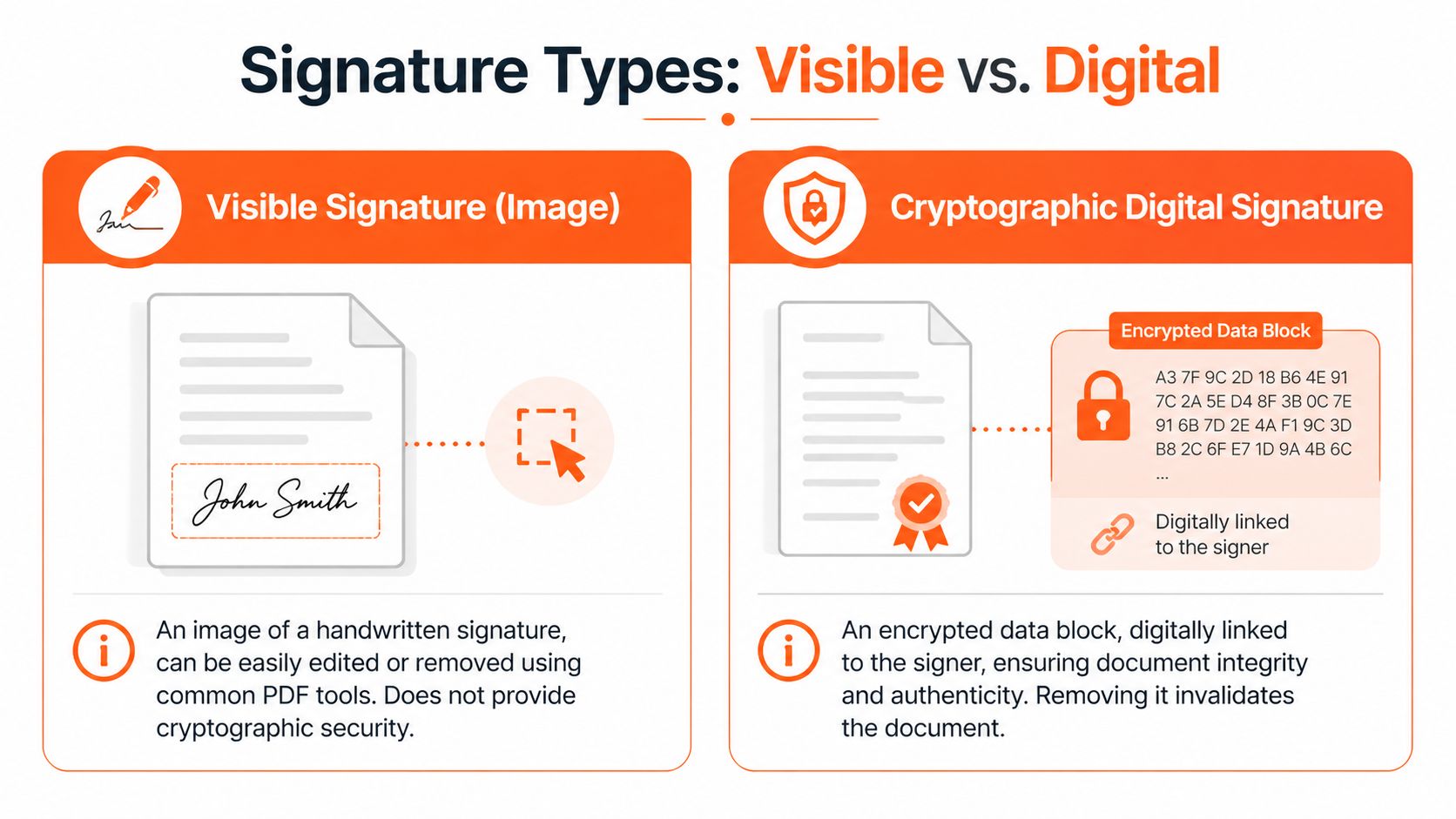
A visible signature is page content. It might be a pasted PNG, a stylus mark stored as an annotation, or a signature flattened into the page during export or scanning. It looks formal, but in many files it behaves like any other graphic element. The editing mindset is close to the one used for cleaning up product imagery or removing embedded visual elements in Photoshop. You are changing appearance, not managing trust metadata.
A cryptographic digital signature is a security control. It is attached to signer identity and to the exact state of the document at the time of signing. Adobe explains that a valid digital signature shows whether the document has changed since it was signed and whether the signer certificate is trusted, as described in its documentation on validating digital signatures in PDFs. Edit the wrong part of that file, and the signature status changes.
Here is the practical split:
| Signature type | What it usually is | How removal works | Main risk |
|---|---|---|---|
| Visible image signature | An image, annotation, or flattened mark | Delete, redact, cover, or rebuild page content | Page quality loss, layout damage, or OCR cleanup |
| Cryptographic digital signature | A signed field tied to certificate and document state | Clear or invalidate only through the right signing workflow and permissions | Breaking authenticity, audit trail, or approval status |
This distinction matters more in catalogue operations than in one-off admin work. Teams handling supplier contracts, declarations, compliance sheets, and packaging approvals often inherit mixed document types from different vendors and departments. Some files are editable. Some are certified. Some are scans of signed paper. The visible mark may look identical across all three, but the correct action is different.
Use a fast check before editing:
- If you can select the signature as an object or annotation: it is usually a visible mark.
- If clicking it opens signature details, certificate info, or a validation panel: it is a digital signature field.
- If the whole page behaves like one image: the signature is probably baked into a scan.
- If editing tools are disabled or Acrobat warns about certification: treat it as a controlled document, not a design asset.
For teams used to batch image workflows, this is the PDF equivalent of separating layered source files from flattened exports before making changes. The file type decides the workflow. Get that call right first, and the rest of the process stays fast, traceable, and far less expensive to fix later.
Methods for Removing Visible Image Signatures
A supplier sends 300 spec sheets for a catalogue refresh. Half are clean exports from Word. The rest are scans with signatures stamped into the page image. If the team treats every file like a one-off edit, turnaround slows and formatting errors pile up fast.
Visible image signatures are an editing problem. The right method depends on how the page was built and how many files need the same treatment.
Method one with a PDF editor
Start with Adobe Acrobat, Foxit PDF Editor, PDF-XChange, or another desktop editor that can select page objects. This is the fastest route when the signature sits on top of the page as a separate element.
Use this order:
- Open a duplicate of the file. Keep the signed original untouched.
- Try object selection. Click directly on the signature or its field border.
- Delete the selected element. If the page stays intact, save the result.
- Save as a new version. Name it as a revision, not as a replacement for the source file.
In catalogue operations, this method works best for supplier forms generated from editable templates. It is quick, repeatable, and low risk. The trade-off is simple. If the signature was flattened into the page, object selection will do nothing.
Method two with OCR for scanned PDFs
Scanned PDFs take more work because the signature is part of the page image. There is no object to delete. OCR can convert the scan into editable text and blocks, which sometimes gives you enough structure to remove the signature area and rebuild the page.
Google documents explain this workflow directly. Upload a PDF to Drive, open it with Google Docs, let Docs extract the text, then export the cleaned file back to PDF. Google notes that formatting may change during conversion, which is a significant limitation for supplier paperwork with tables, measurements, and approval blocks. See Google’s documentation on editing PDF files in Google Drive and Google Docs.
Use OCR when speed matters more than layout fidelity, especially for internal revisions or low-value documents that arrive as scans.
A practical sequence:
- Upload the scanned PDF to Google Drive
- Open it with Google Docs to trigger OCR
- Remove or rewrite the signature area if it becomes editable
- Export to PDF and review page breaks, tables, and alignment
I use OCR selectively. For a single compliance sheet, cleanup is manageable. For 500 supplier pages with strict brand formatting, OCR often creates enough repair work that the time savings disappear.
If your team already handles image cleanup at scale, the mindset is familiar. Sort files by condition first, then apply the fastest acceptable fix to each group. The visual logic is close to removing objects cleanly in Photoshop workflows, but PDFs add structure and typography, so every OCR pass needs a formatting check.
A short walkthrough helps if you want to see a basic on-screen process:
Method three with redaction or cover-up
Sometimes the goal is not full removal. The goal is to stop an outdated visible signature from appearing on an internal draft or pre-approval copy.
In that case, redaction or a white cover box can work. It is acceptable for internal handling, review copies, and temporary document prep before a new signing round. It is a poor choice for polished external files because the underlying page usually is not rebuilt.
Field note: Redaction hides a visible mark. It doesn’t restore the document to an unsigned legal state.
Method four by rebuilding the page
When the signature is baked into a flattened page and OCR damages the layout, rebuild only the affected page. Export that page as an image, clean the signature area in an image editor, then place the repaired page back into the PDF.
This takes longer per file, but it can preserve visual consistency better than OCR on difficult scans. For e-commerce sellers, that matters on branded spec sheets, packaging approvals, and vendor documents that customers or marketplaces may see.
Use page rebuilding when:
- The file is heavily flattened
- The page count is low
- Brand formatting matters
- You only need to fix one or two pages
At scale, this is the exception path. It works like manual retouching on product images. Fine for a handful of important files. Expensive if it becomes the default workflow for the whole catalogue.
Clearing and Managing Digital Signatures Correctly
A supplier sends back a signed spec sheet, then your team catches the wrong SKU on page two. That is a common e-commerce document problem. The pressure is to edit fast and keep the catalogue moving, but signed PDFs are process-controlled files, not ordinary layout assets.
Doing this for a whole catalog?
MerchLoom runs background removal, upscaling and AI editing across every product photo you have — one prompt, whole batch.
Try MerchLoomDigital signatures exist to show who signed, what was signed, and whether the file changed afterward. Adobe explains that a valid digital signature can show document integrity, signer identity, and whether the document changed since signing, which is why careless edits break trust instead of removing a mark, as described in Adobe’s overview of certificate-based signatures.
When clearing is legitimate
Clear a digital signature only if your role, the document owner, and the signing workflow allow it. In practice, that usually means one of two cases. You applied the signature yourself to a draft that still needs revision, or you are the authorized owner of an internal workflow where signatures are being reset before a new signing round.
That distinction matters at catalogue scale. One bad shortcut on a single supplier agreement is annoying. The same shortcut repeated across fifty contracts creates a messy audit trail, version confusion, and avoidable back-and-forth with vendors.
The clean Acrobat workflow
If the file is yours to manage and the signature is eligible for removal, Acrobat Pro is the first place to check because it exposes the actual signature status instead of just the page appearance.
Use this sequence:
- Open the PDF in Acrobat Pro.
- Open the Signatures or Certificates panel.
- Inspect the signature properties before editing. Confirm whether it is your signature, whether the document is locked, and whether certification rules are active.
- Use Clear Signature if Acrobat offers it.
- Save as a new version with a clear filename. Examples include
supplier-spec-v3-unsigned.pdforcontract-redraft-pending-resign.pdf.
If Clear Signature is unavailable, treat that as a workflow signal, not a software failure. The signature may belong to another signer. The document may be certified. The file may also block changes after signing.
What operations teams should avoid
The expensive mistakes are usually procedural.
- Do not overwrite the signed original. Keep the source file for audit and dispute handling.
- Do not remove someone else’s signature without authorization. Request a corrected copy or restart signing.
- Do not flatten or print-to-PDF as a shortcut on controlled documents. That can strip verification context while leaving you with a file that looks clean but has weaker evidentiary value.
- Do not treat visual removal as legal removal. A hidden signature appearance and a cleared signature record are different outcomes.
In large document sets, I use the same discipline that works for image operations. Classify first, then act. Teams that already rely on documented process controls in other asset pipelines should apply the same standard to signed PDFs and related service terms for managed digital workflows.
Speed versus auditability
Fast edits feel attractive when listings are blocked and approvals are late. For signed contracts, compliance forms, and vendor authorizations, the better choice is often to preserve the signed original, issue a corrected version, and collect fresh signatures.
That is slower on one file. It is usually faster across the whole catalogue because it reduces exception handling later. Operations teams need repeatable records more than clever one-off fixes.
A simple decision rule
Use this rule set under deadline pressure:
| Situation | Best response |
|---|---|
| Your own digital signature on an unlocked draft | Clear it in Acrobat, revise the file, and save a new version |
| Another party’s digital signature | Request a corrected document or restart signing |
| Certified or restricted signature | Escalate to the document owner, issuer, or legal contact |
| Multi-signer contract already in circulation | Preserve the signed original and issue an amended copy |
For e-commerce sellers, that is the workable standard. Remove only what you are authorized to clear. Reissue when the trust record matters. Save manual fixes for the true exceptions, not the daily flow of catalogue documents.
From Single Edits to Batch Processing Workflows
A supplier sends 180 updated spec sheets on Friday afternoon. Forty are self-signed drafts your team can revise. Another set are scanned PDFs with pasted signature images. A few are fully certified and cannot be altered without breaking the trust record. If the team opens files one by one and improvises, the backlog spills into listing launches and vendor follow-ups.
That is why single-file advice breaks down in catalogue operations. Sellers are not handling one signed PDF. They are handling batches tied to SKUs, seasonal drops, compliance requests, and marketplace deadlines. The right question is not just how to remove a signature from a PDF. It is how to sort signed documents into the correct path fast enough that exceptions do not consume the whole day.
Why the batch mindset matters
At scale, signature work is a routing problem first.
A failed edit can mean very different things. One file needs a visible signature removed from a scanned page. Another only needs the original signer to clear a digital signature and resend it. Another should never be edited at all because the signed copy is the record your business may need later. Teams that process product images already understand this logic. Mixed inputs need classification before processing. Signed PDFs follow the same rule.
The cost of skipping that step is easy to see in operations. Staff waste time testing tools on files that were never valid candidates for editing. Revised copies get saved over originals. Vendor managers chase the wrong fix because the document issue was misread at intake.
Build a triage queue before you automate
Set up a queue that answers one question early. What kind of file is this, and what is your authorized action?
Use buckets such as:
- Self-signed editable PDFs: send to Acrobat or your approved editor for signature clearing and revision
- Visible image signatures on scans: send to OCR, page rebuild, or redaction-based cleanup
- Certified or restricted digitally signed PDFs: hold and route back to the document owner
- Unreadable or inconsistent files: send to manual review before they enter any batch job
This is the same operational habit strong catalogue teams use for images. Clean studio shots, low-resolution vendor exports, and lifestyle photos do not belong in one processing queue. Signed documents are no different. A mixed batch without triage creates rework.
Where command-line tools help
For teams with a large document volume, tools such as qpdf and pdftk are useful for restructuring files, splitting pages, flattening content in permitted cases, or preparing PDFs for review in bulk. They save time when the batch is consistent and the rules are clear.
They do not solve authorization problems. They also do not fix poor inputs. If one supplier sends editable forms and another sends skewed scans with handwritten marks, one script will not handle both well. In practice, I only trust batch tooling after the team has reduced variation and documented which file classes are safe to process automatically.
Automation improves throughput only after intake rules are stable.
Think in stages, not clicks
A workable document pipeline usually follows a staged sequence:
- Ingest files and create protected copies
- Classify by signature type and edit status
- Run the approved process for each class
- Flag failures and exceptions
- Rename, version, and archive outputs
- Return corrected files to signing or approval
That structure matters more than the specific software. It keeps the team from treating every signed PDF as a custom job. It also makes handoffs easier between operations, vendor management, and legal review.
The mindset is familiar if your team already runs batch image work. You separate background removal, resizing, and channel-specific exports into ordered steps because each stage reduces downstream errors. Document cleanup benefits from the same discipline. The planning logic is close to content-aware fill workflows for cleaning visual assets at scale, even though the file risks are higher with signed records.
Small teams do not need a complex system to start. A shared spreadsheet, a fixed naming standard, and three or four clear routing labels can remove a surprising amount of friction. The goal is not clever automation. The goal is a repeatable queue that keeps catalogue documents moving without losing control of the signed originals.
Safe Practices for Document Authenticity and Auditing
Removing a signature can be valid, necessary, and routine. It can also be reckless if your team treats every signed file as just another editable asset.
The safest habit is simple. Always work from a copy. Keep the original exactly as received or exactly as signed. If anything later gets disputed, your untouched source file is what protects you.
Keep an audit trail people can follow
A workable audit trail doesn’t need to be elaborate. It needs to be consistent.
Record:
- Why the change was made: typo correction, supplier update, address fix, revised SKU list
- Who approved the edit: signer, legal contact, vendor manager, or operations lead
- What happened next: cleared signature, rebuilt page, reissued contract, or restarted signing
- Where the original lives: folder path, document system, or contract repository
If your team already tracks image revisions, reshoots, or listing updates, this should feel familiar. The same discipline behind changing a public-facing asset, including edge cases like removing an old Facebook profile picture from circulation, applies even more strongly to signed business documents.
Protect the business, not just the file
Document integrity is partly technical and partly procedural. A seller gets into trouble when one side is missing. If the software allows a change but the process doesn’t, you still have a problem. If the process allows a change but no one preserves the original, you also have a problem.
Keep these rules close:
| Practice | Why it matters |
|---|---|
| Edit copies, not originals | Preserves evidence of what was signed |
| Get signer approval where required | Prevents invalid or disputed changes |
| Version files clearly | Stops teams from using the wrong draft |
| Re-sign when the document’s meaning changes | Maintains trust and enforceability |
A visible signature might be easy to remove. That doesn’t automatically make removal appropriate. A digital signature might be technically clearable. That doesn’t automatically make the edited file suitable for reuse without another signing step.
A reliable operation treats signature removal as part of document lifecycle management. Not as a trick, and not as an afterthought.
If you already think in batches for catalogue work, bring that same discipline to your images where scale matters most. MerchLoom helps online sellers process entire image collections through chained AI workflows for background removal, reframing, colour correction, and marketplace-ready exports, without turning repetitive asset prep into manual labour.
Stop editing product photos one at a time
Upload your catalog or connect your store. Describe the result once. MerchLoom does the rest.
Try MerchLoom