
The Problem Every E-Commerce Seller Knows
You have 500 product photos. Each one needs the background removed. Then resized for Shopify. Then compressed so pages load fast.
With most tools, that's 500 uploads. 500 downloads. 1,500 separate operations. Hours of clicking.
We built Merchloom.ai to fix this. Upload once, process everything, download the results. Two interfaces—manual pipeline builder for when you want control, AI assistant for when you just want it done.
Let's walk through both.
The Interface: Mobile and Desktop
Merchloom.ai works on any device. On mobile, you toggle between pipeline and results with a single tap—everything works with touch. The desktop view gives you a three-column layout: service sidebar, pipeline builder, and results panel side by side.
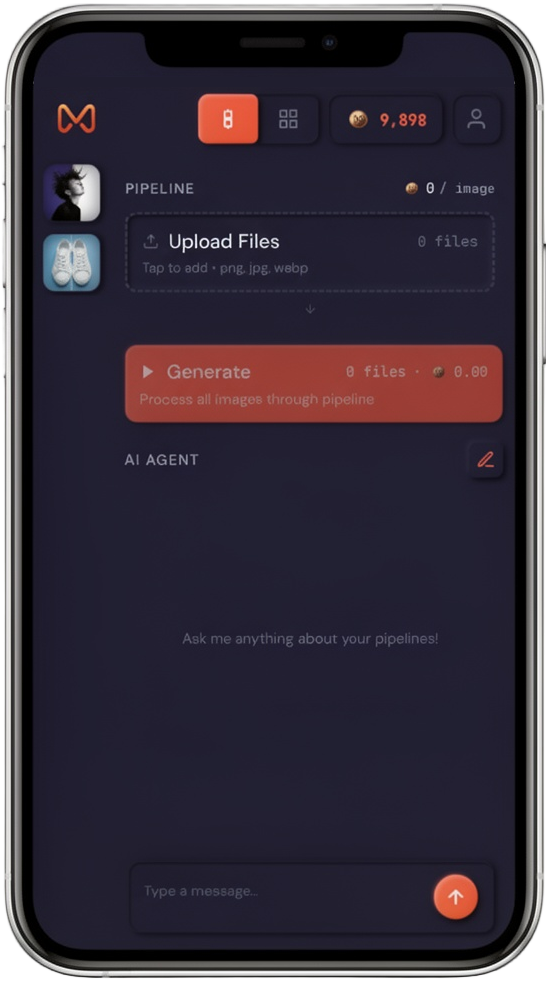
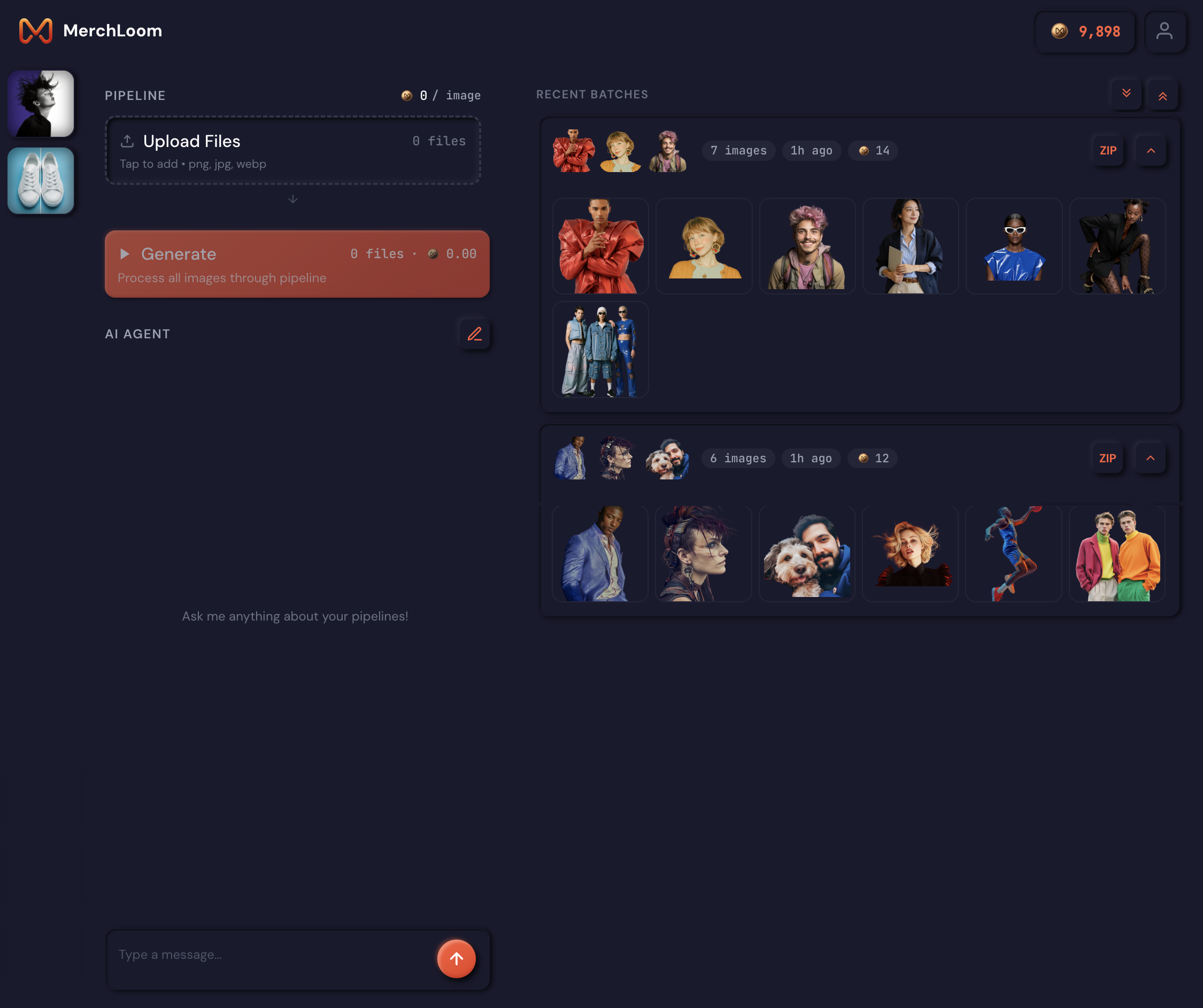
On mobile, drag to reorder pipeline steps, tap to expand settings, swipe through processed images. On desktop, you get the full workspace with all panels visible simultaneously for faster workflows.
Method 1: Manual Pipeline Builder
For sellers who want full control over every setting, the manual pipeline builder lets you construct your workflow step by step.
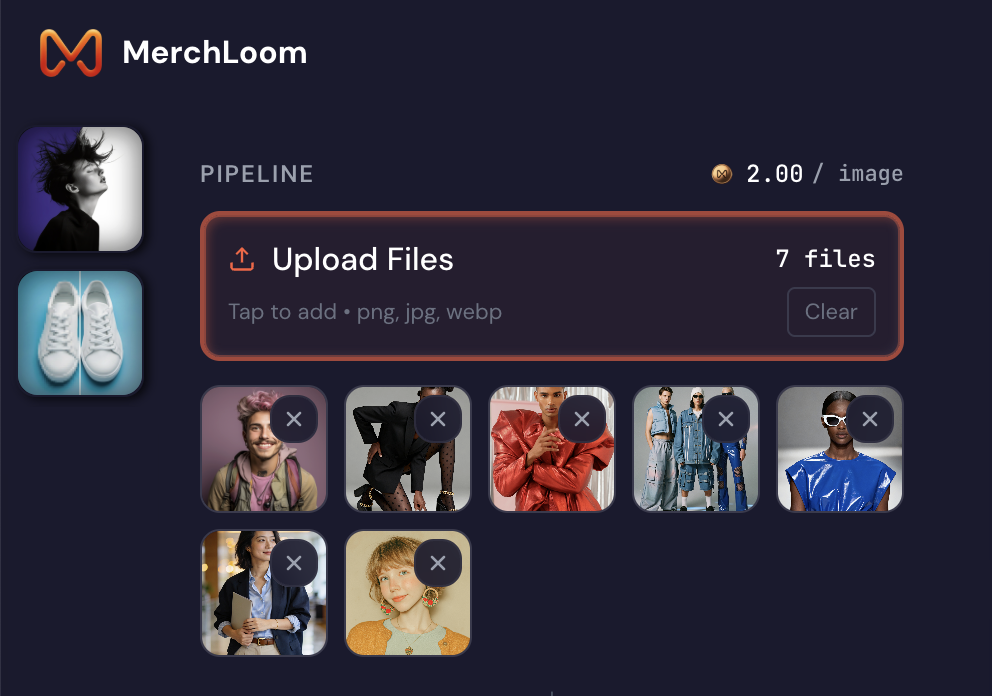
Step 1: Upload Your Images
Start by uploading your product photos. Drag images into the upload area or click to browse. You can upload hundreds of images at once—they'll all be processed together.
Step 2: Add Operations from the Sidebar
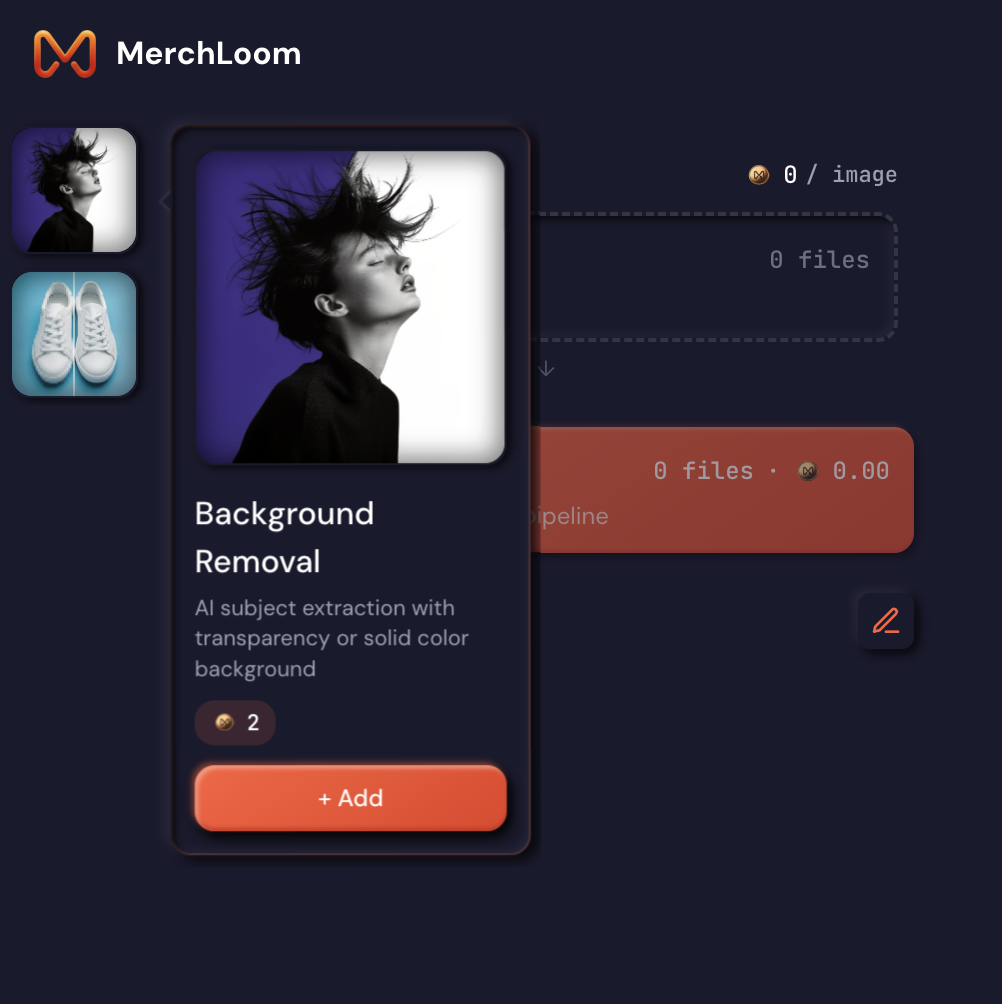
Click any service icon in the left sidebar. A popover shows you the operation details and cost. Click "Add" and it appears in your pipeline.
Step 3: Build Your Pipeline
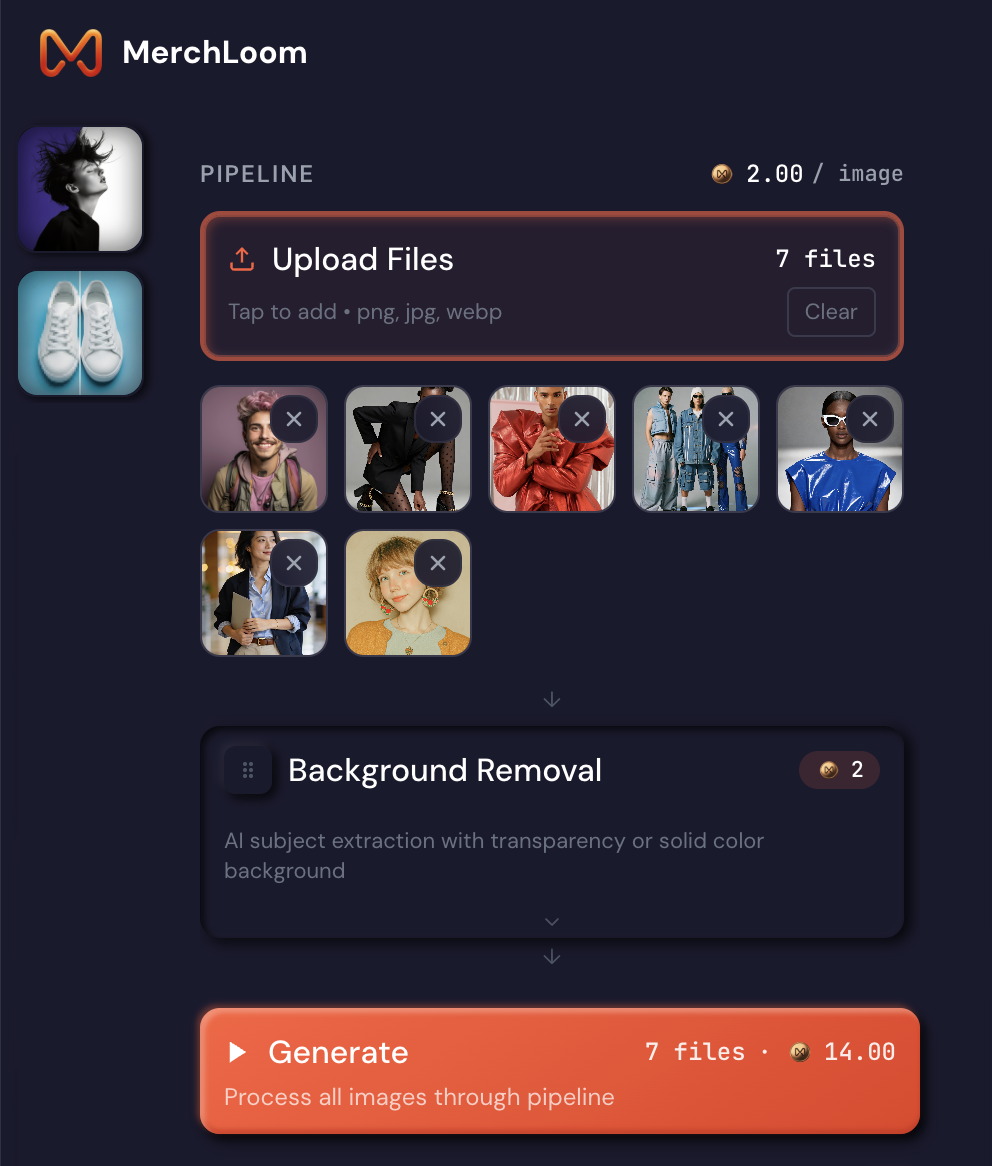
Operations stack vertically with arrows showing the flow. Drag to reorder. Expand any card to adjust settings—output format, quality level, dimensions.
Operation Chaining
The power of Merchloom is chaining. Instead of running background removal, downloading, re-uploading, then resizing—you build one pipeline that does it all. Each image flows through every step automatically.
Step 4: Generate Results
Hit "Generate" and watch the progress bars fill. Every image goes through every operation in sequence. Your processed images appear in the results panel as they complete.
Method 2: AI Assistant
Don't want to click through menus? Just tell the AI what you need.
The assistant lives in the right panel. Type what you want in your language—English, Spanish, French, German, Italian, Portuguese, Russian, Ukrainian, Japanese, or Chinese. It understands your intent, builds the pipeline, and runs the job.
Step 1: Open the AI Assistant
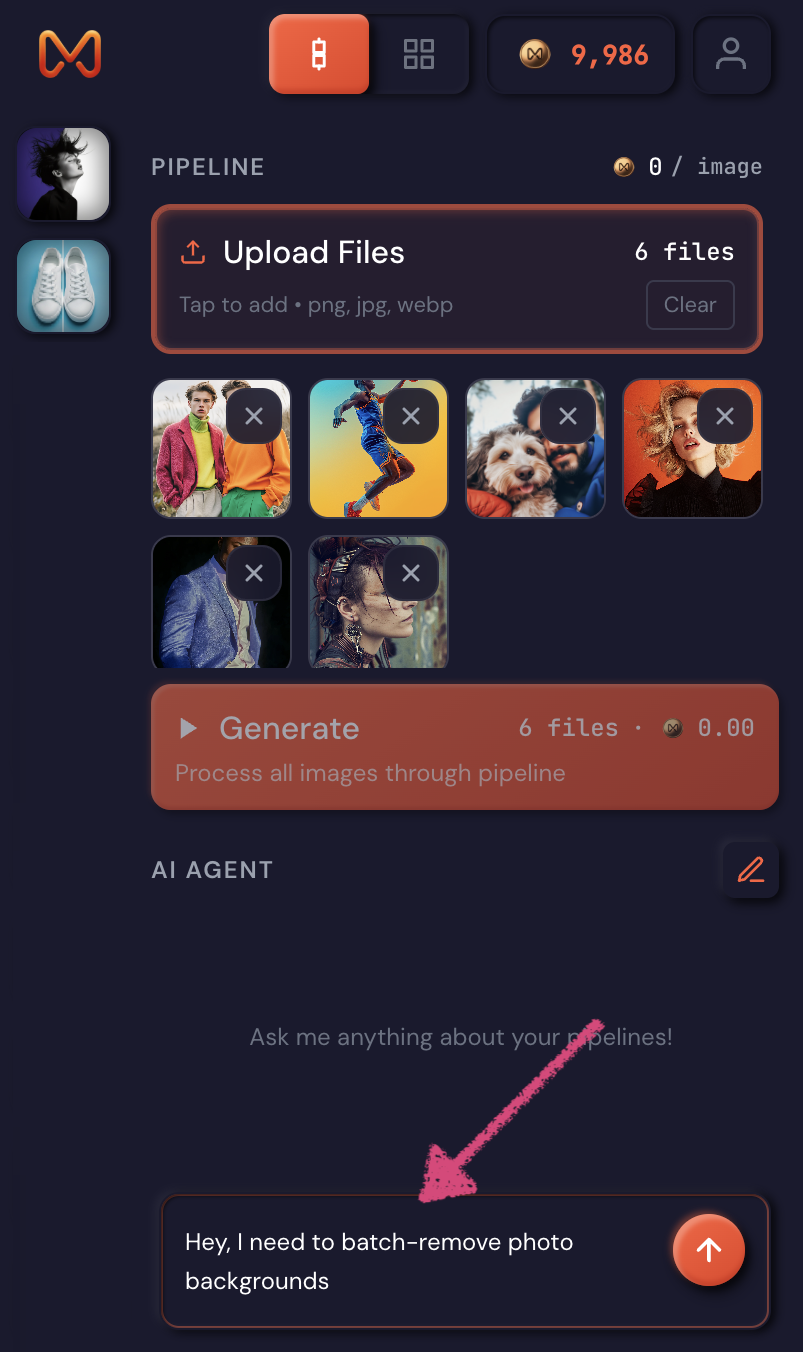
The chat interface is always visible on the right side. Click into the input field and start typing your command in natural language.
Step 2: Describe What You Need
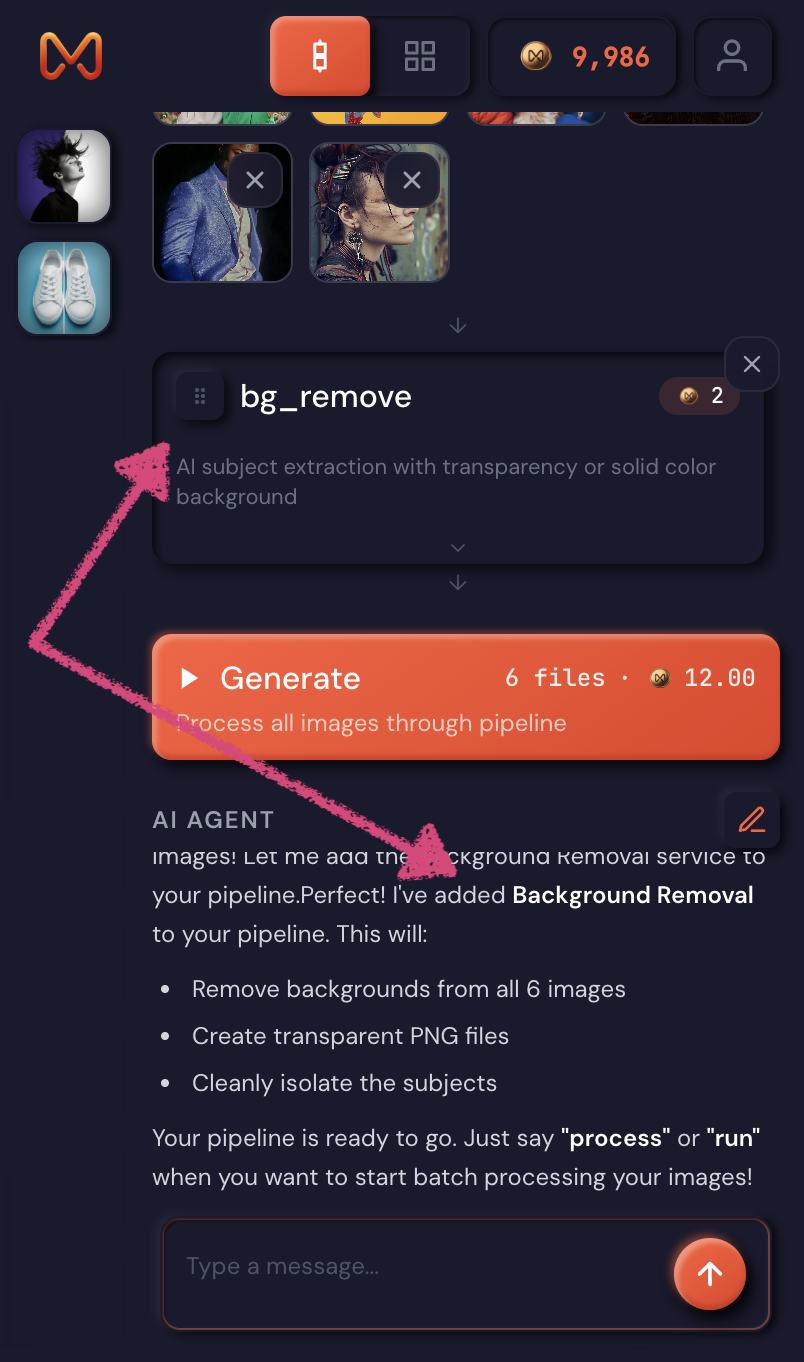
Tell the assistant exactly what you want. Use natural language—the AI understands intent. It will automatically add the right operations to your pipeline and configure the settings.
Doing this for a whole catalog?
MerchLoom runs background removal, upscaling and AI editing across every product photo you have — one prompt, whole batch. Try 2 batches free, no signup.
Try it freeStep 3: Run Your Pipeline
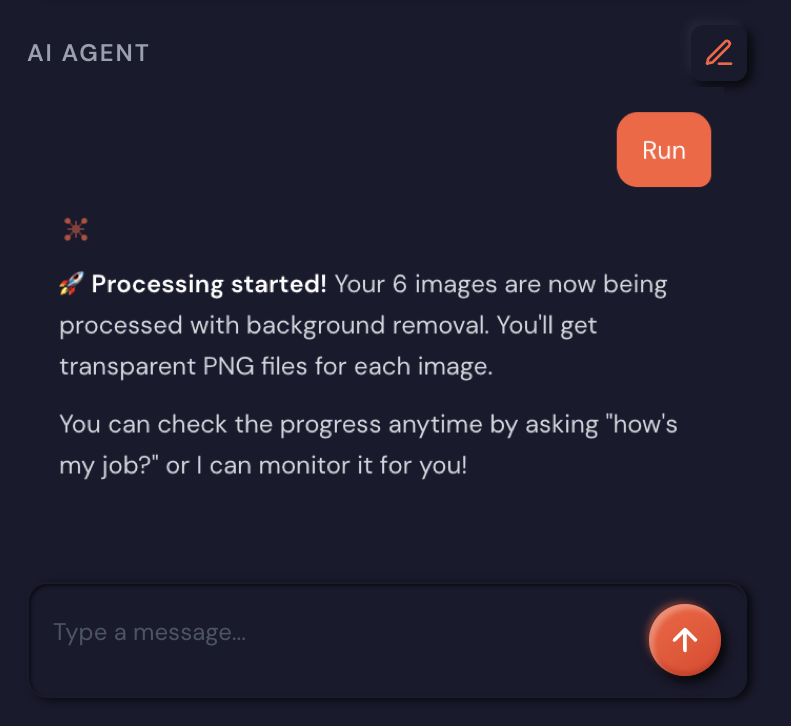
When you're ready, send the "Run" command. The AI confirms that processing has started and your job is queued.
Step 4: Watch the Progress
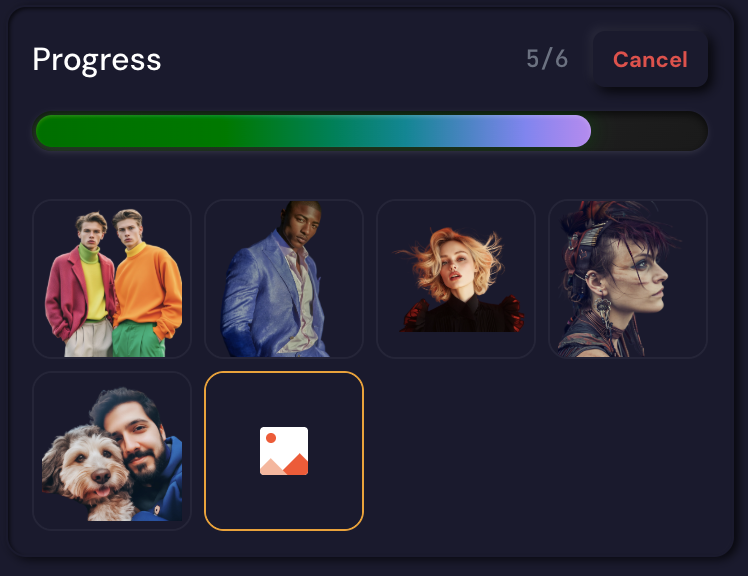
Real-time progress bars show each image moving through the pipeline. Results appear as they complete—no need to refresh or wait for the entire batch.
Same Engine, Different Interface
Whether you use the manual builder or the AI assistant, you get the same processing engine underneath. Same quality. Same speed. Same results. The only difference is how you tell it what to do.
The Results: Before and After
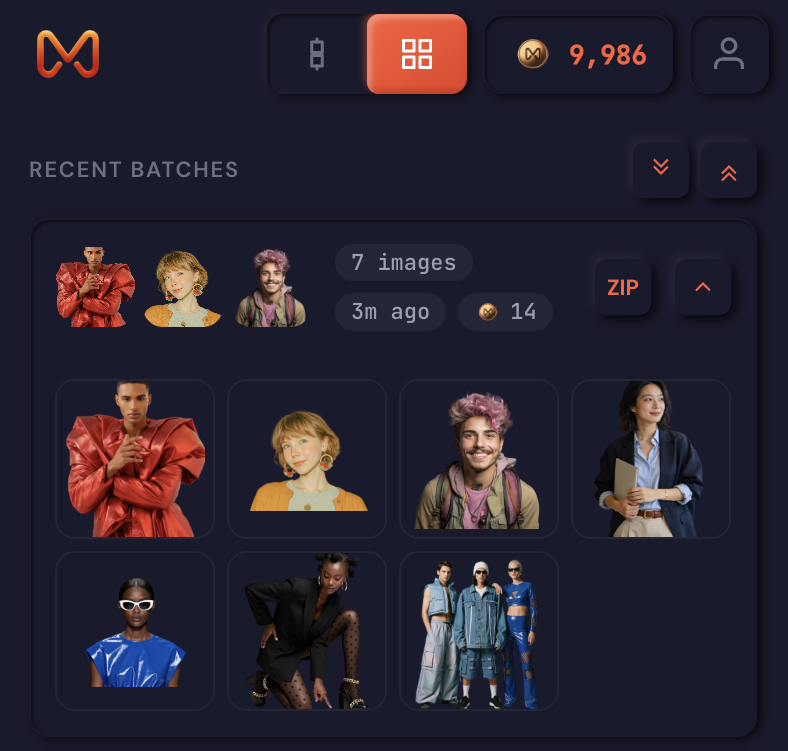
Here's what batch background removal actually produces. These are real product photos processed through Merchloom.ai.







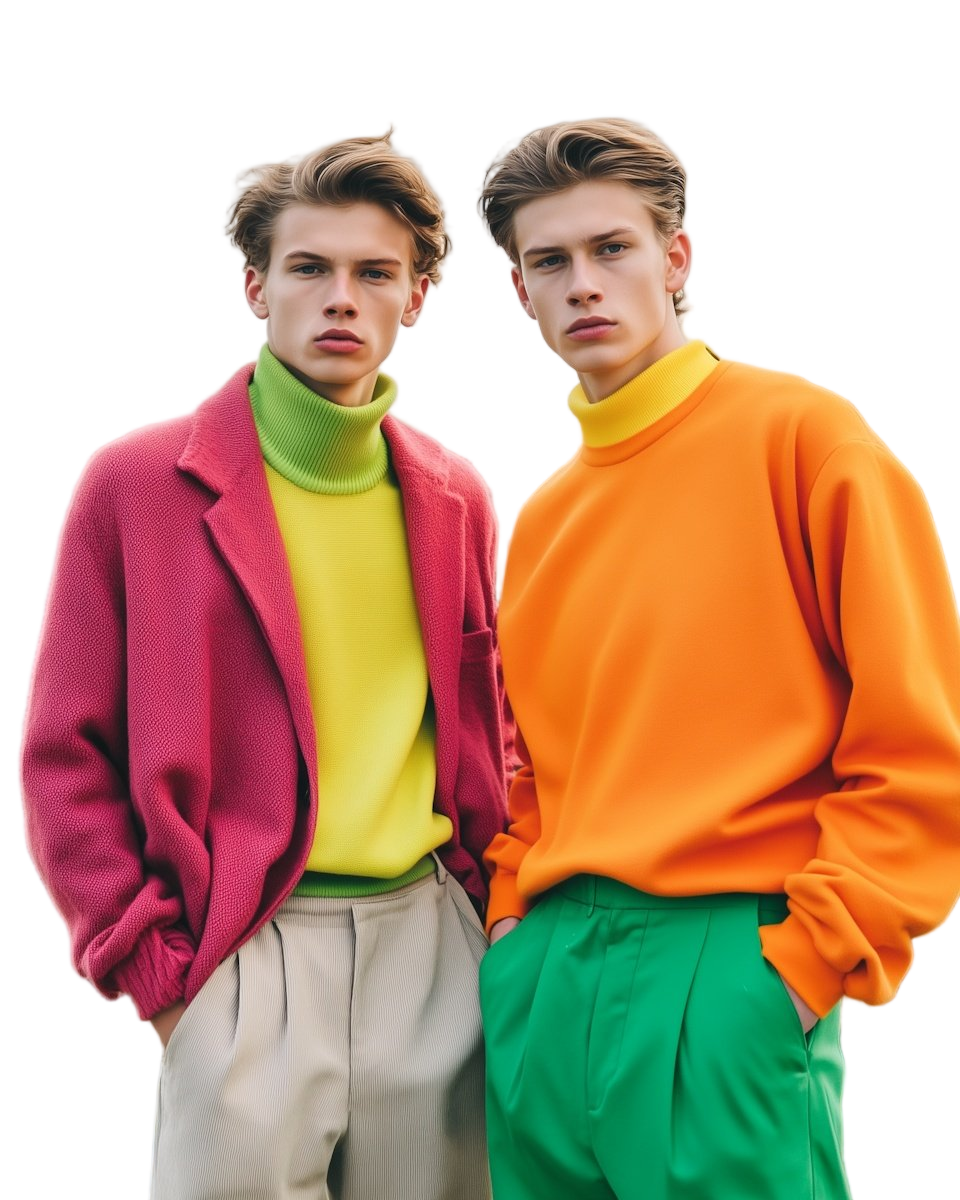

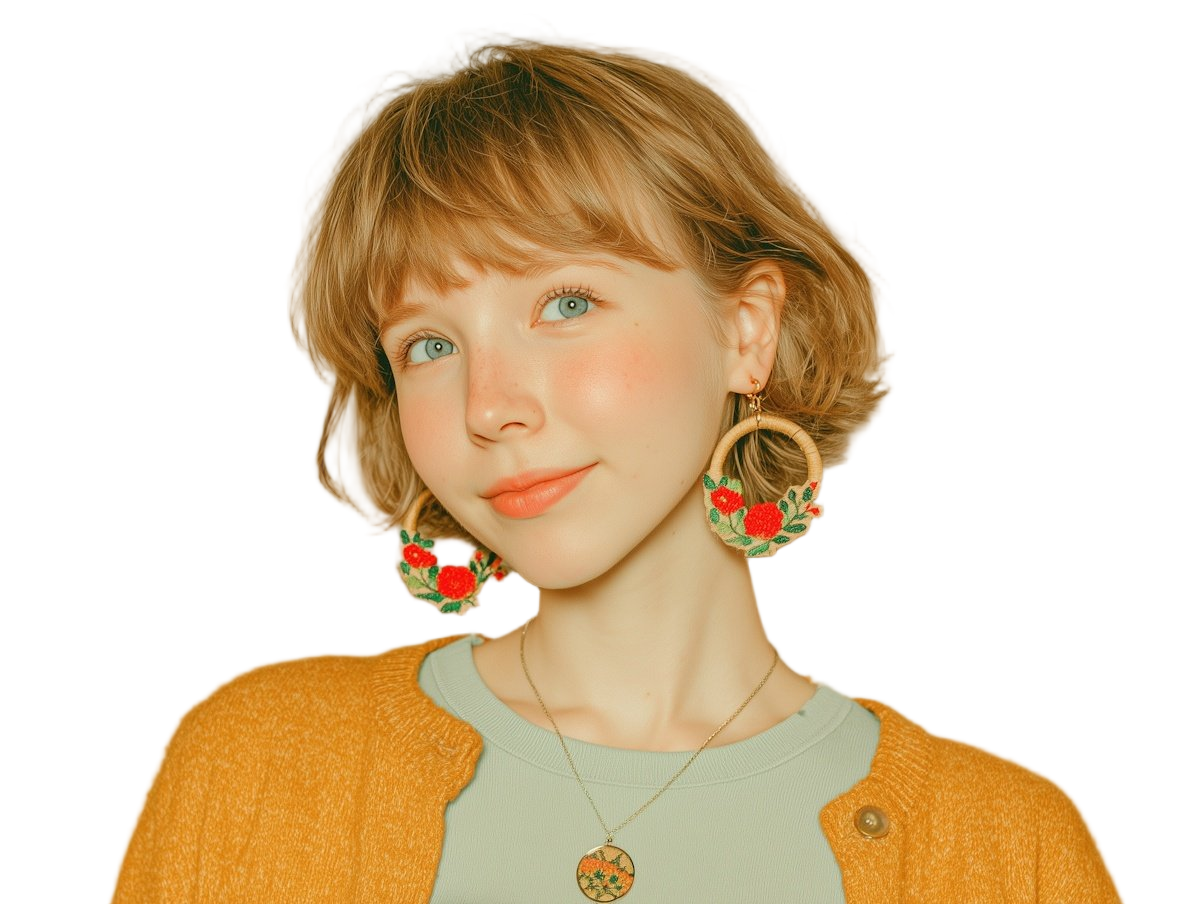
The AI handles complex edges—hair, fur, transparent objects, intricate details. No halos. No rough cuts. Professional results at batch scale.
Viewing and Downloading Results
Processed images appear in a grid. Click any thumbnail to zoom in with a full-screen overlay. The download button is right there on the overlay—grab individual files instantly.
Download options:
- Individual files — Click any image, hit download
- Batch ZIP — Download all processed images in one archive
- Per-job downloads — Each job has its own download button
Job cards expand and collapse so you can manage multiple batches. Cancel buttons let you stop in-progress jobs if you change your mind.
Why This Matters for E-Commerce
Product photography directly impacts sales. Industry research shows professional-quality photos boost conversions by 33%, and 90% of consumers consider high-resolution product images crucial when purchasing online. Clean backgrounds. Consistent sizing. Fast-loading compressed files. These aren't nice-to-haves—they're the difference between a sale and a bounce. Whether you're optimizing for Shopify's image requirements or Amazon's product photo guidelines, batch processing gets you there faster.
But processing images one by one doesn't scale. If you're listing 50 products a week, each with 10 photos, that's 500 images. Every week. Manual editing becomes a full-time job.
Merchloom.ai exists to make batch processing fast, whether you prefer clicking through a visual builder or typing a single sentence to an AI.
Related Reading
Want to understand the bigger picture of where e-commerce tools are heading? Read our deep dive on AI batch image processing for e-commerce and why AI agents are replacing button-based interfaces—exploring the industry shift, architectural requirements, and what it means for sellers processing thousands of product images.
Try It Yourself
We're onboarding early users now. If you process product photos regularly—for Shopify, Amazon, Etsy, or any marketplace—see how batch processing changes your workflow.
Upload once. Process everything. Download the results.
No credit card required for early access.
Get StartedMerchloom.ai — Batch image processing for e-commerce. Now in early access.
Product photos courtesy of Lummi.ai — royalty-free AI-generated stock images.
Stop editing product photos one at a time
Upload your catalog or connect your store. Describe the result once. MerchLoom does the rest.
Try it free — no signup